Appraisal alerts allow district administrators to schedule notifications from the system to help evaluators keep track of the tasks they have completed and which ones they need to do.
Quick Guide
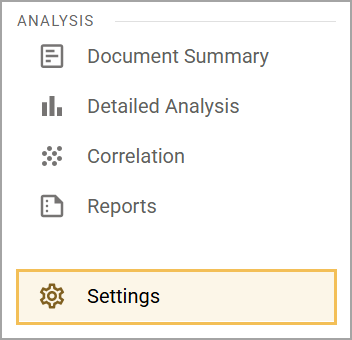
In Strive, select Settings ().
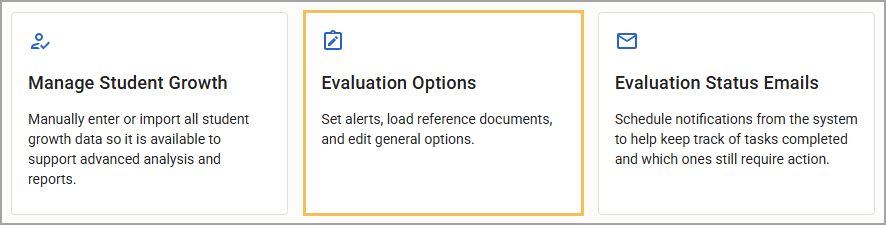
Select Evaluation Options.
Select Manage Appraiser Alerts to display past and upcoming alerts.
To configure a new upcoming alert, select New Alert.
Determine the email alert’s subject line, its body text, and the date you want it sent to evaluators.
Select Save () to save the details and create the alert. If you ever need to stop an alert from going out, select Delete () instead.
Illustrated Guide
Step 1: In Strive, select Settings ().
Step 2: Select Evaluation Options.
Step 3: Select Manage Appraiser Alerts to display past and upcoming alerts.
.png)
Step 4: To configure a new upcoming alert, select New Alert.
.png)
Step 5: Determine the email alert’s subject line, its body text, and the date you want it sent to evaluators. For example, you could remind evaluators about important deadlines for the evaluation process.
.png)
Step 6: Select Save () to save the details and create the alert. Be sure to save if you change any information before the alert date. If you ever need to stop an alert from going out, select Delete () instead.