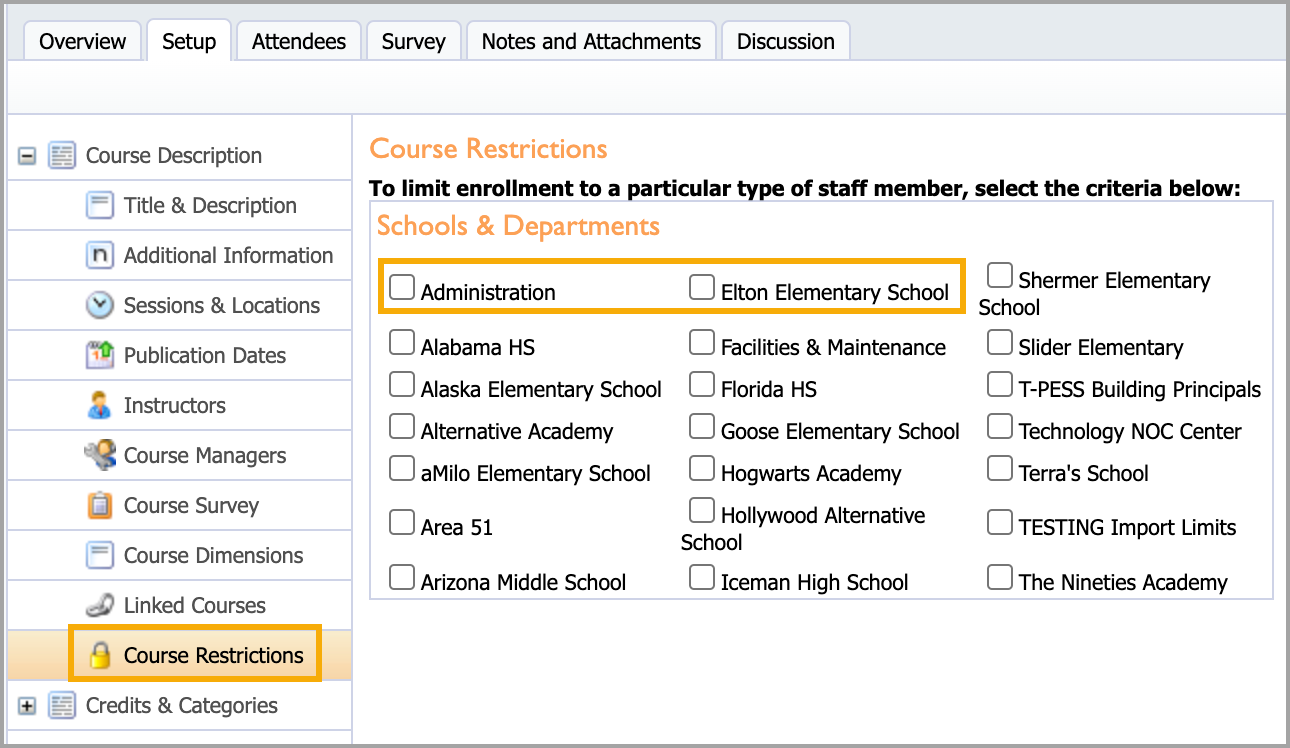
The Course Description settings allow users to generate or modify course titles, descriptions, sessions, locations, publication dates, registration dates, survey dates, instructors, course managers, course surveys, course dimensions linked to frameworks, linked courses, and course restrictions.
Access course setup options by selecting Catalog > Manage Courses > Course Management > Courses, then locate your course by date or keyword search.
Course Description Sections
Select the Save button after modifying each section to save results.
Title & Description
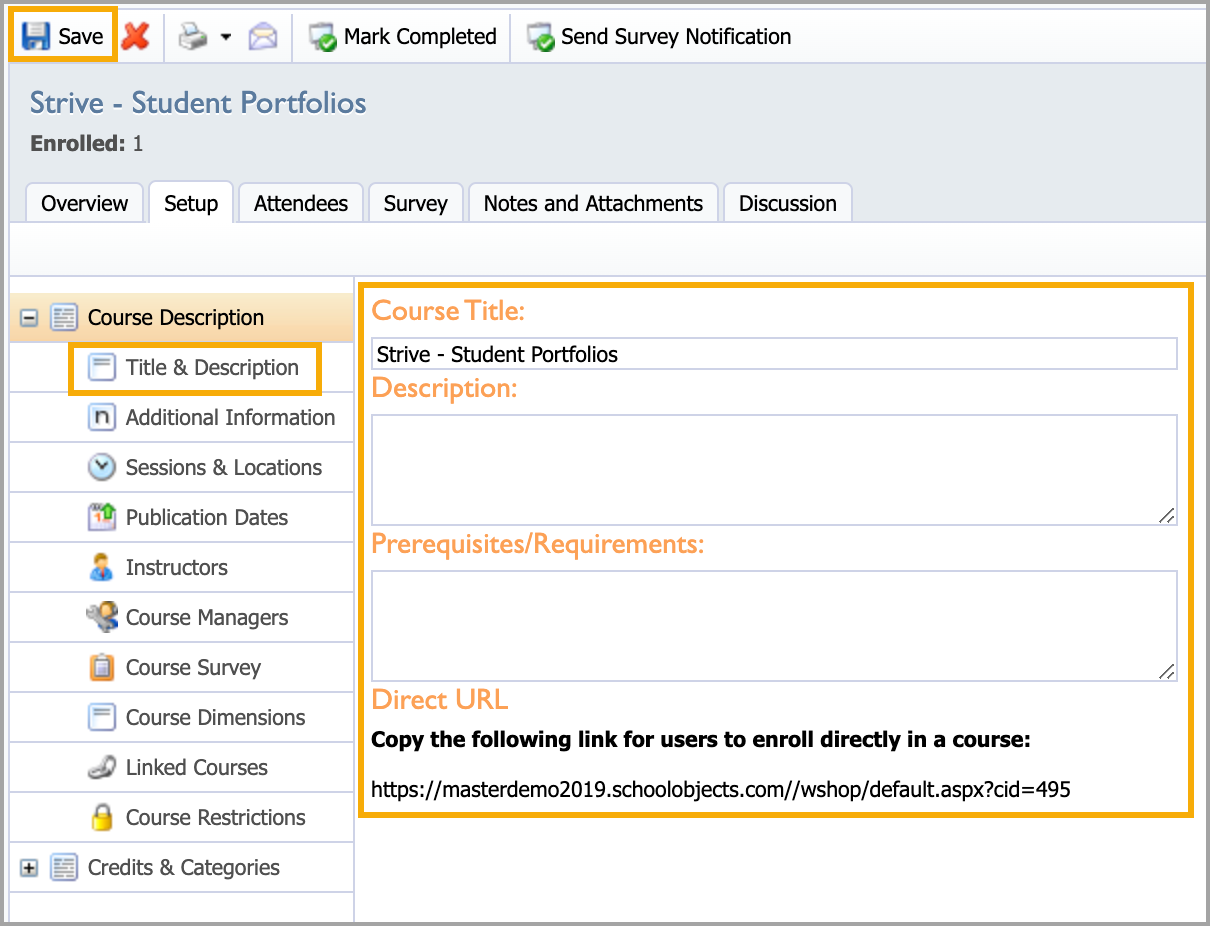
Title & Description includes required and optional sections for entering information that appears to course registrants.
Course Title (required): title of the course
Description (optional): description of the course visible to enrollees
Prerequisites/Requirements (optional): course expectations
Direct URL (auto-generated): PA Direct URL that directs staff members to register for a specific course
Additional Information
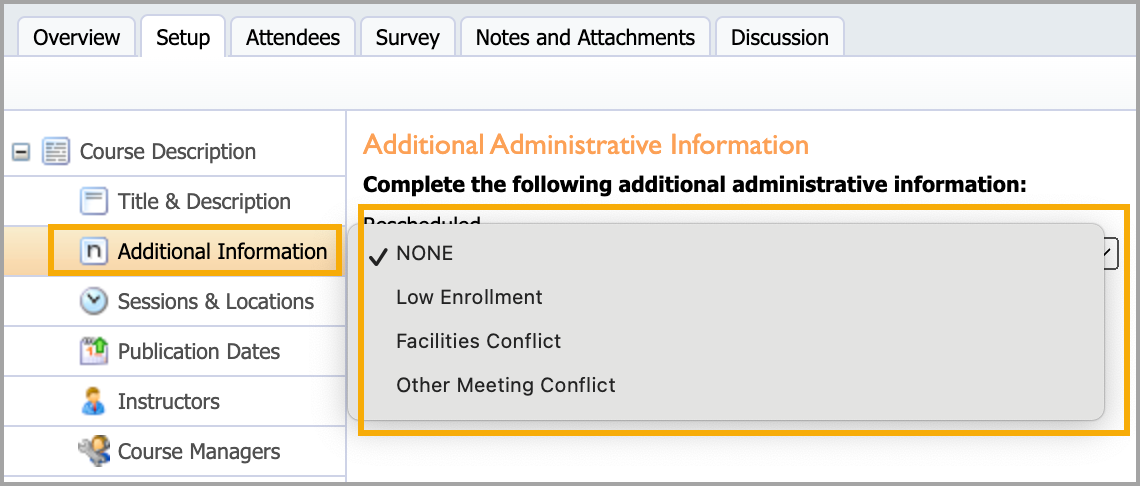
Additional Information allows for optional administrative information on the course. Use a drop-down menu to include additional information on enrollment and facilities.
Sessions & Locations
Sessions & Locations allows administrators to create or modify date, time, location information, and Digital Sign-in for individual sessions.
Select the green plus icon to create a new entry.
Select the current dates and times to modify an entry:
Start Date/Time: Select using the calendar icon.
End Date/Time: Select using the calendar icon.
Location: Select from the drop-down menu.
Substitute: Attendees can select if they need a substitute.
Enable Digital Sign-in: Check the box to create a QR code for attendee sign-in.
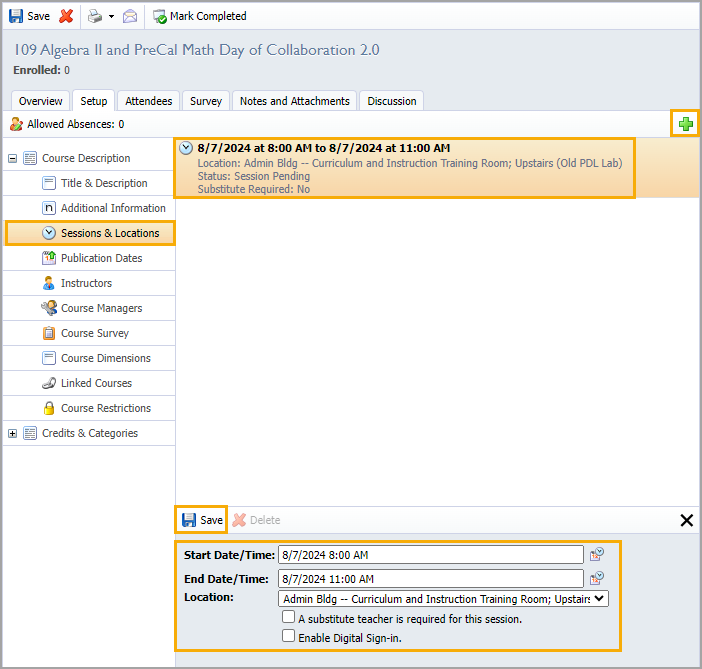
You must save all changes within the selected session’s window to apply them.
Digital Sign-in removes the option to add multiple sessions using the green plus icon and marks all attendees as absent until they sign in and confirm their attendance using the QR code.
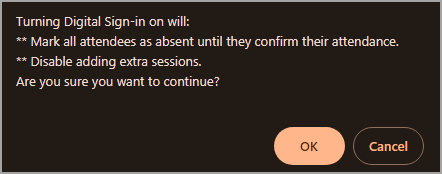
Checking the box adds a Digital Sign-in tab that hosts the QR code along with the following options:
Print QR Code
Download QR Code
Open in New Tab
Copy URL to Clipboard
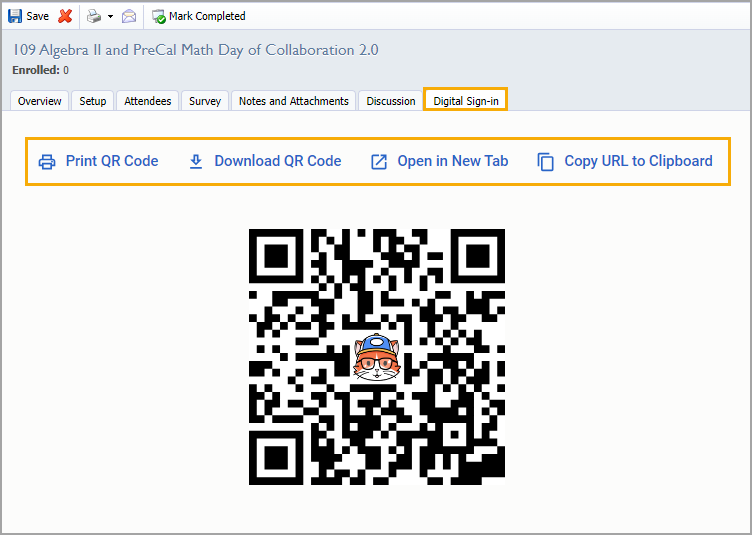
Upon scanning the QR code, attendees can sign in and confirm their attendance for the session. QR code links are active 15 minutes before the session starts and 15 minutes after the session ends.
Publication Dates
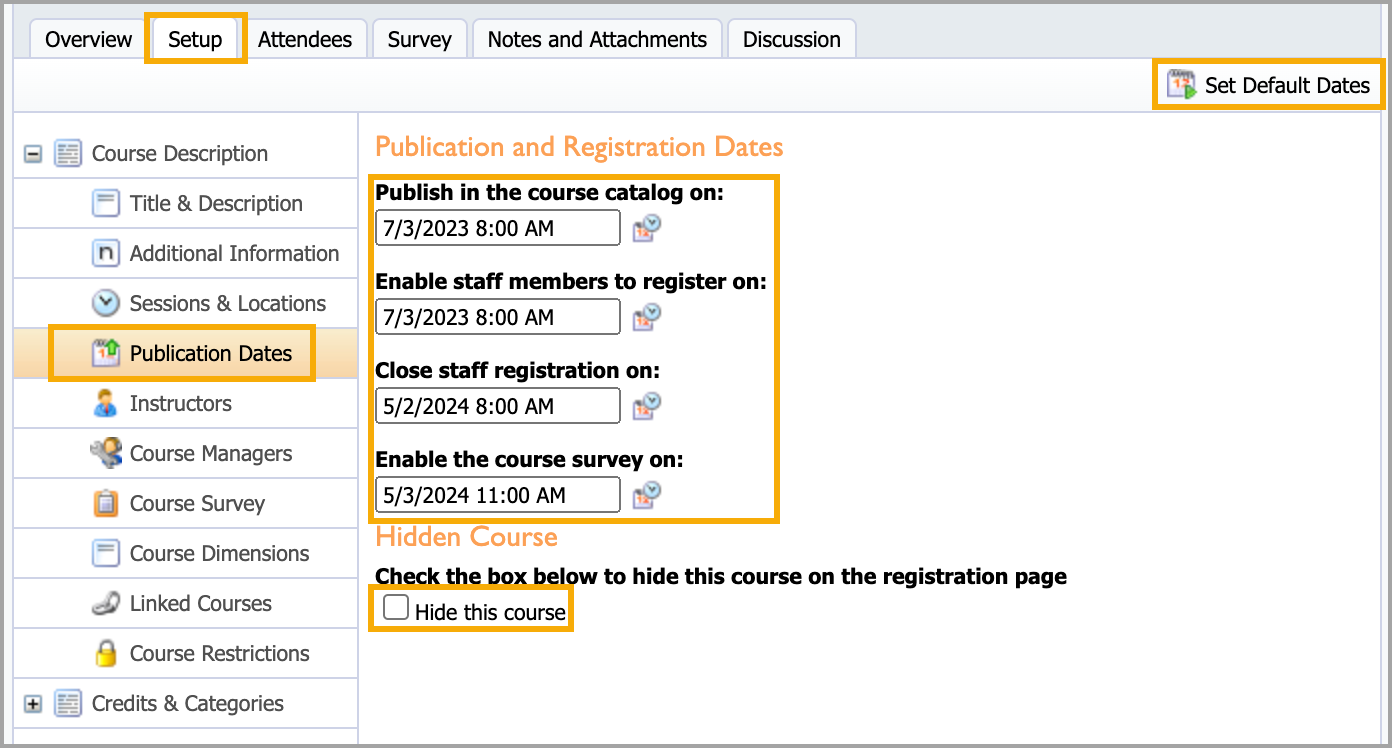
Publication Dates provides registration and publishing options.
Publish in the course catalog: The course appears on the Available Courses.
Enable staff members to register on: Opens course registration.
Close staff registration on: Closes course registration.
Enable the course survey on: Open course survey access.
Hidden Course: Hides the course on the course registration page so only registrants with a URL can register for the course.
Instructors
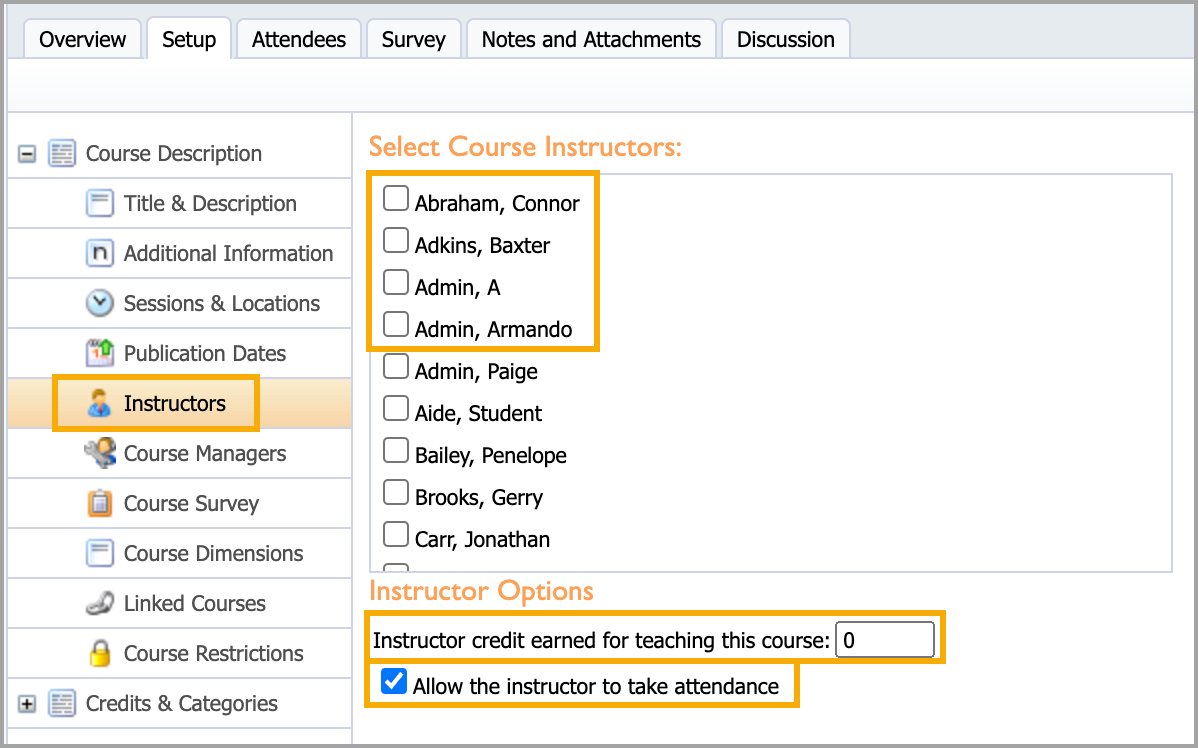
Instructors allows users to select course instructors, grant instructors rights to take attendance, and give instructors course credit.
Select Course Instructors: Check as many instructors as needed for the course.
Instructor Options: Enter professional development credit units to instructors.
Allow the instructor to take attendance: Activates attendance settings in the course.
Course Managers
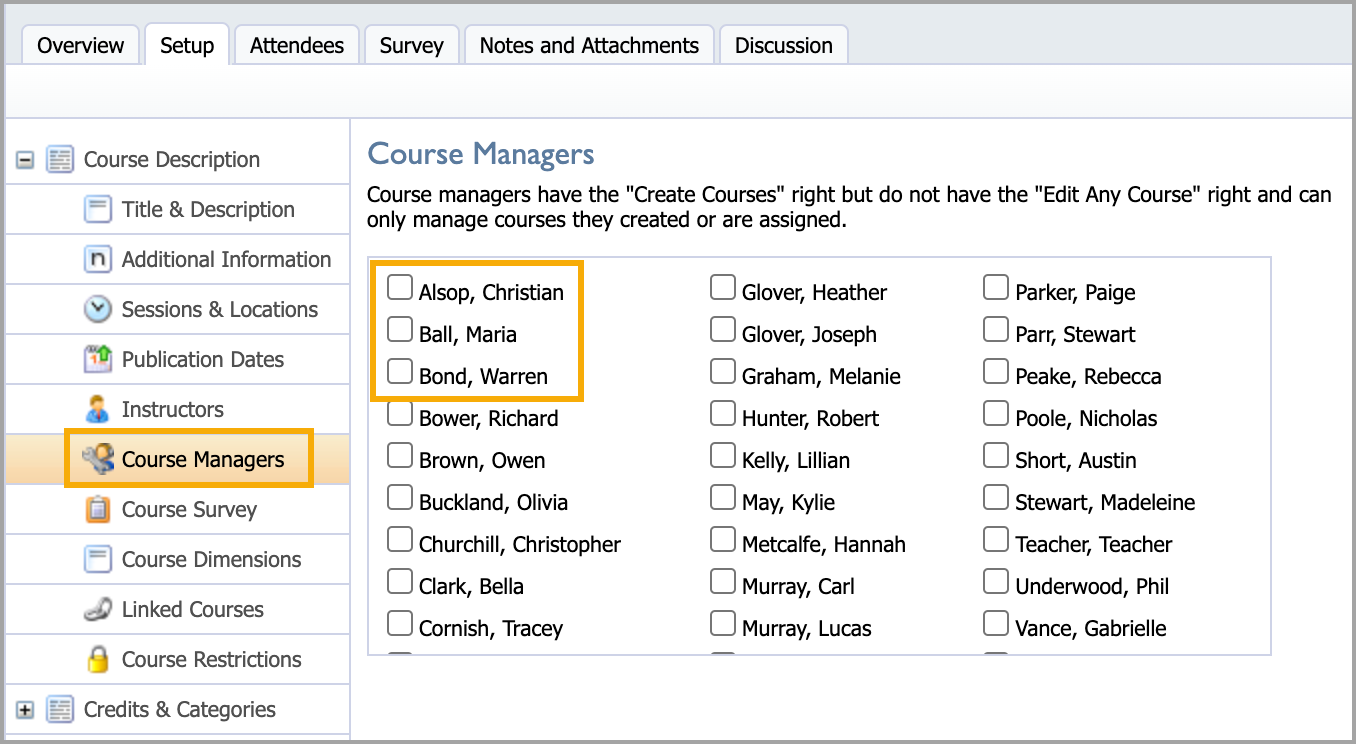
Course Managers are specific staff members who can only manage courses they create or courses to which they are assigned. This alphabetical list is populated by giving a staff member the role of Limited Course Creator.
Course Survey
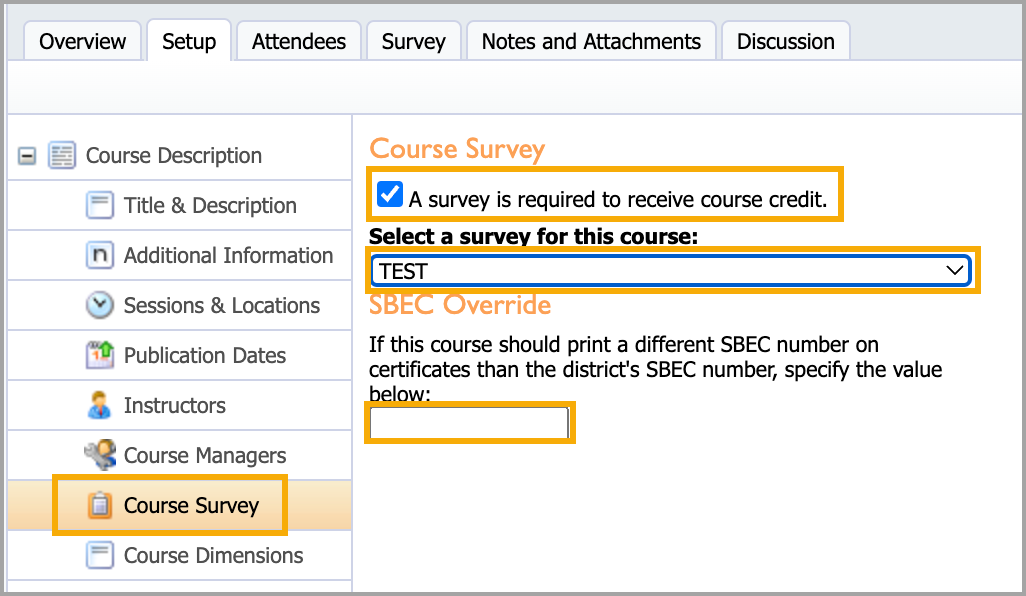
Course Survey allows users to require attendees to complete a survey to receive course credit, select the type of survey for the course, and specify a different SBEC number (Texas specific) for the course certificate.
Warning: Surveys must be completed before the course is marked complete in the system. Once the course is Marked Complete, any attendees who did not take the survey cannot receive course credit.
Course Dimensions
Course Dimensions allow users to select multiple frameworks and dimensions to a course.
.png)
Linked Courses
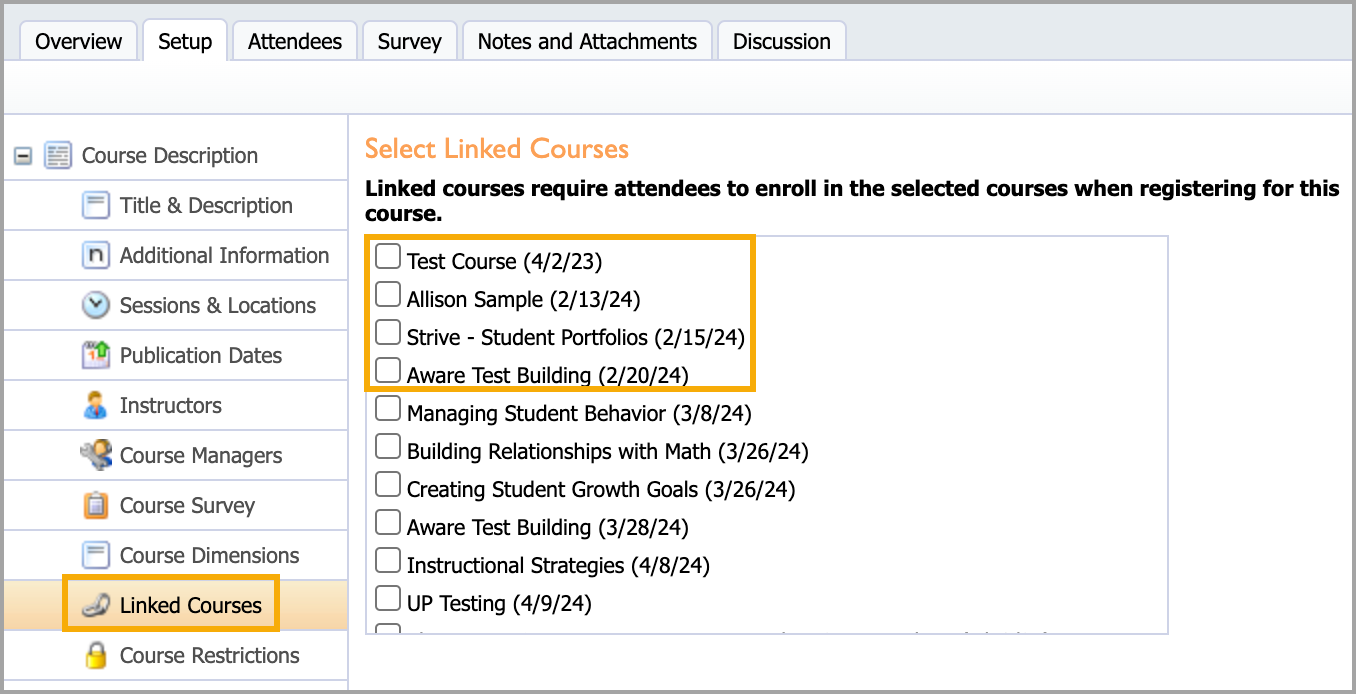
Linked Courses allow users to link multiple courses for registration. Registering for any linked course automatically registers staff members for all linked courses.
Course Restrictions
Course Restrictions allow users to course registration to specific schools or groups. If no boxes are checked, registration is open to everyone.