The Online tab is where test authors can establish online testing settings for the assessment and manage content clarifiers.
Test Settings
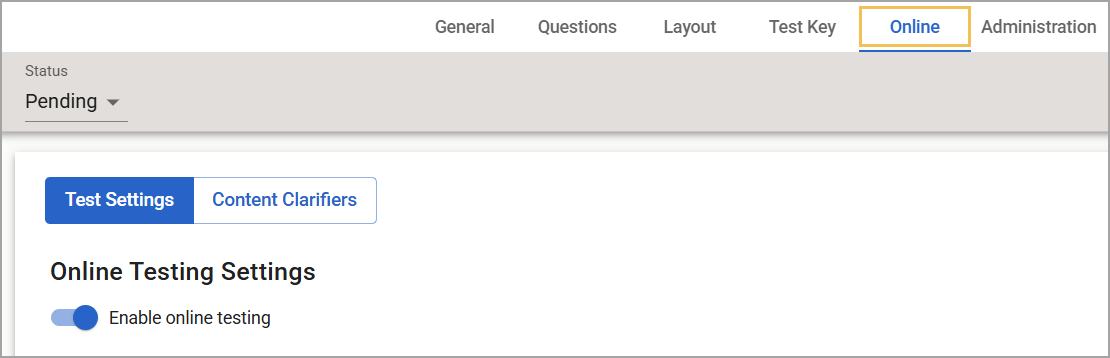
Navigate to the Online tab if students will take a test online.
To Enable online testing, select Test Settings, and toggle on the option under Online Testing Settings.
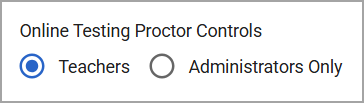
Online Testing Proctor Controls
Select one of the following Online Testing Proctor Controls:
Teachers
Administrators Only
Access Controls
If you select Teachers, the teacher will need to click Available once students are ready to begin taking the test. The teacher will also need to click Unavailable once students are finished testing.
If you select Administrators Only, a test administrator must click Available once students are ready to take the test. The test administrator must also click Unavailable once students are finished testing.

Student Login URL
Locate your district’s Student Login URL, which students will use to access the Student Testing Portal. We recommend that districts save this as a bookmark for students if possible. Students will log in with their local Student ID number and password.
There are three ways a system administrator or teacher can set a student password:
By accessing the General tab in the student’s profile;
By importing a CSV file from the Roster tab in Management; and
By clicking Set Default Password under Manage Schools in Management as a system administrator, which will give all students for that school the same password.

AI Scoring
Test Authors with Aware Premium can activate AI Scoring on individual assessments. Toggle on Enable AI Scoring for Constructed Response Questions to apply AI Scoring at the test level. If AI Scoring is available for the test type, this setting allows it on some tests but not others.
.png)
Interactive Test Settings
Test authors can toggle on the remaining interactive test settings as appropriate to accommodate students. These test settings include the following:
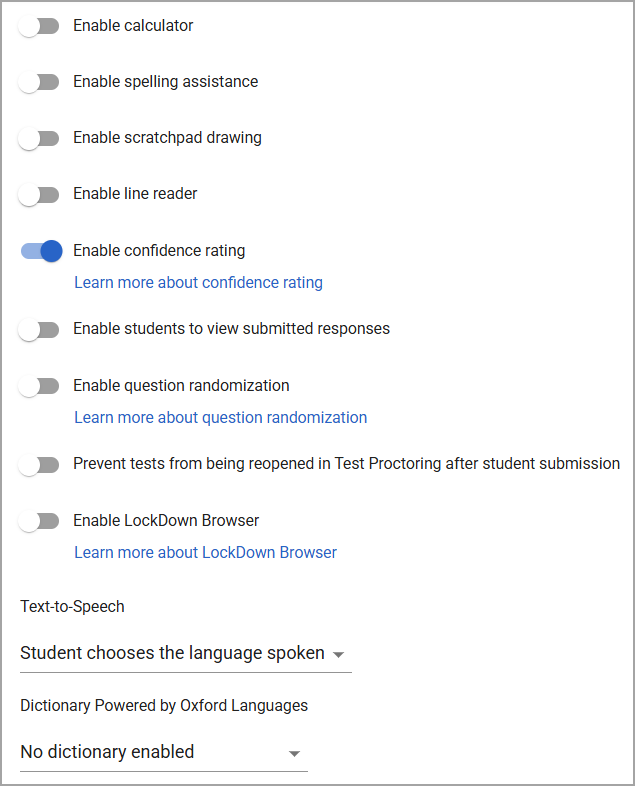
Text-to-Speech offers three options:
Student chooses the language spoken
English language (pronunciation accent)
Spanish language (pronunciation accent)
The Dictionary Powered by Oxford Languages setting also offers three options:
No dictionary enabled
English dictionary
Spanish dictionary
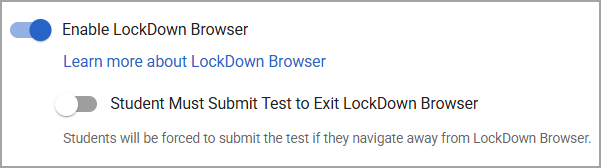
If you select Enable LockDown Browser, you can also select the optional Student Must Submit Test to Exit LockDown Browser setting for the test.
Content Clarifiers
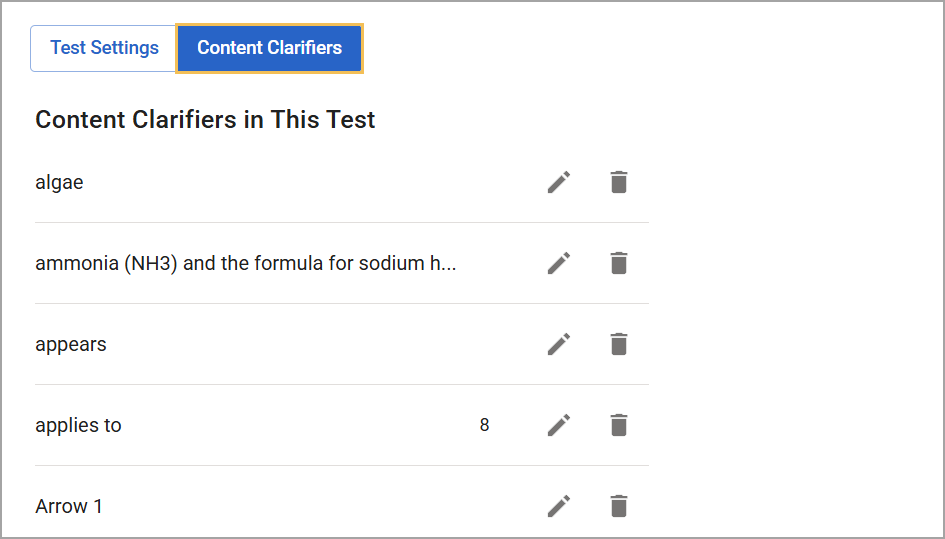
Under the Online tab, click on Content Clarifiers to manage the list of content clarifiers you created for the assessment.
Before Implementing Online Testing
Eduphoria strongly recommends that districts click Preview Online Testing on the Online tab during assessment creation before administering an online test. In addition, keep in mind the following points:
The preferred browser for online testing is Chrome.
Eduphoria officially supports online testing using desktops, laptops, iPads, and Chromebooks.
Test authors should ensure they test on the same type of computer (Mac, PC, Chromebook, etc.) with the same operating system (iOS, Windows, etc.) using the most updated browser version your students will use during online testing.
Test authors should confirm that all images, resources, and multimedia files function correctly.