The ability to copy prior observation data into the forms saves time and provides a starting point from observations for completing the year’s summary.
Using an Existing Summative Form
Someone in your district with the Appraisal Administrator role must complete the following steps to activate an evaluator’s ability to import data from observation documents to the summative form.
Quick Guide
Select Settings () from the main menu.
Select Form Management.
Select the My Forms tab.
Select the Summative form type, and then locate the form you want to use.
Select Advanced Options ().
Under Scoring & Data, check the box for Import existing observation data when a Summative is created. Your selection automatically saves.
Illustrated Guide
Step 1: Select Settings () from the main menu.
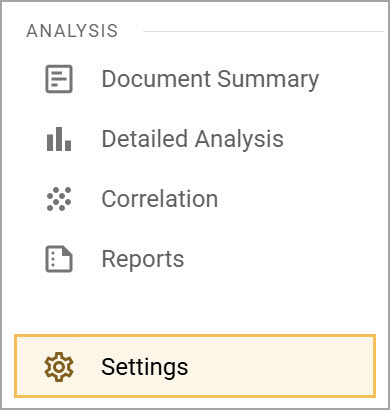
Step 2: Select Form Management.
.png)
Step 3: Select the My Forms tab.
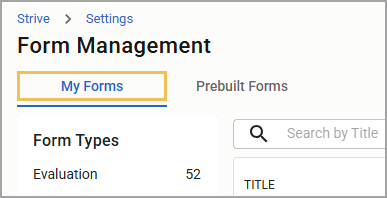
Step 4: Select the Summative form type, and then locate the form you want to use.
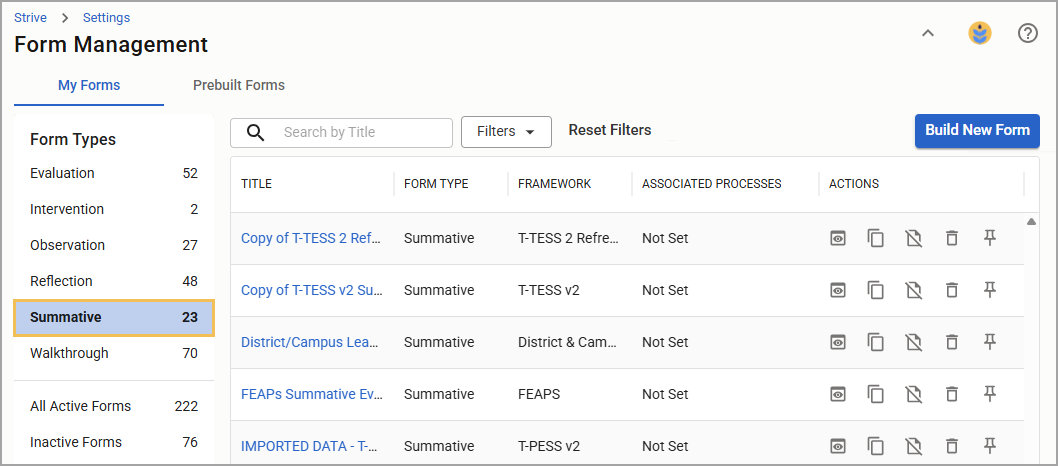
Step 5: Select Advanced Options ().

Step 6: Under Scoring & Data, check the box for Import existing observation data when a Summative is created. Your selection automatically saves.
.png)
Creating a Summative to Match the Observation Form
Some districts may use a summative form that more closely resembles the observation form to ensure comments and ratings copy over. Creating a copy of a summative form allows you to match an observation form. This ensures you have the best possible outcome for copying information from the observation to the summative.
Quick Guide
Select Settings () from the main menu.
Select Form Management.
Select the My Forms tab.
Select the Summative form type, and then locate the form you want to use.
Select the Copy icon () under the form’s Action column.
Rename the copy of the summative form as needed, then select Create Copy.
Review the copied summative form.
Illustrated Guide
Step 1: Select Settings () from the main menu.
Step 2: Select Form Management.
Step 3: Select the My Forms tab.
Step 4: Select the Summative form type, and then locate the form you want to use.
Step 5: Select the Copy icon () under the form’s Action column.
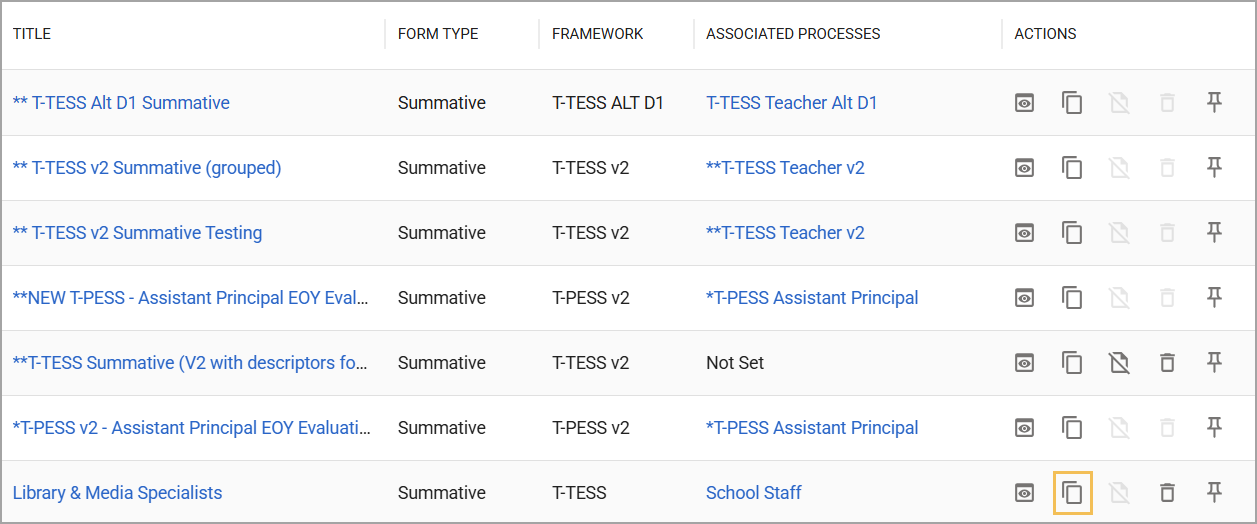
Step 6: Rename the copy of the summative form as needed, then select Create Copy.
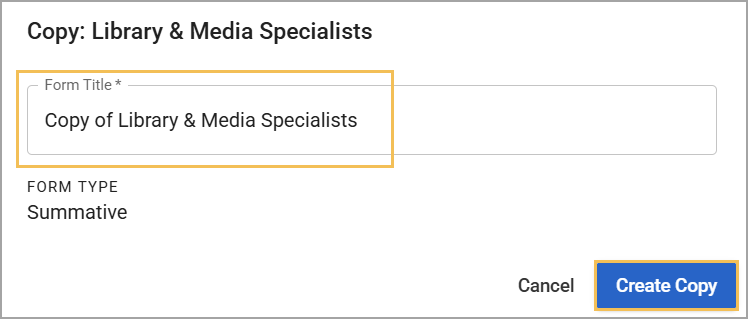
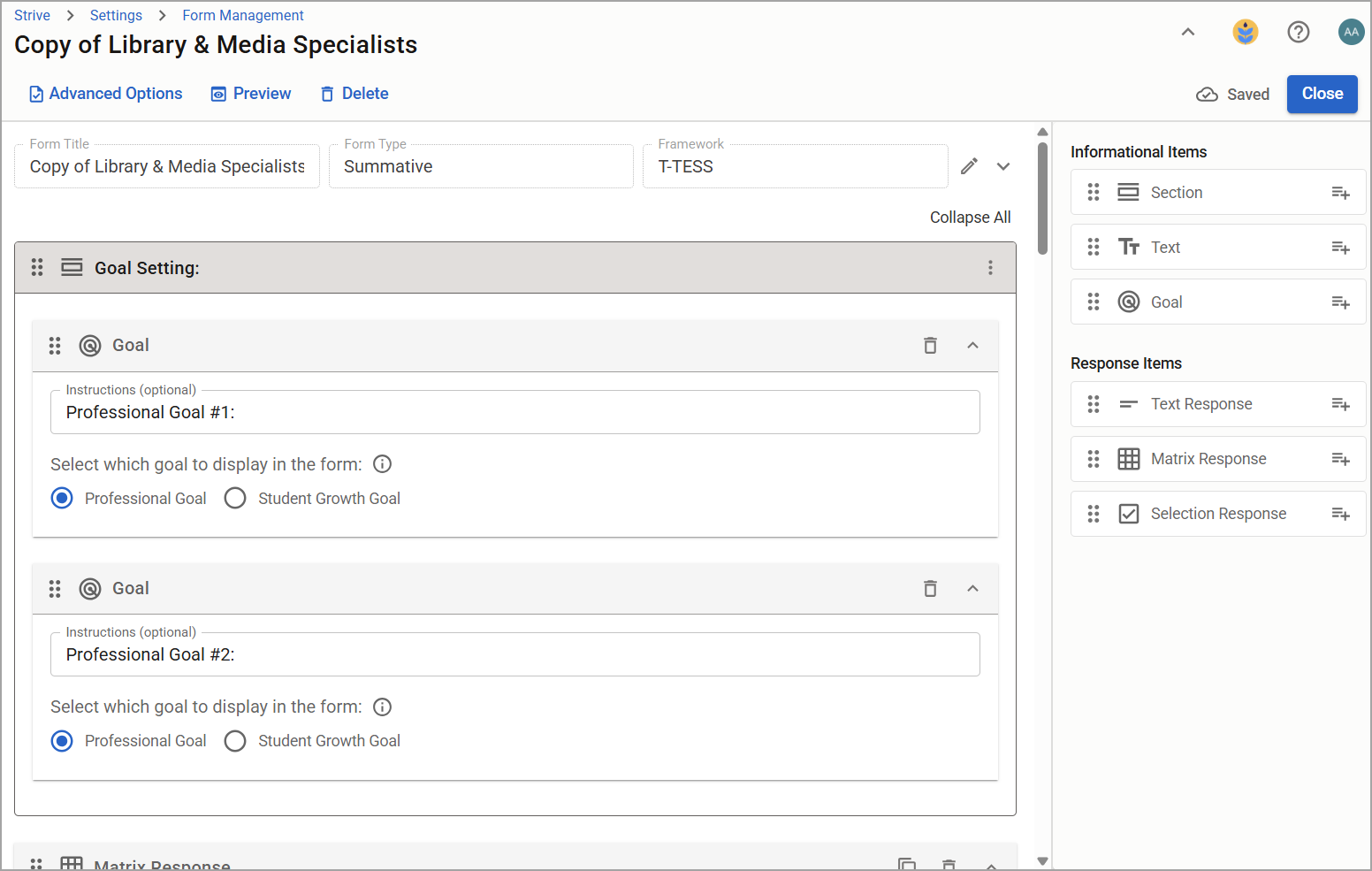
Step 7: Review the copied summative form.
Scoring Information
Ensure all rows in the matrix response items are assigned framework tags in both the observation and the summative forms so you can copy ratings correctly.
Quick Guide
Select Settings () from the main menu.
Select Form Management.
Select the My Forms tab.
Select the Summative form type, and then locate the form you want to use.
Review the assigned framework tags for each row in the matrix response items to ensure they are correct.
Illustrated Guide
Step 1: Select Settings () from the main menu.
Step 2: Select Form Management.
Step 3: Select the My Forms tab.
Step 4: Select the Summative form type, and then locate the form you want to use.
Step 5: Review the assigned framework tags for each row in the matrix response items to ensure they are correct.
.png)
Learn more about Tagging Evaluation Forms for Data Analysis and the Summative Panel.
Copying Comments and Ratings
Quick Guide
Select Settings () from the main menu.
Select Form Management.
Select the My Forms tab.
Select the Summative form type, and then locate the form you want to use.
Under each text response item, review and select the appropriate framework tags.
Illustrated Guide
Step 1: Select Settings () from the main menu.
Step 2: Select Form Management.
Step 3: Select the My Forms tab.
Step 4: Select the Summative form type, and then locate the form you want to use.
Step 5: Under each text response item, review and select the appropriate framework tags.
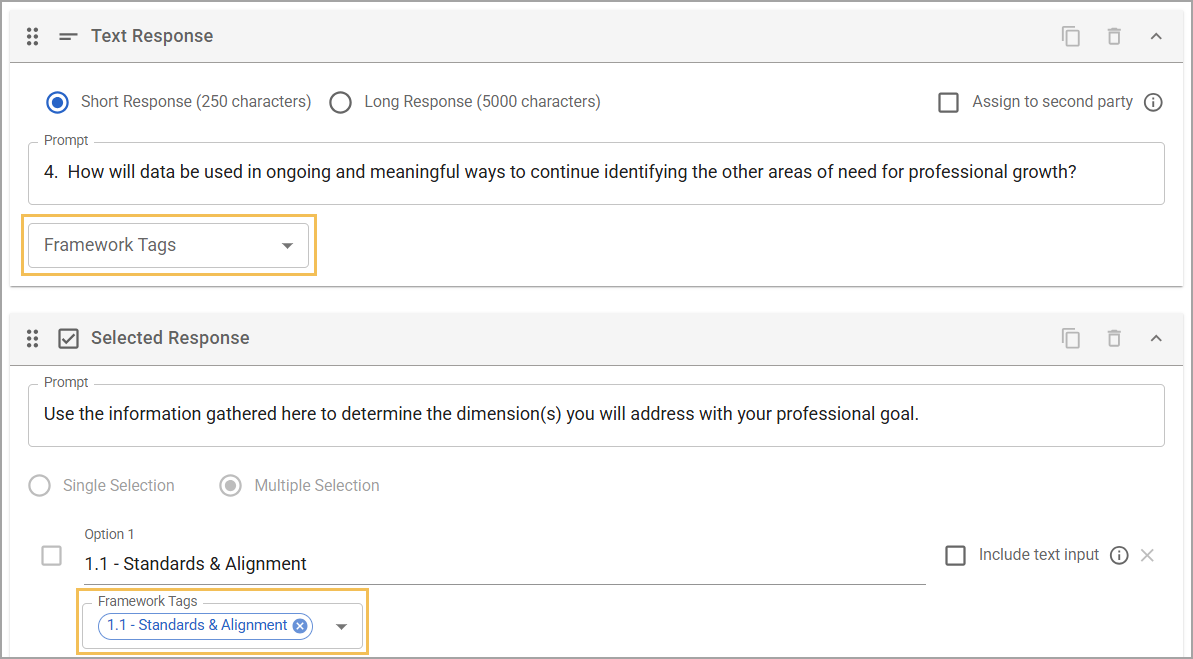
Note: Evaluators might need to delete some comments or evidence that copy to multiple dimensions. If you use a form with separate evidence for each dimension, select the dimension individually or check all dimensions to copy comments and evidence for the entire domain.
Scored Versus Not Scored
If your form is scored and the ratings have numerical values, the form reports scores based on those values in the matrix response item. If there is more than one observation, the scores are averaged and rounded up in the teacher's favor. For example, if there are three observations and two evaluators select Proficient while one selects Developing, the form copies the Proficient rating because Proficient was selected more than once.
However, if your form is not scored, the ratings do not have numerical values to copy. In this case, the form reports the most frequently selected rating. For example, if there are three observations and each evaluator selects a different rating (Proficient, Accomplished, and Developing), the form copies over a randomly selected rating.
Next Steps
Notify your evaluators after you turn on the option to import observation data into the summative, and confirm it works with your forms. Learn more about Copying Observation Data to a Summative Form for evaluators.