Roles and Rights Overview
To get started, users can view the Eduphoria Roles and Rights Spreadsheet. It contains the Roles, Rights, and descriptions for all Eduphoria applications. Although this document is not printer-friendly, it provides detailed information on roles and rights, and can be downloaded and edited as needed.
Use the tabs at the bottom of the spreadsheet to view information about roles and rights for each application.

Assigning Built-in Roles to Individual Users
Users with the System Administrator role can grant built-in roles to other users. No roles are assigned by default when all users are imported for the first time.
The majority of users do not need any roles. Directors, administrators, and principals require additional access levels to be granted. To learn more about setting up custom roles for specific users, visit Enabling Custom Roles and Creating a Custom Role.
To assign user built-in roles and rights, click on Users () and use the search box to locate a specific user. Click on an individual user to view their profile and access the Roles tab to grant additional access.
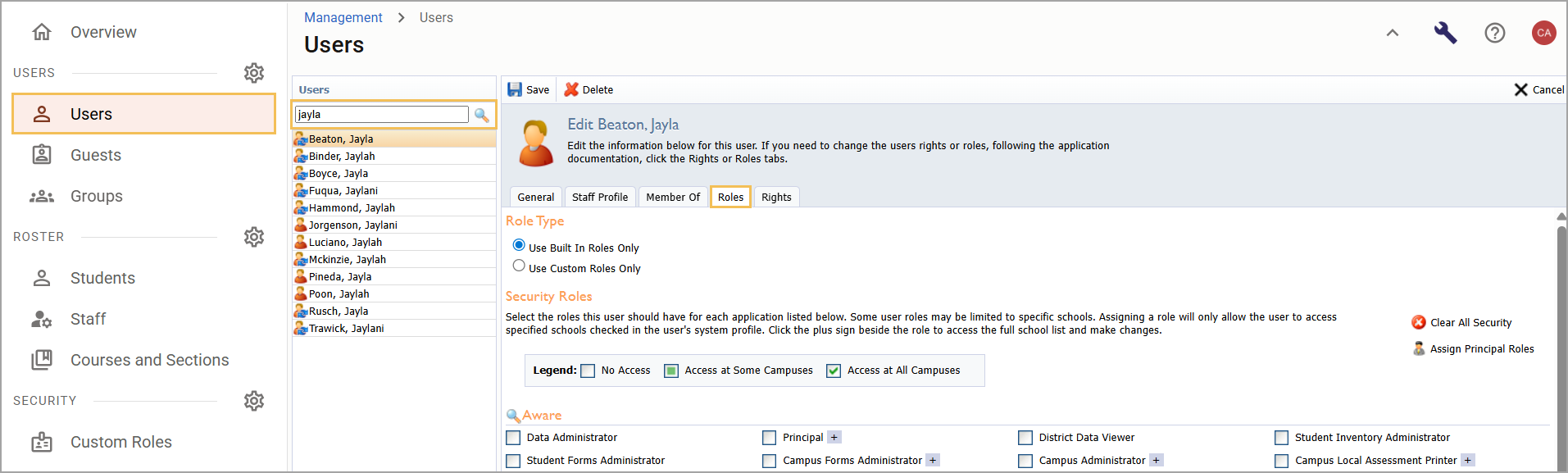
Importing Built-in Roles
Districts can update their users’ built-in roles by importing CSV files using Secure File Transfer Protocol (SFTP) after creating access keys and setting up SFTP connections. Successful imports add and remove requested roles to and from users for each Eduphoria application and location provided in the file.
Note: All roles for Facilities&Events and most roles for Helpdesk can only be located and assigned within their specific applications. The built-in roles importer won’t work for any roles that aren’t located in the Management application.
Built-in Roles File Import Fields and Requirements
The importer processes the following file header values. Review which fields are required and under which circumstances.
Caution: Setting roles for users grants them access to potentially sensitive information across a school or district. Be deliberate about which roles you assign to which users.
Exact Header Values | Required? | More Information |
|---|---|---|
User Identifier | Always required | Each record requires a user’s identifier to be either an email address or an external ID. |
Role Name | Always required | Values entered in this column must match the role name as it exists in Management. For example, a user you want to assign as a school appraiser needs the role name value to be |
Application Name | Always required | Values entered in this column must match the application name as it exists in Management. For example, the user being assigned the School/Department Appraiser role needs the application name value to be |
Location | Always required | If a role is location-specific, then a location is required. Therefore, the value in this column must match:
Roles in Management with a plus sign beside them can have locations. If a role is intended to be district-wide (for all possible locations), then the value can be If you are adding or removing a role that isn’t location-specific from a user, you can leave the column blank. When you remove a role for a person that is location-specific (one or more schools), and you provide the location value as If a role is not location-specific, but you still provide a location, the importer errors on that line. These lines must either have the location left blank or have the |
Action | Not required | The importer looks for either the |
Note: If a user is set to use custom roles, then the import to assign them built-in roles won’t work until you switch them to use built-in roles.
Built-in Roles Per Application
Eduphoria applications have their own built-in roles in Management, except for Facilities & Events roles and most Helpdesk roles. Districts that use SFTP to import built-in roles can review the following application names and role names to help ensure a successful import.
Note: Roles that have a plus sign () next to them are location-specific. You can grant the user role access at all schools or grant them access at some schools, and then select the specific schools.
Aware Roles
The built-in roles for Aware are as follows:
Data Administrator
Principal
District Data Viewer
Student Inventory Administrator
Student Forms Administrator
Campus Forms Administrator
Campus Administrator
Campus Local Assessment Printer
Item Bank Administrator

Forethought Roles
The built-in roles for Forethought are as follows:
Curriculum Manager
Principal
Lesson Plan Viewer
Denied Access

Formspace Roles
The built-in roles for Formspace are as follows:
Formspace Administrator
School Administrator
Public Web Administrator
Deny access to SchoolObjects:formspace

Helpdesk Roles
The built-in roles for Helpdesk are as follows:
Denied Access
Principal
Superintendent

Strive Evaluation Roles
The built-in roles for Strive Evaluation are as follows:
Appraisal Administrator
District Appraiser
School/Department Appraiser
School/Department Limited Appraiser
Appraisal Viewer
District Walkthrough Appraiser
School Walkthrough Appraiser
Walkthrough Viewer

Strive Professional Learning Roles
The built-in roles for Strive Professional Learning are as follows:
Professional Development Administrator
District Course Editor
School Course Editor
Limited Course Creator
Professional Development Credit Approver
Professional Development Credit Viewer

Management Roles
The built-in roles for Management are as follows:
System Administrator
Roster Administrator

Best Practices for Roles and Rights
Only a few users should be system administrators. One system administrator may not be enough, but 30 is too many. Users with system administrator access have the highest level of access within Eduphoria and can grant themselves any and all rights.
Each Role has certain Rights associated with it. When a role is assigned to a user, a collection of rights is automatically granted to the user.
Caution: Some rights are not inherited by a specific role and must be assigned manually. One example is the right to impersonate other users.
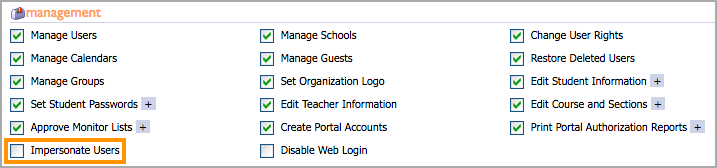
Do not randomly assign rights. Assign roles and only edit rights as needed since editing rights can remove access if not carefully applied.
Checking all roles does not give a user more rights. In most cases, the first role listed in each application grants the user administrator access for that application
You can run separate reports of the users assigned roles and one of the users assigned specific rights.
Tip: You can determine whether new users are granted Built In Roles or a Custom Role using the Default new users to setting on the Security tab of District Settings. For more information, see Enabling Custom Roles.