Eduphoria supports various importers for districts that use Secure File Transfer Protocol (SFTP), such as imports for updating users, tests, student supports, and built-in roles. Here, you can review the available imports and their file requirements. Refer to the Access Keys article to learn how to create access keys and set up SFTP connections for specific imports.
Importing User Updates
Districts can use SFTP to create, update, delete, and reactivate user accounts.
Note: The only way to deactivate/delete or reactivate a user is to include the Action column and provide the corresponding value on the user record.
When a user gets created with a SchoolObjects configuration, the system sends a welcome email for activation. Users can then log in with a secure password to update their password.
User File Import Fields and Requirements
The importer processes the following file header values within a user-built CSV file. Review which fields are required and under which circumstances. Adding values to headers that aren’t required still updates the relevant user information. For instance, adding or changing the Employee ID value updates the Employee ID for that user record once the import is complete.
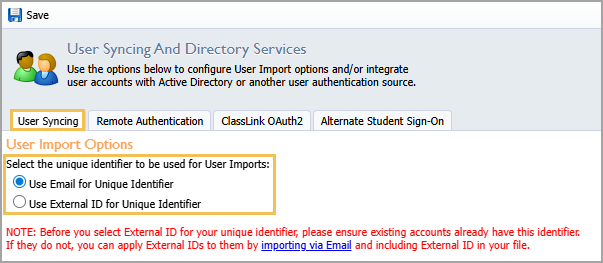
You can determine whether you want to use email addresses or external IDs as unique identifiers for user syncing. Your district should provide an external ID, which can be an ID from your student information system (SIS), employee ID, or any other combination of alphanumeric or special characters. We strongly advise against using Personally Identifiable Information, such as users’ birthdays or social security numbers, as these could pose significant security risks.
Best Practice: Before selecting External ID as your unique identifier, ensure that existing accounts already have this identifier. If they do not, you can apply external IDs to them by importing via email and including the external ID and
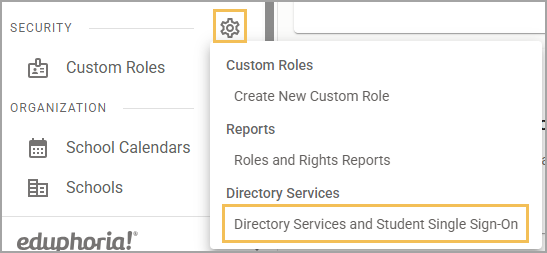
Updateaction in your file. Then, you can assign external IDs as unique identifiers for user syncing under Management > Security Settings > Directory Services and Student Single Sign-On > User Syncing tab > User Import Options.
If a column doesn’t exist or if the value is blank in the file, the import does not change the value for the user account at all.
Exact Header Value | Required? | More Information | |
|---|---|---|---|
Email Address | Always required if not using External ID | If you have set Email as the unique identifier for user syncing, then every record requires a user’s email address to identify unique user accounts. If it is missing, the importer won’t process the file. | |
External ID | Always required if not using Email Address | If you have set External ID as the unique identifier for user syncing, then every record requires a user’s external ID to identify unique user accounts. If it is missing, the importer won’t process the file. | |
First Name | Required for new accounts only | If the First Name field is missing, the importer still processes the file, but it doesn’t create a user account until this field is present. | |
Last Name | Required for new accounts only | If the Last Name field is missing, the importer still processes the file, but it doesn’t create a user account until this field is present. | |
Middle Name | Not required | ||
Suffix | Not required | ||
School(s) | Required for new accounts only | If the School field is missing, the importer still processes the file, but it doesn’t create a user account until this field is present. | |
Employee ID | Not required | ||
User/CustomRole | Not required | If the value matches a role we have created in the system, then the importer sets the user to that role. If the value doesn’t match an existing role, then the importer ignores the request. Similarly, if you don’t include the User/CustomRole field or leave its value blank in the file, the importer won’t assign a role or update any roles already assigned to users in the file. If you provide the | |
Unique/State ID | Not required | ||
Certification ID | Not required | ||
Certification Type | Not required | ||
Certification Expiration | Not required | ||
National Board Certification Expiration | Not required | ||
Employee Position | Not required | ||
Date of Birth | Not required | ||
Gender | Not required | ||
Race/Ethnicity | Not required | ||
Other Unique Identifier | Not required | ||
Action | Not required | The Action column can either be left blank or contain one of these values:
If you set the |
Importing Built-in Roles
Districts can update their users’ built-in roles by importing CSV files using SFTP. Successful imports add and remove requested roles from users for each Eduphoria application and location provided in the file.
Note: All roles for Facilities&Events and most roles for Helpdesk can only be located and assigned within their specific applications. The built-in roles importer won’t work for any roles that aren’t located in the Management application.
Built-in Roles File Import Fields and Requirements
The importer processes the following file header values. Review which fields are required and under which circumstances.
Caution: Setting roles for users grants them access to potentially sensitive information across a school or district. Be deliberate about which roles you assign to which users.
Exact Header Values | Required? | More Information |
|---|---|---|
User Identifier | Always required | Each record requires a user’s identifier to be either an email address or an external ID. |
Role Name | Always required | Values entered in this column must match the role name as it exists in Management. For example, a user you want to assign as a school appraiser needs the role name value to be |
Application Name | Always required | Values entered in this column must match the application name as it exists in Management. For example, the user being assigned the School/Department Appraiser role needs the application name value to be |
Location | Always required | If a role is location-specific, then a location is required. Therefore, the value in this column must match:
Roles in Management with a plus sign beside them can have locations. If a role is intended to be district-wide (for all possible locations), then the value can be If you are adding or removing a role that isn’t location-specific from a user, you can leave the column blank. When you remove a role for a person that is location-specific (one or more schools), and you provide the location value as If a role is not location-specific, but you still provide a location, the importer errors on that line. These lines must either have the location left blank or have the |
Action | Not required | The importer looks for either the |
Note: If a user is set to use custom roles, then the import to assign them built-in roles won’t work until you switch them to use built-in roles.
Importing Test Files
Test file imports with SFTP should be in the same file format as you obtain them from assessment vendors such as the TEA, College Board, and more. To see which vendors and file types we accept, visit Supported File Types.
Note: Importing test files via SFTP is only supported with built-in test types. Custom test types are not supported at this time.
You can automate SFTP test imports and see their uploads in your import history within Aware > Analysis Settings () > Upload Test Files > History tab. Visit Access Keys to learn how to connect your SFTP client to run test file imports.
Importing Student Supports
You can import student supports with SFTP by uploading a CSV of either a TestHound file or a file in a custom format, which you can download below:
Be sure to maintain the file headers so the file imports successfully and adds the requested student supports to the correct students. You can see the file’s import history by checking the box for Show jobs imported via SFTP in Aware > Students Settings () > Upload Student Supports. Visit Access Keys to learn how to connect your SFTP client to run student supports imports.