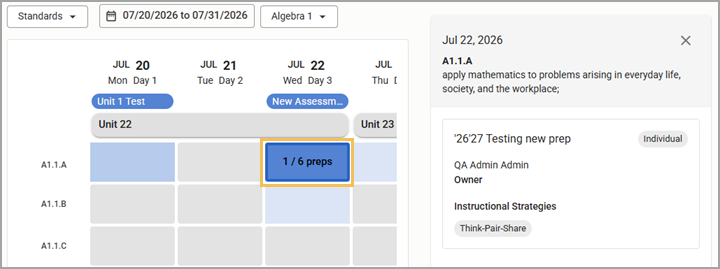
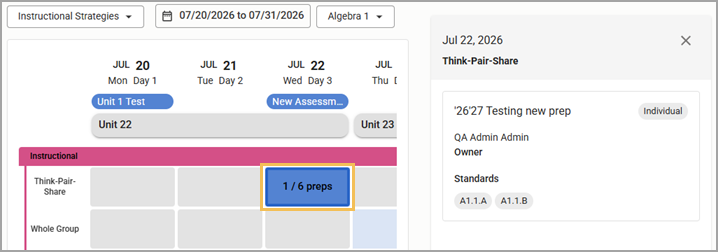
Scope and Sequence provides an overview of standards and strategies coverage across preps for the selected course and date range. This article explains how to use the Date Range and Course drop-down menus to configure the table.
Note: Beacon automatically saves your selections as your default view. Next time you access Scope and Sequence, the analysis automatically generates data for the course and date range that you selected last time.
Quick Guide
Select Scope and Sequence from the main menu.
Choose whether you want to analyze coverage of Standards or Instructional Strategies.
Set the date range.
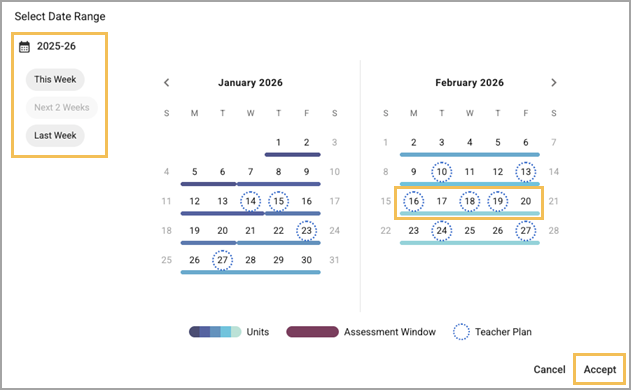
The current week is selected by default. You can change the date range by clicking on the date range selector. Choose one of the options on the left to view standards coverage for This Week, Next 2 Weeks, or Last Week or create a custom date range by selecting dates on the calendar. Select Accept to confirm your selection.
Use the Course drop-down to select the course you want to view.
Further customize the visualization of data and access the details panel by selecting a unit, row, or cell.
Illustrated Guide
Step 1: Select Scope and Sequence from the Analysis section of the Beacon main menu.
.png)
Note: If the No data found message appears on the screen, this means that there is no data to view for the course or date range. Adjust the drop-down selections to update the table.
.png)
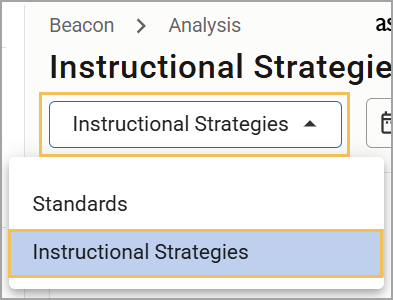
Step 2: Use the drop-down menu to choose whether you want to analyze coverage of Standards or Instructional Strategies.
Step 3: Set the date range.
The current week is selected by default. You can change the date range by clicking on the date range selector.
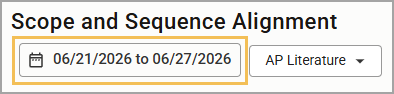
Choose one of the options on the left to view coverage for This Week, Next 2 Weeks, or Last Week or create a custom date range by selecting dates on the calendar. Select Accept to confirm your selection.
Step 3: From the Course drop-down, type in the Search bar or select a Subject to filter the list. Then, select the course you want to view.
.png)
Step 4: Further customize the visualization of data by selecting a unit, row header, or individual cell. The details panel on the right displays the date or date range and the name of the standard or instructional strategy that you selected.
Note: Units can only be selected when viewing standards. You cannot pull unit data for instructional strategies because strategies are not linked directly to units in Beacon.
Expand the sections below to view more details about what happens when you select a unit, row header, or cell.
Selecting a Unit (Standards only)
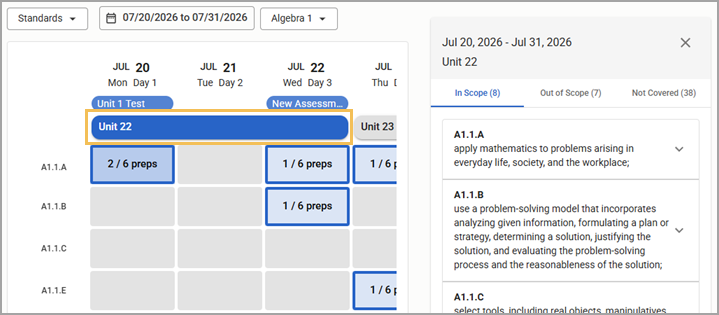
Selecting a unit highlights cells to illustrate on which dates teachers included standards that are part of the unit. The details panel shows information for all items in the unit.
Selecting a Row Header
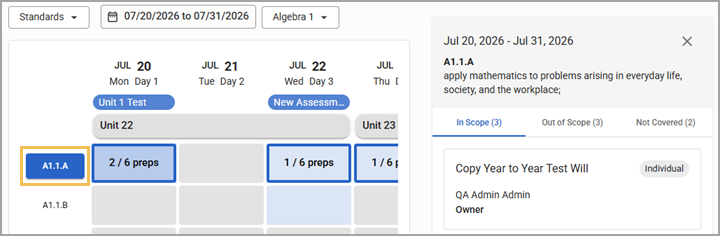
Selecting a standard highlights cells to illustrate on which dates teachers included the selected standard or strategy. The details panel shows information for only the selected standard or strategy.
Selecting a Cell
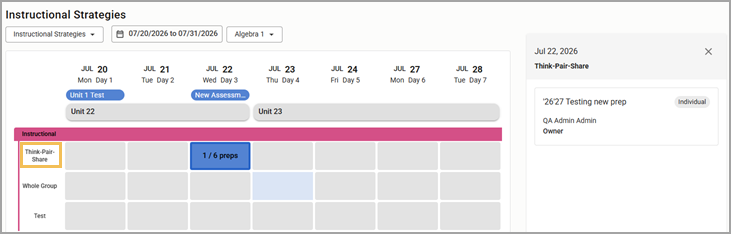
Selecting a cell highlights only the selected cell. The details panel shows information for only the selected standard or strategy, on the selected date.