.png)
Teachers who are linked to an SIS account can generate a quintile analysis report using the Class Quintile Report in Aware. This report can be built using STAAR or local assessment data.
The Class Quintile Report uses individual or aggregate assessment data and distributes students into five equal groups, or quintiles, with an average percent correct displayed for each quintile. Quintile analysis reports help identify performance gaps and which students might need intervention.
Access
Teachers can see individual student data for students rostered to them in the Class Quintile Report. They can view all students in a single report or filter students for a specific course period/section.
Creating a Class Quintile Report for Teachers
Quick Guide
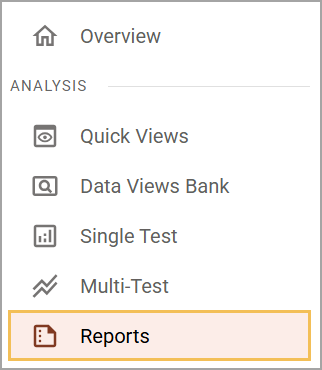
Select Reports () under Analysis in Aware.
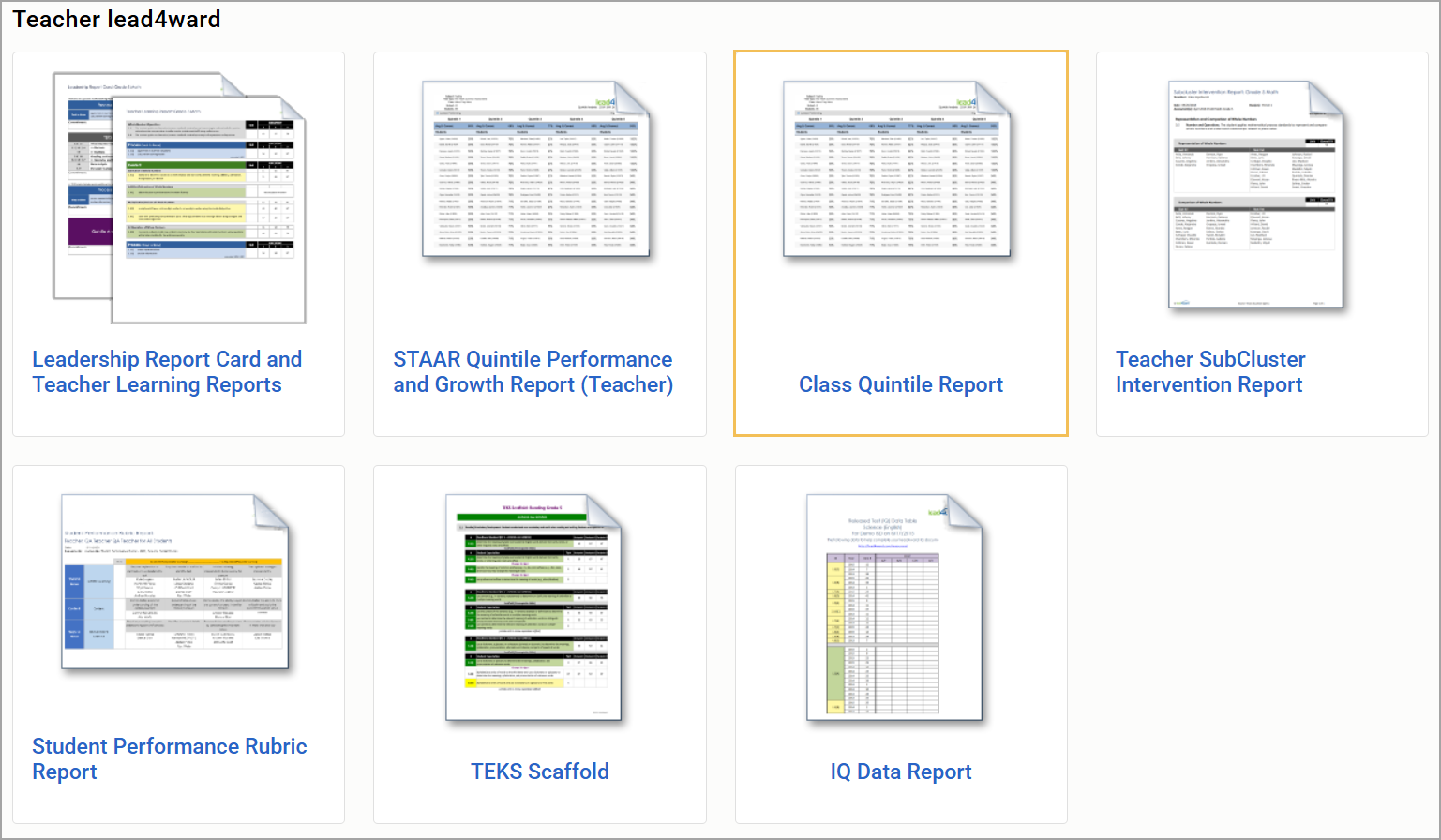
Locate the teacher lead4ward reports and select Class Quintile Report.
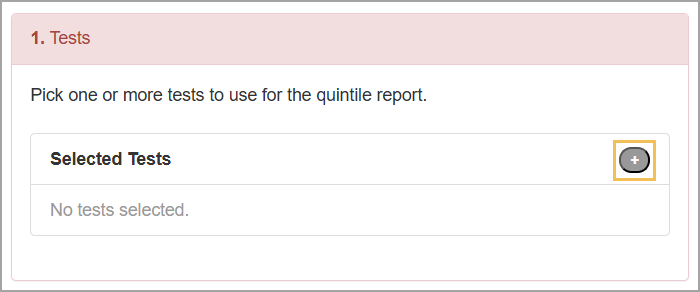
Click the Plus button to choose one or more assessments for the report.
Input search terms into the search field to locate your test by subject, grade level, year, test type, or title. Then, select Choose Test.
Click the All Students button to filter the report to show students from a selected class period, or keep the selection on All Students to include students from all class periods.
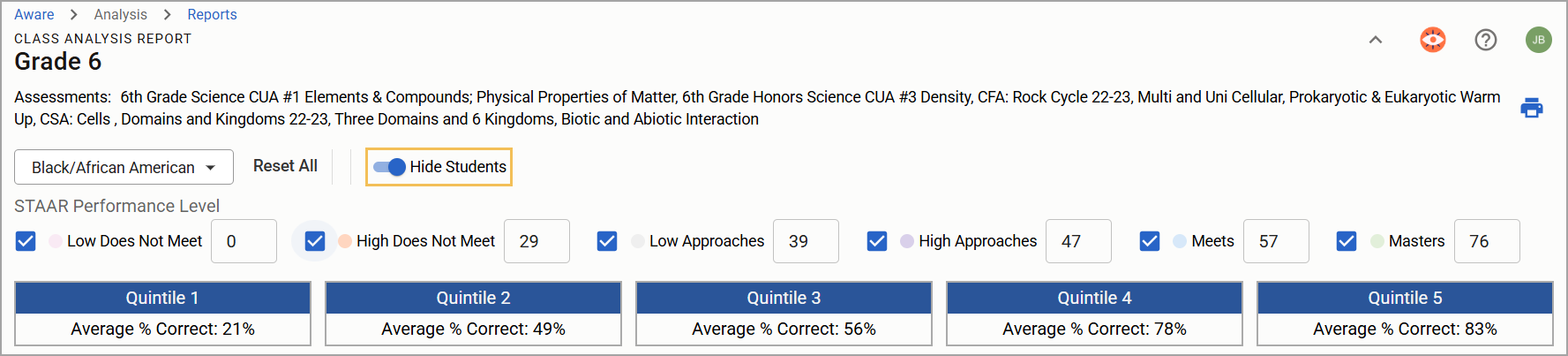
Select Generate Report to open a screen where you can customize the report using interactive features, such as highlighting students in performance categories and setting performance level cut scores.
Select one or more STAAR performance levels or leave all selections blank.
Use the Demographics filter to bold students who match the selected criteria.
Select the Print icon () to create a PDF or physical copy of the report.
Illustrated Guide
Step 1: Select Reports () under Analysis in Aware.
Step 2: Locate the teacher lead4ward reports and select Class Quintile Report.
Step 3: Click the Plus button to choose one or more assessments for the report.
Step 4: Input search terms into the search field to locate your test by subject, grade level, year, test type, or title. Then, select Choose Test.
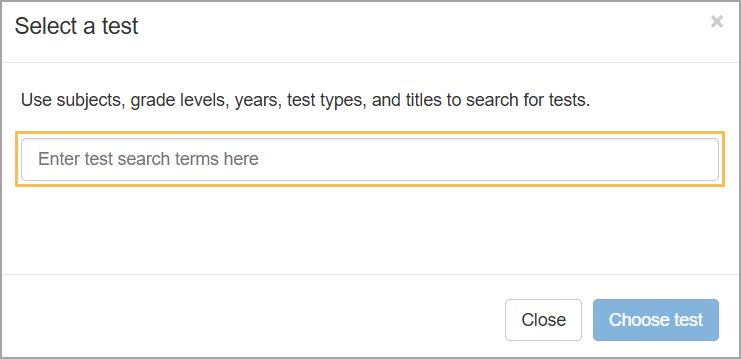
Step 5: Click the All Students button to filter the report to show students from a selected class period, or keep the selection on All Students to include students from all class periods.
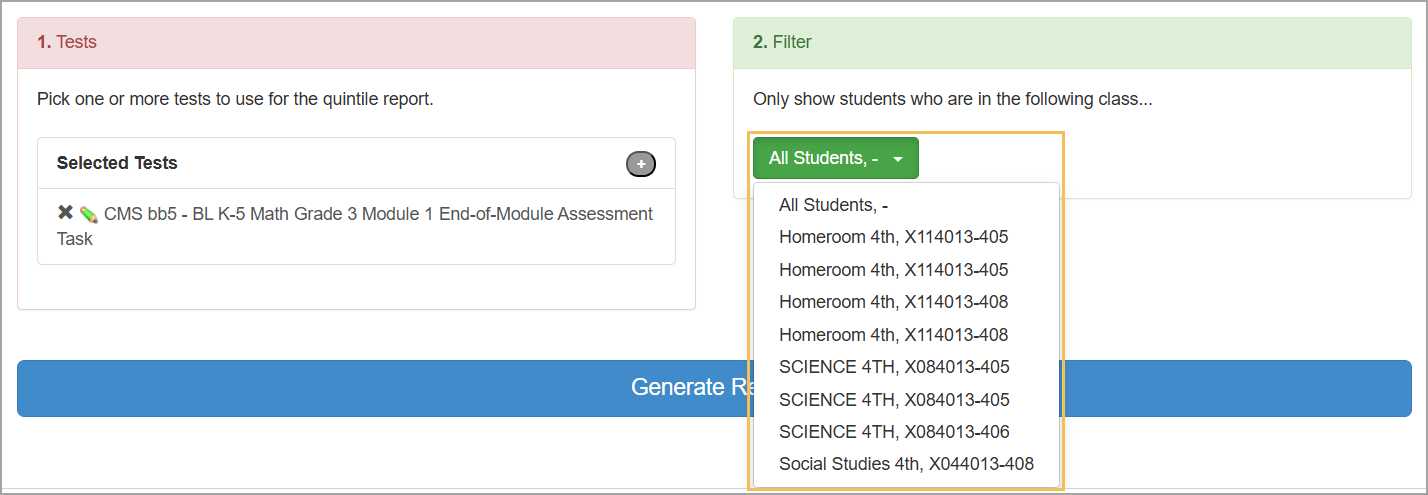
Step 6: Select Generate Report to open a screen where you can customize the report using interactive features, such as highlighting students in performance categories and setting performance level cut scores.
Students are displayed in percent performance order, then alphabetically by last name.
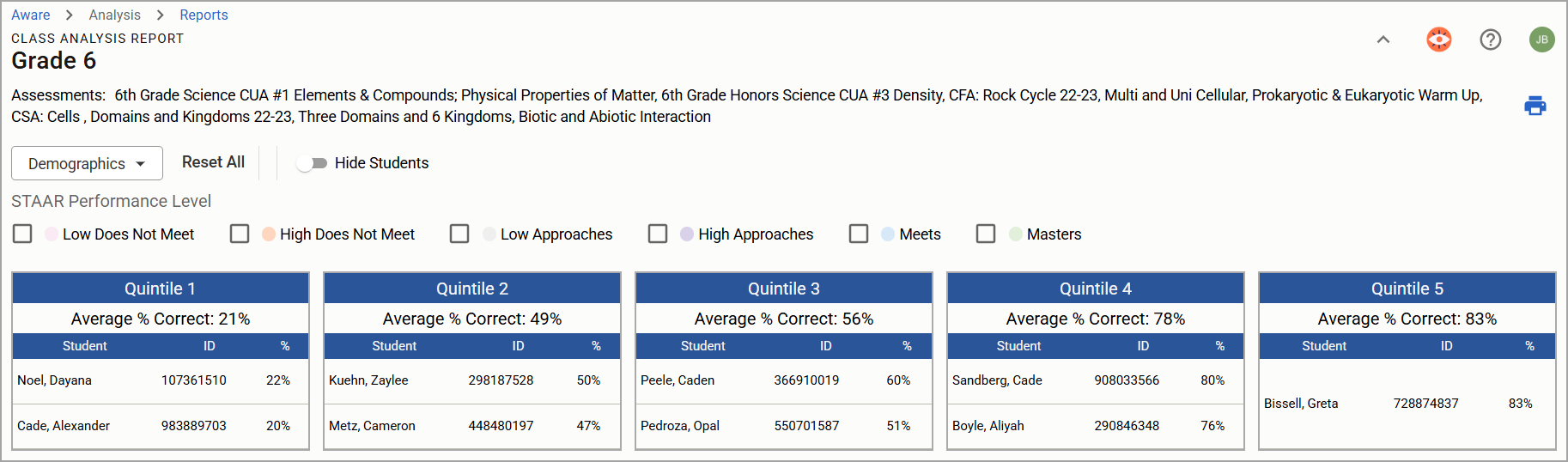
Step 7: Select one or more of the following STAAR performance levels or leave all selections blank:
Low Does Not Meet
High Does Not Meet
Low Approaches
High Approaches
Meets
Masters
Checking the box beside each level highlights the students included in that level in the designated color. While the colors are not customizable, users can edit the default cut scores as needed.
Note: Each performance level defaults to a number based on a 3-year average of cut scores for that grade level and subject’s STAAR from 2023, 2024, and 2025. Default cut scores for non-STAAR-tested areas are based on the overall average of all cut scores.
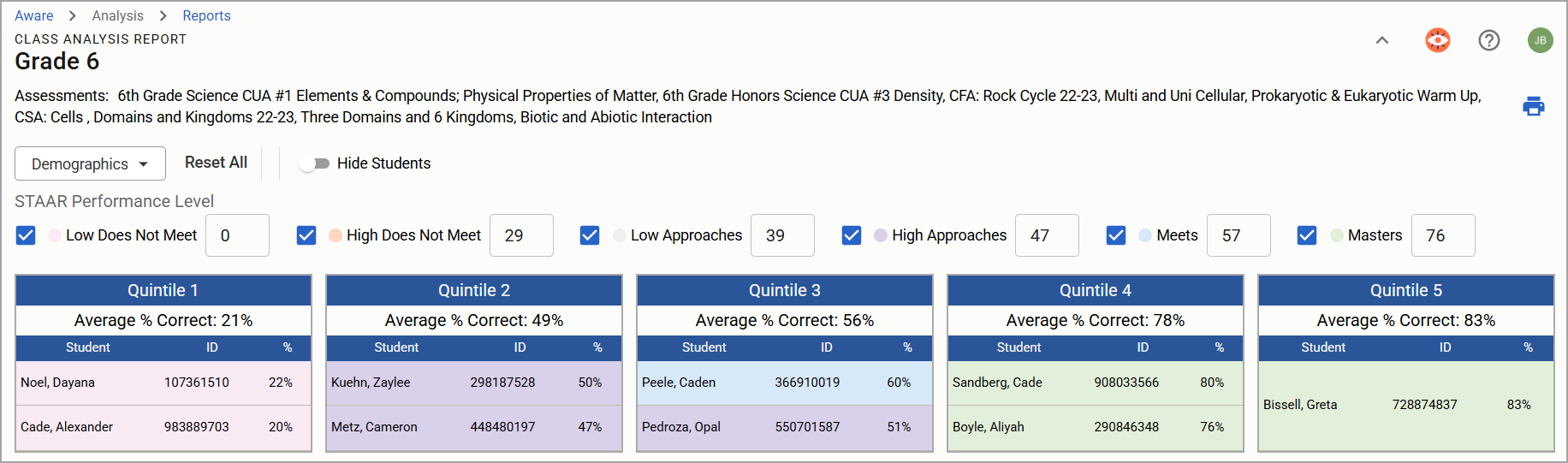
Step 8: Use the Demographics filter to bold students who match selections from the following criteria:
Grade Level
Student Identifier
Ethnicity
ESL
Emergent Bilingual
RTI
Title 1 Part 1
Career and Technology Ed
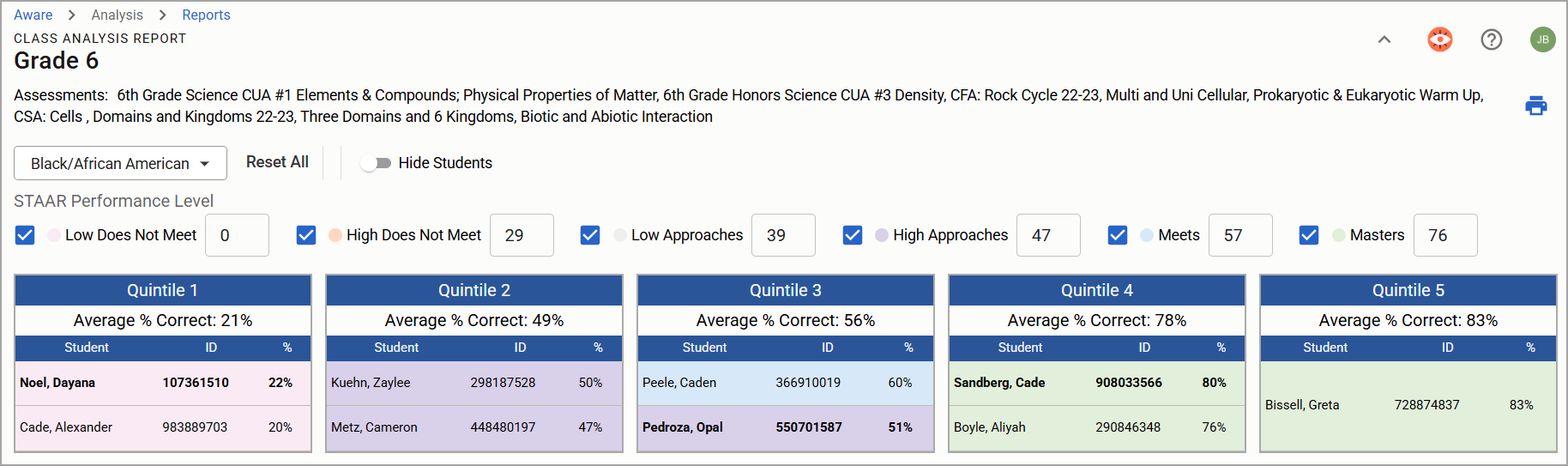
Step 9: Select the Print icon () to create a PDF or physical copy of the report. For best results, change the layout to Landscape, and under More Settings, check the box for Background graphics.
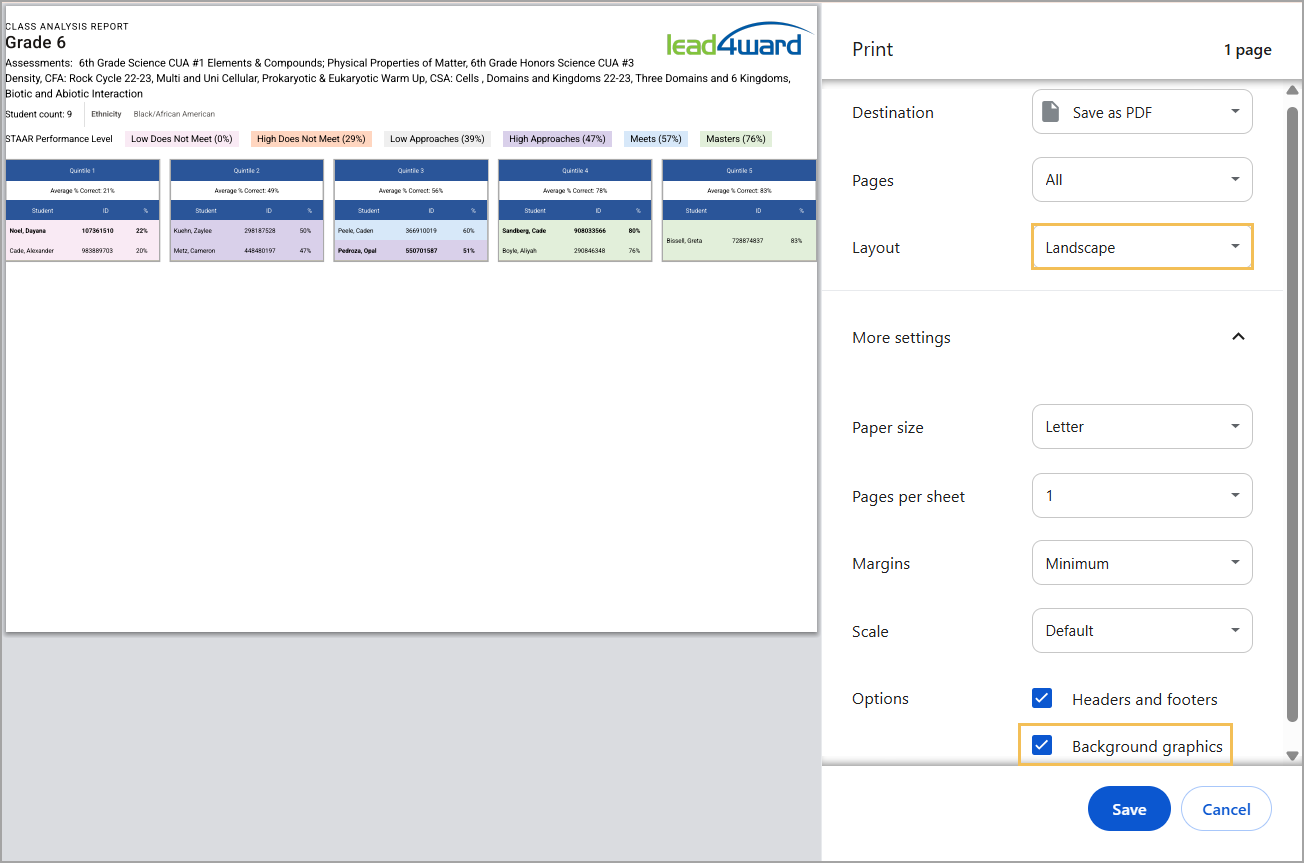
To print a Quintile Analysis Report without student names, toggle on Hide Students.