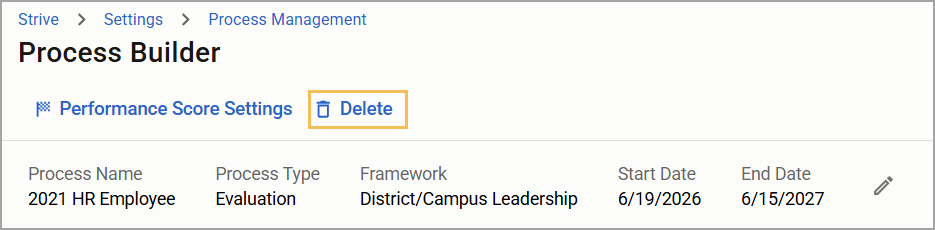
Appraisal administrators can delete entire processes as well as steps and tasks within them.
Caution: Eduphoria recommends for users to delete old processes after completing the end-of-year archive to ensure all data is properly stored and maintained. Deleting a process before completing the archive risks losing evaluation and reporting data.
Instead of deleting a process, you might want to make edits to it. By clicking on a process name, you can review its steps and tasks and make relevant changes.
Quick Guide
Select Settings () from Strive’s navigation main menu.
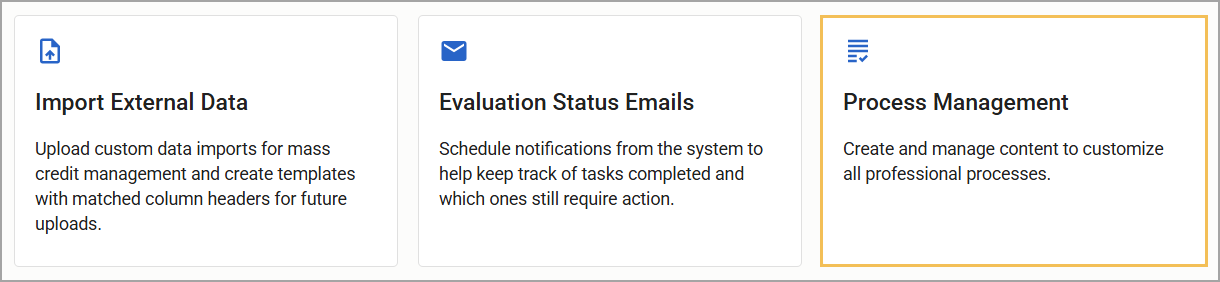
Select Process Management.
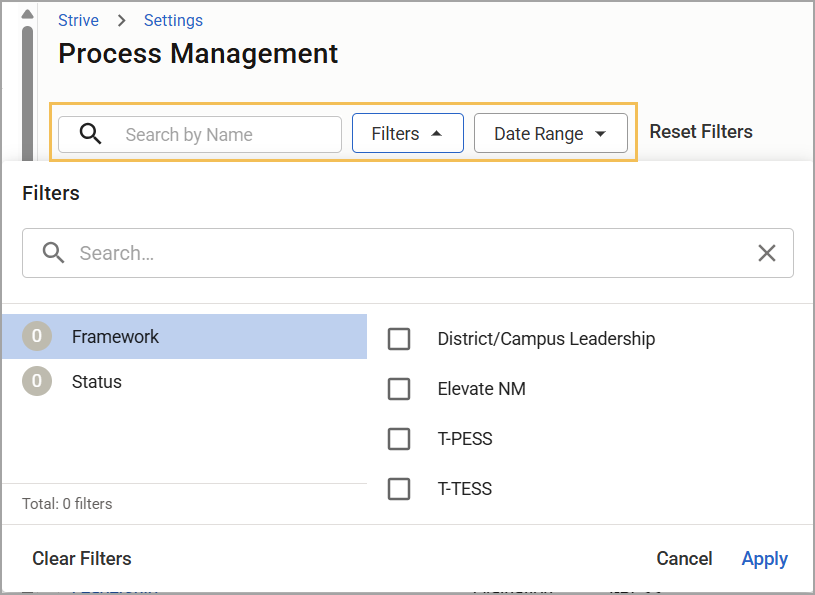
Search by name or use the filters for Framework, Status, and Date Range to locate the process you want to delete within the table.
Under the Actions column, select the Delete icon (). Select Delete again to confirm the action or select Cancel to return to the Process Management table.
Illustrated Guide
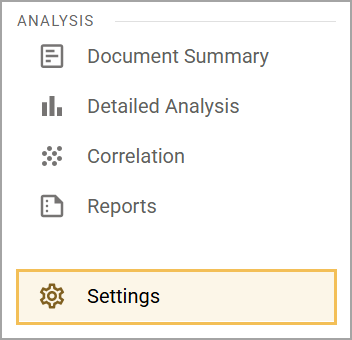
Step 1: Select Settings () from Strive’s navigation main menu.
Step 2: Select Process Management.
Step 3: Search by name or use the filters for Framework, Status, and Date Range to locate the process you want to delete within the table.
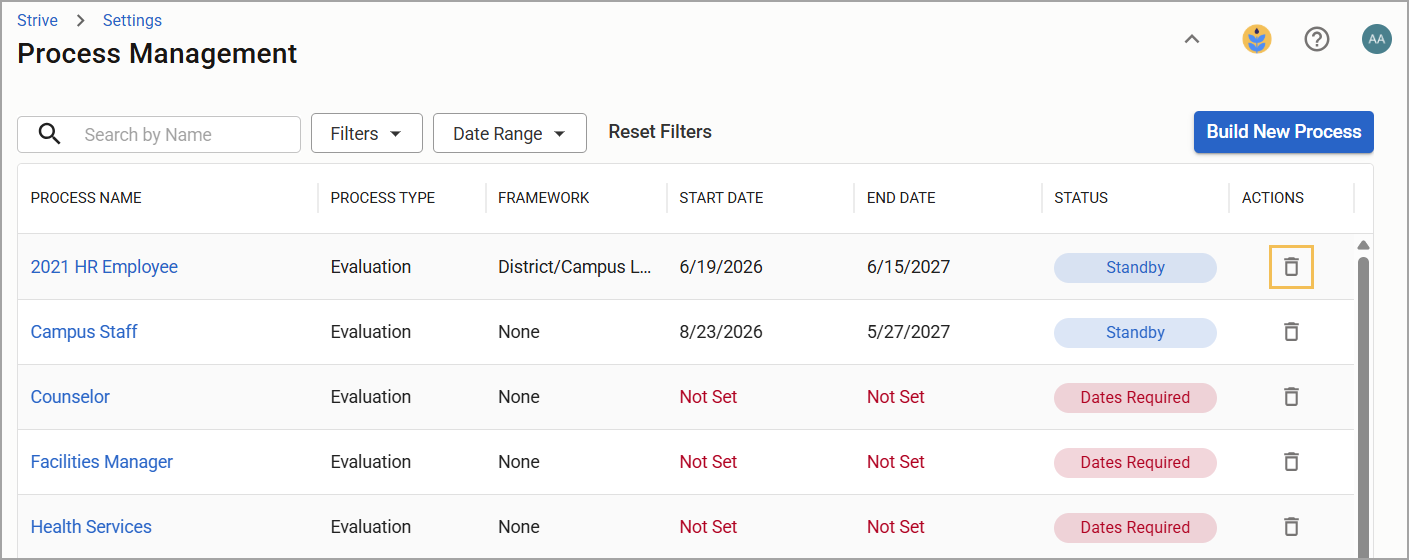
Step 4: Under the Actions column, select the Delete icon ().
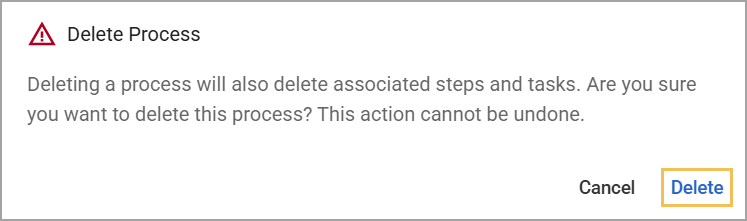
A confirmation window appears, stating that deleting a process also deletes its associated steps and tasks, which cannot be undone. Select Delete to confirm this action or Cancel to return to the Process Management table.
You can also delete an entire process within the process builder. Select Delete () and once the confirmation window appears, select Delete again to confirm this action.