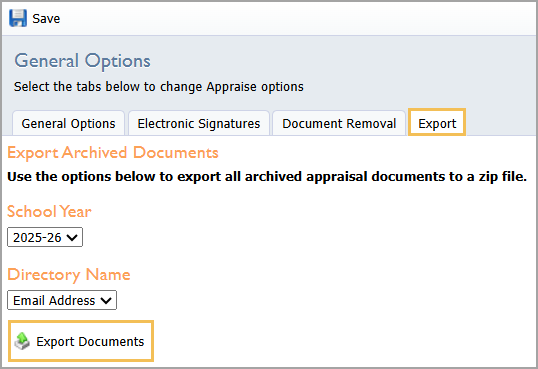
In Strive, you can download a ZIP file containing all archived documents to save a copy to your device.
Quick Guide
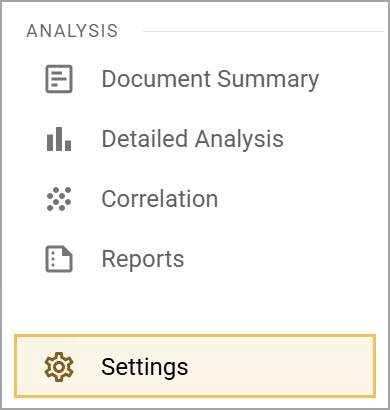
Select Settings () from the main menu.
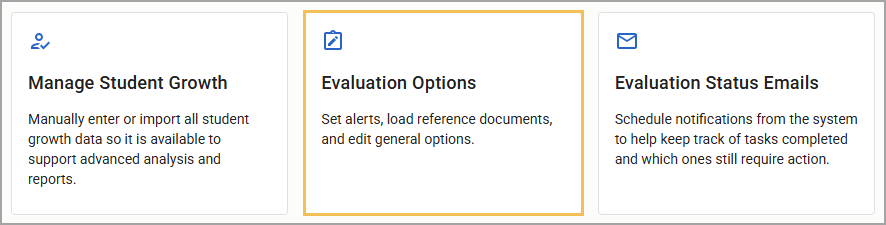
Select Evaluation Options.
Under Configuration Options, select General Options.
Select the Export tab.
Select the evaluation School Year.
Use the Directory Name drop-down menu to choose Email Address or Employee ID as the sorting option.
Select Export Documents.
Illustrated Guide
Step 1: Select Settings () from the main menu.
Step 2: Select Evaluation Options.
Step 3: Under Configuration Options, select General Options.
.jpg)
Step 4: Select the Export tab on the General Options screen.
.png)
Step 5: Select the evaluation School Year.
Step 6: Use the Directory Name drop-down menu to choose Email Address or Employee ID as the sorting option.
Note: Make sure the Employee IDs have been imported into Eduphoria before selecting that option. This can be done using either Active Directory User Syncing, Secure File Transfer Protocol (SFTP), or a manual import.
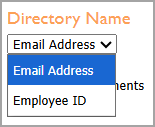
Step 7: Select Export Documents.
Creating the ZIP file for download might take a few minutes. When complete, the system emails you a link to access the files. This link is sent only to the person who requests the export and uses authentication to verify their identity, ensuring the file export is secure.