Resources are supplemental or reference materials, such as videos, images, documents, or web links, that you can link to courses, units, or lessons.
You can add a new resource by creating one from scratch, by importing materials into Beacon, or by linking an existing resource. For information about importing from Google Drive, see Importing a Resource from Drive.
Quick Guide
Do one of the following:
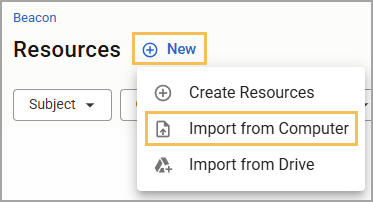
To import a resource without automatically linking it to other components, select Resources from the main menu. Click the New button and choose Import from Computer.
or
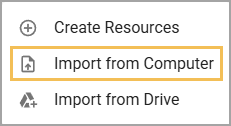
To import a resource and connect it to an existing curriculum component, first open the existing component to which to connect the imported file(s). From the Relationships panel, select the Add icon next to Resources and choose Import from Computer.
Use the file manager to locate and select one or multiple files to import.
Confirm the name of each file you want to import and decide whether to import multiple files as one resource or separately. Then, select Import.
A checkmark appears next to each file name to confirm a successful import. Select Close to return to the previous screen. If desired, you can now select the resource from the list to edit or add content.
Illustrated Guide
Step 1: Access the Import from Computer option either from Resources or from Courses:
Import from Resources
To import a resource without connecting it to other components, select Resources from the main menu. Click the New button and choose Import from Computer.
.png)
Import from the Relationships Panel
To import a resource and connect it to an existing course, unit, or lesson, first open the existing component to which to connect the imported file(s). From the Relationships panel, select the Add icon next to Resources and choose Import from Computer.
.png)
Step 3: Using the file manager window that appears, locate and select a file to import.
Caution: Beacon displays file names as they appear at the time of upload. Make sure the file name in your file manager matches how you want it to appear in Beacon so that you do not need to rename it later.
Step 4: Upon selecting one or more files, an Import Content window appears. Confirm the name of each file you want to import, and decide whether to import multiple files as one resource or separately. Then, select Import.
.png)
Step 5: A checkmark appears next to each file name to confirm a successful import. Select Close to return to the previous screen.
.png)
If desired, you can now select the resource from the list to edit or add content.