LockDown Browser is a custom browser that locks down the testing environment. When students use the locked browser to access an assessment, they cannot print, copy and paste, go to another URL, or access other applications. Students are locked into an assessment until they either leave the online testing environment or if they submit the assessment for grading. The latter option is a setting teachers can enable.
Eduphoria provides administrators with download links to the latest version of LockDown Browser for managed and student-owned Windows computers running Windows 10 or later. To verify the latest versions, visit the LockDown Browser Update release note.
Installing LockDown Browser for Managed Windows Computers
Follow these instructions to download and install the latest version of LockDown Browser for managed Windows computers.
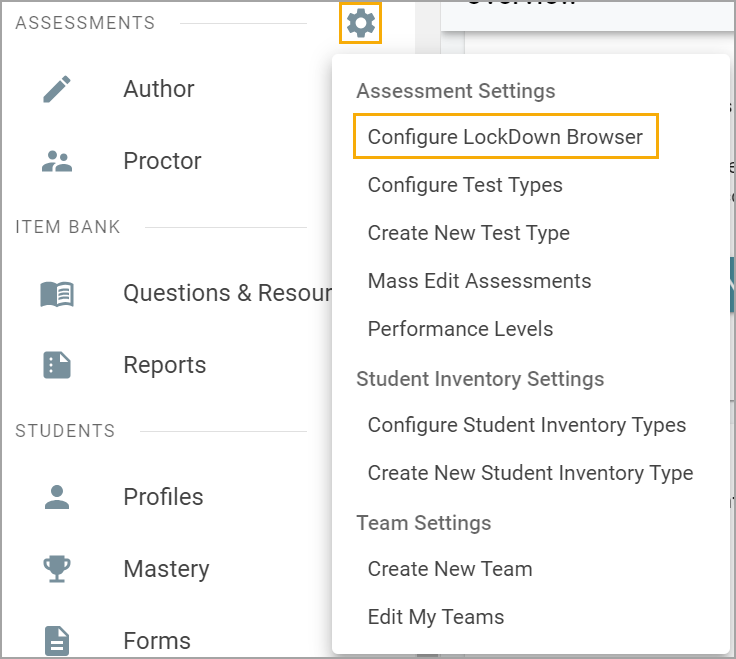
Step 1: Navigate to the Assessments Settings gear in Aware.
Step 2: Select Configure LockDown Browser.
Note: To access Configure LockDown Browser from Assessments Settings, you must have the Create Local Assessment Tests right assigned to you at the district-level, meaning you have access to this right for all campuses. Roles and rights are configured by your Eduphoria system administrator in Management.
Step 3: Click the link for Windows - Lab Edition to download the MSI file.
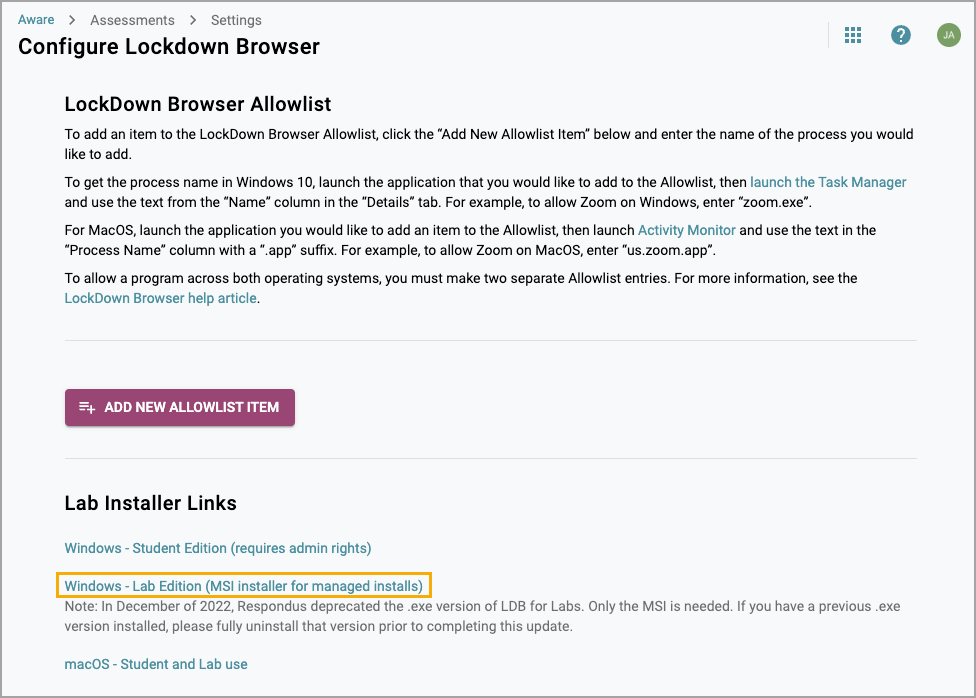
Note: In December 2022, Respondus deprecated the EXE version of LockDown Browser for Labs. You only need the MSI version. If you have a previous EXE version installed, fully uninstall that version prior to completing this update.
Installing LockDown Browser for Student-Owned Windows Computers
Follow these instructions to download and install the latest version of LockDown Browser for student-owned Windows computers.
Step 1: Navigate to the Assessments Settings gear in Aware.
Step 2: Select Configure LockDown Browser.
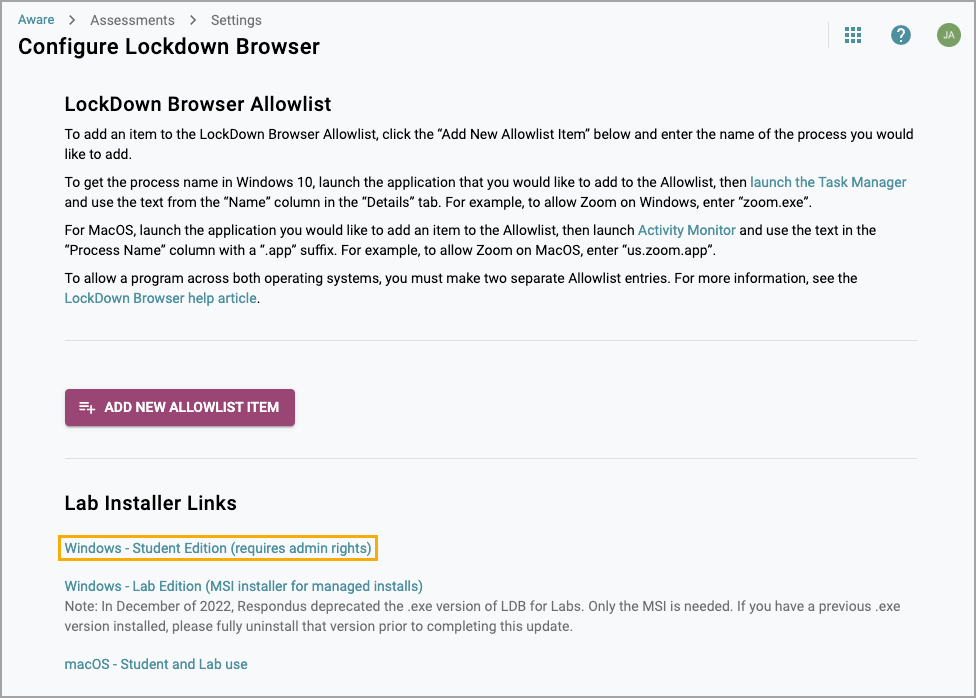
Step 3: Click the link for Windows - Students Edition to download the EXE file.