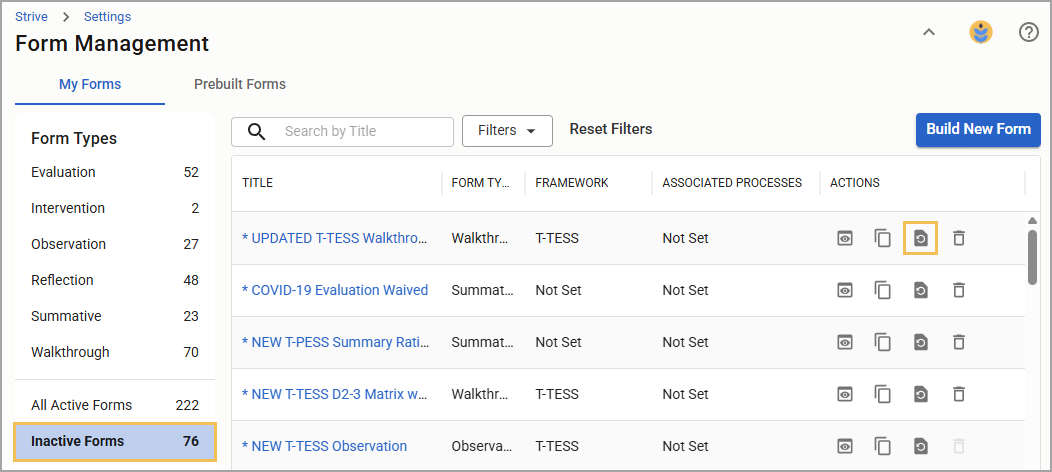
Appraisal administrators and form builders can make a form inactive as long as no user has associated it with a process. You cannot add an inactive form to a process, and it is removed from report selections, though the system retains historical data for analysis. Analysis options, such as Document Summary and Detailed Analysis, allow you to include inactive forms in reporting when you select Show Inactive Forms.
Inactive forms are located in their own table under Form Types, where you can preview, copy, or delete them, or make them active again.
Quick Guide
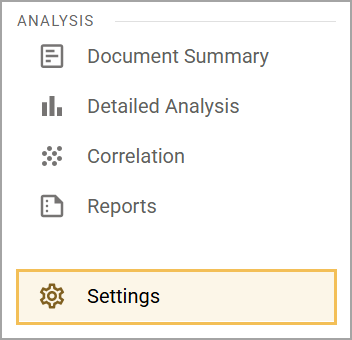
Select Settings () in the navigation menu.
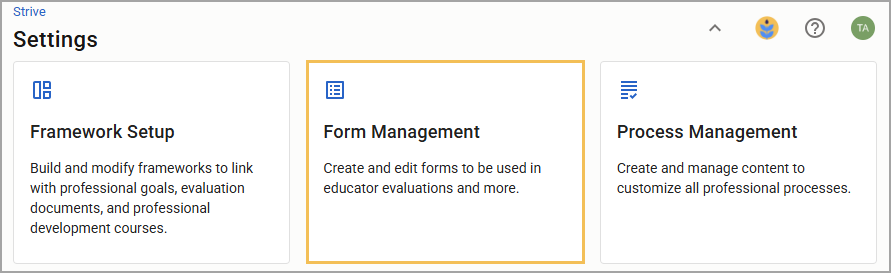
Select Form Management.
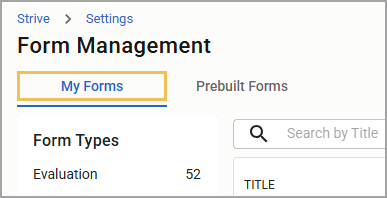
Select the My Forms tab.
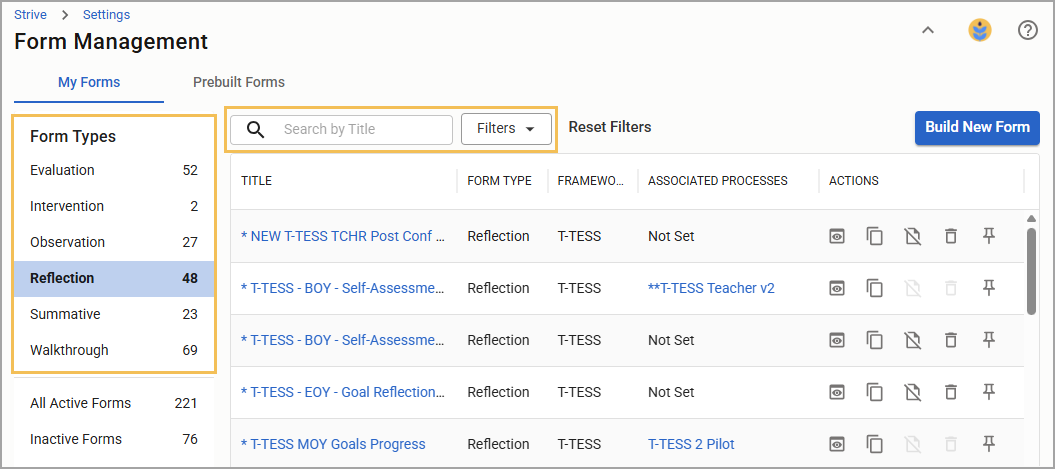
Locate the form you want to make inactive by Form Type or by searching its title.
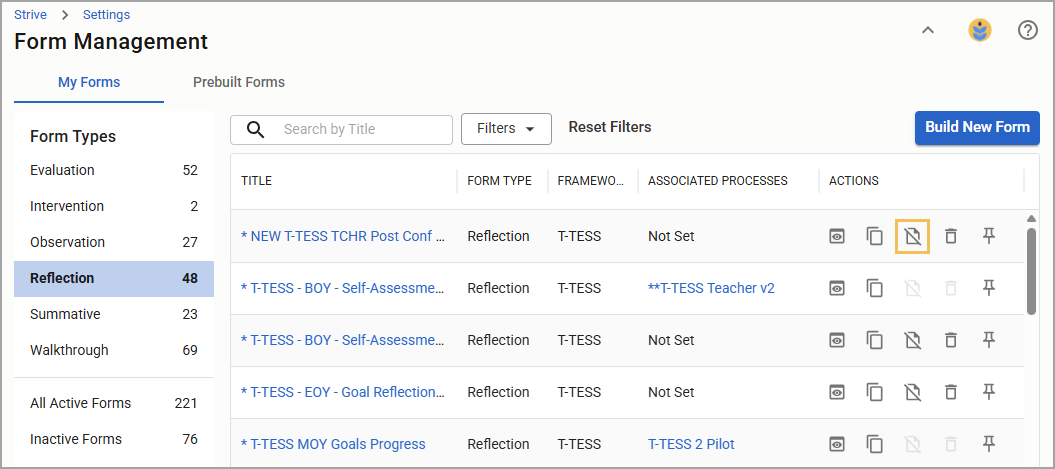
Select the Make Inactive icon.
Select Inactive Forms to review your list of inactive forms at any time. Preview, copy, and delete inactive forms here, or select Make Active () on any form you want to move to the active lists and use in various Strive processes.
Illustrated Guide
Step 1: Select Settings () in the navigation menu.
Step 2: Select Form Management.
Step 3: Select the My Forms tab.
Step 4: Locate the form you want to make inactive by Form Type or by searching its title.
Tip: Select the Preview icon () to quickly review the form contents and confirm it is the one you want to make inactive.
Step 5: Select the Make Inactive icon.
Note: If the Make Inactive icon is grayed out, that means the form is currently associated with a process and cannot be made inactive until it is removed from all processes. You can, however, create a copy of the form or delete it as long as users haven’t created any documents.
Step 6: Select Inactive Forms to review your list of inactive forms at any time. Here, you can preview, copy, or delete inactive forms as you can on other form tables.
You can also select Make Active () on any form you want to move to the active lists and use in various Strive processes.