
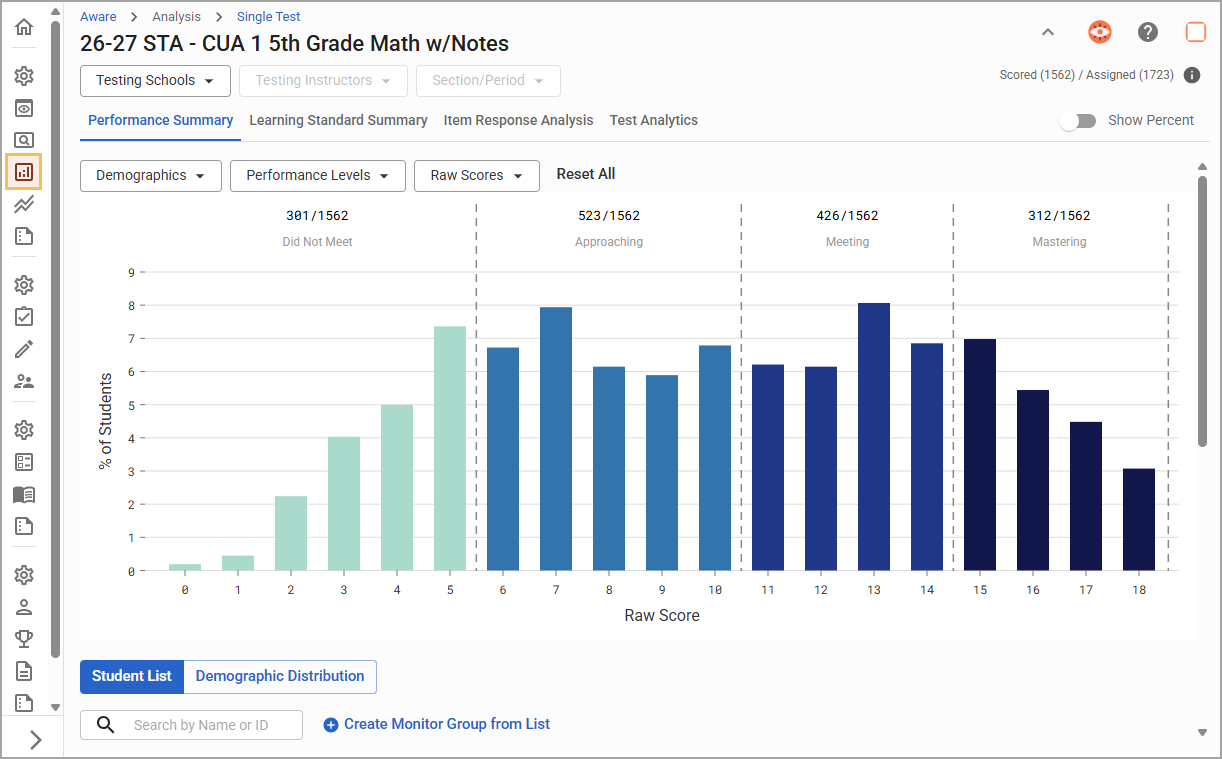
Single Test Analysis provides interactive graphs of a single local Aware assessment. Each assessment is broken down by questions, standards, and student demographics, featuring live, real-time data as assessments are scored.
Teachers and administrators can use Single Test Analysis to dynamically analyze data. This feature is designed for teachers, but any user with the right to view a test in Data Views can use Single Test Analysis, including principals or other administrators.
Note: You will need to rescore any tests scored before August 2022 and refresh the data to apply Single Test Analysis to older tests.
With Single Test Analysis, a single user can draw conclusions from visual information to inform routine instruction. Each part of Single Test Analysis is designed to help reveal insights into student performance as they emerge from data analysis. Single Test Analysis aims to allow users to quickly draw conclusions about assessment data and take actionable steps for future instructional practices.
Single Test Analysis Design
Single Test Analysis does:
graph data visually for active Aware assessments in the current year;
focus on one assessment;
display real-time data;
provides a filterable student list;
allow for clickable interactions within the dataset; and
provide visuals for an immediate perspective of the dataset.
Single Test Analysis does not:
provide accountability data or data analysis;
compare prior years’ assessments;
analyze data from STAAR, third-party, custom, or regular imports;
upload assessment results from a file within the administration tab;
visualize longitudinal data or cohort program evaluation; or
print data in reports.
Note: Because of the dynamic nature of the data, reports cannot be printed from Single Test Analysis. Static reports can still be printed from Quick Views under Analysis.
Roles and Rights
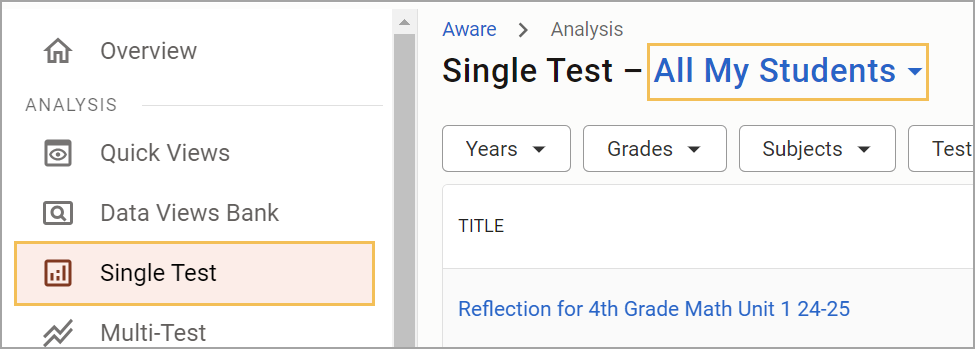
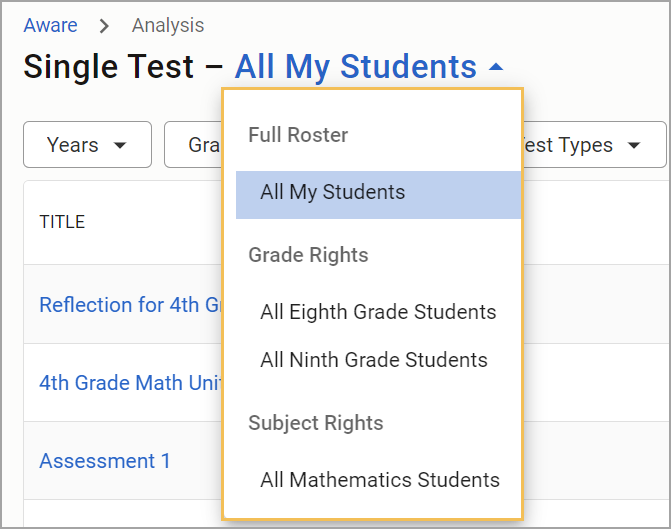
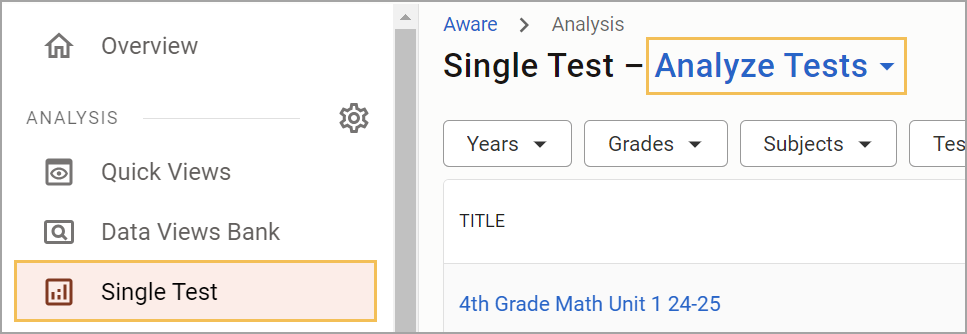
Both teachers and administrators can view performance data in Single Test Analysis. The main difference between the two views is in the top filter options. For example, the teacher view shows students, while the administrator view shows schools. However, all features align even though the filters present differently.
Teacher Views
Administrator Views
How to Use Single Test Analysis
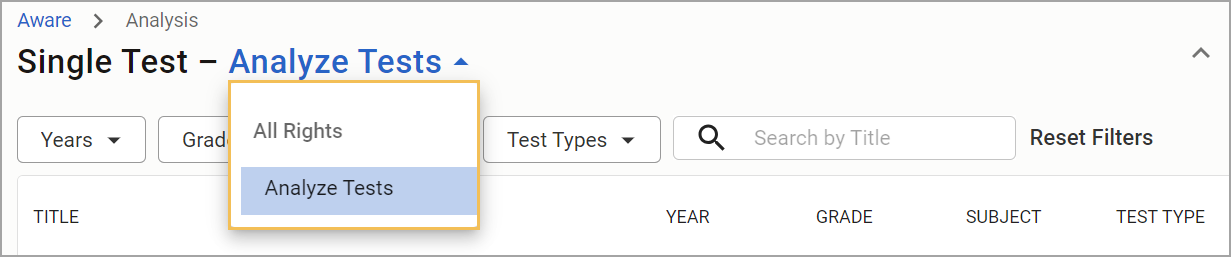
For active Aware tests within the current school year, select Single Test Analysis. Choose a test by clicking on the test title or applying filters to locate a specific test. The test will open on the Performance Summary tab.
See the following articles for specific information on each of the following:
Warning: Data files that are uploaded from the Administration tab of an assessment will not work with Single Test Analysis, Mastery, Multi-Test Analysis, or Student Constructed Response Report.