preview home settings pageview analytics stacked_line_chart summarize assignment_turned_in create supervisor_account ballot insights menu_book person folder_shared emoji_events description group_add help_outline remove_circle_outline check_box_outline_blank check_box search arrow_downward star_outline close keyboard_double_arrow_left remove add add_circle toggle_off info more_vert arrow_upward bookmark_border percent 123 data_object report_problem arrow_drop_down arrow_drop_up insert_link zoom_in zoom_out radio_button_unchecked radio_button_checked check file_copy star cloud_done add_circle_outline cloud_upload cached arrow_left arrow_right attach_file calendar_today note_add collections_bookmark attachment keyboard_arrow_right keyboard_arrow_down keyboard_arrow_left keyboard_arrow_up palette screen_rotation_alt calendar_month upload_file add_link delete drag_indicator article picture_as_pdf sell format_bold format_italic format_underlined link_off format_color_text format_color_fill format_list_bulleted format_list_numbered image table_chart tag school folder assignment assessment open_in_new menu rotate_90_degrees_ccw file_download add_comment exit_to_app today circle check_circle manage_search person_add_alt dashboard date_range manage_accounts track_changes fact_check done_all workspace_premium library_books group assessment bar_chart grain find_in_page qr_code_2 print laptop how_to_reg library_add_check event hourglass_empty reorder calendar_today border_all sort grading list_alt person_outline assignment_ind groups badge corporate_fare open_in_browser error_outline lock sync_alt push_pin playlist_add edit info toggle_on push_pin visibility_off view_column settings filter_alt check_circle groups group stars calculate school file_download upload save visibility cancel folder local_library delete print file_copy palette pause stop assistant flag play_arrow check_box score report_problem event library_books report table_rows share preview colorize insert_comment auto_awesome person build fiber_manual_record supervisor_account insert_drive_file cancel view_list location_on event_seat calendar_today view_week group_work category auto_awesome_mosaic how_to_reg assignment_ind email folder_shared restore_page manage_accounts dynamic_form developer_board push_pin push_pin forum rate_review assistant notes notifications_active notification_important mic

Documentation Index

Fetch the complete documentation index at: https://support.eduphoria.net/llms.txt

Use this file to discover all available pages before exploring further.

Test Status

Prev Next

Users can assign the test status on any of the Test Authoring Interface tabs. Possible assessment statuses are Pending, Active, and Archived.
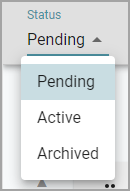
test status.png

Pending

Test authors can edit a test in Pending status. The test status will be Pending once you create a test key.

Keep a test pending until you have associated all the questions with learning standards and selected the relevant school and students.

Teachers will not be able to print answer documents while a test is pending. However, anyone with the Data Administrator, Campus Administrator or the Benchmark Printer role will be able to print at any time.

Active

Test authors cannot edit a test set to Active status. Once you have entered the test key, associated learning standards, and selected schools and students, you can make the test active.

Note: If a test author needs to modify a test after it has been made active and answer documents have been printed or online testing has started, then the test must be changed back to Pending status first. Changes can be made for most items including adding and removing questions, updating answers, and associating new student learning standards. However, certain items do not allow changes and are greyed out.

A teacher can print answer documents so long as

  • the test is active,

  • the teacher selected their school and students, and

  • the current date falls within the test administration start and end dates.

Archived

Once students complete the test and the test author scans all answer sheets, the test author should set the status to Archived. Once you archive a test, you cannot scan in additional answer sheets, but you can still analyze the test.

We recommend that test authors archive all tests before the next school year.

To reuse a past test for new students in the current year, test authors must copy the test from the archive. If you use the same test year after year without creating new test administrations or copies, then the data will merge from year to year.

Once you archive a test, you can unarchived it by changing the status to Pending or Active.

Note: You can mass archive and mass edit assessments for district- and school-level assessments.

Warning: Keep in mind that retests are linked to the original test that was used to create them. Do not archive the original test if the retest is still in use. When both are ready to be archived, you must archive the retest first, then you can archive the original test.