After you create a test, the test authoring interface appears. The interface includes the following tabs to build and customize your assessment:
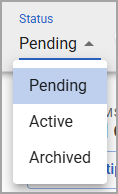
Test Status
Users can assign the test status on any test authoring interface tabs. Possible test statuses are Pending, Active, and Archived.
Note: You can mass archive and mass edit assessments for district- and school-level assessments.
General Tab
The General tab contains the following basic details about your test:
Test Name
Subject
Test Type
Associated Courses
Grade Level
Test Creator
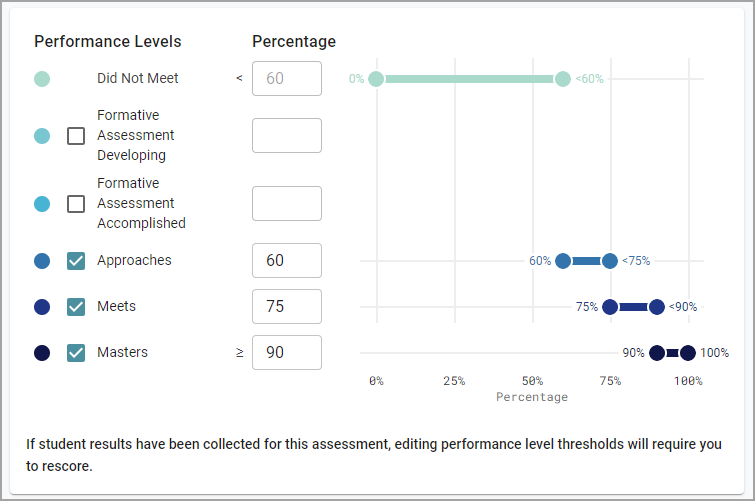
Performance Levels
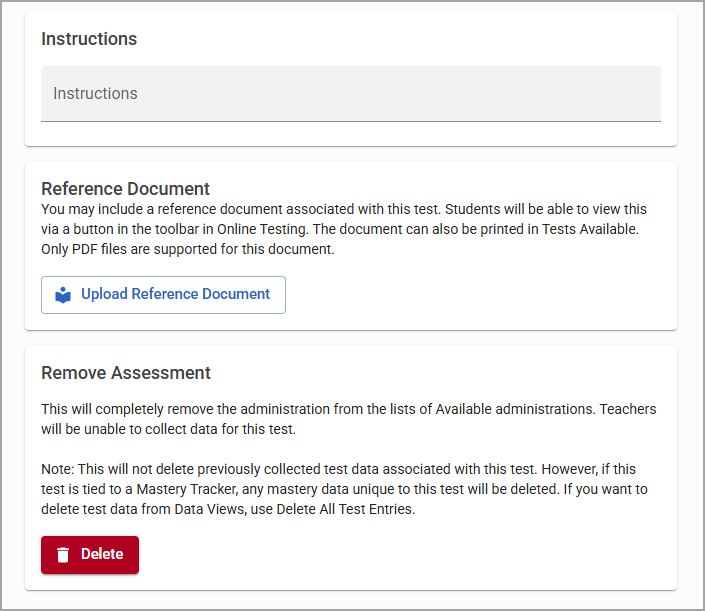
Instructions
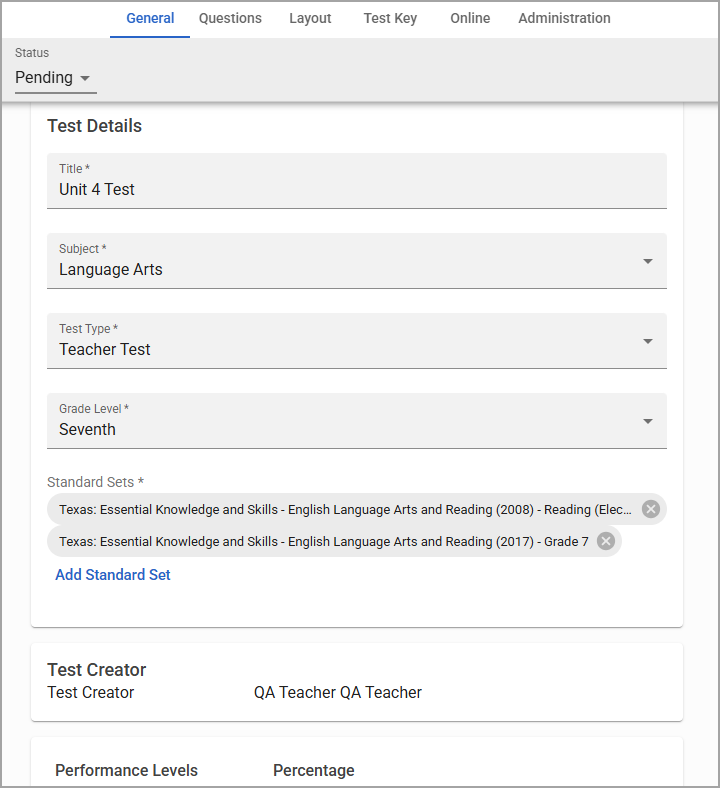
Test data under Subject, Test Type, and Grade Level appear on the Quick Views table.
Performance levels default to labels and cut points the district administrator sets for test types, but the test creator can change them for individual tests.
Entering testing instructions for students is optional.
You can also upload a Reference Document to the test or remove the test from being administered using the Delete button. All previously collected data will remain intact.
Questions Tab
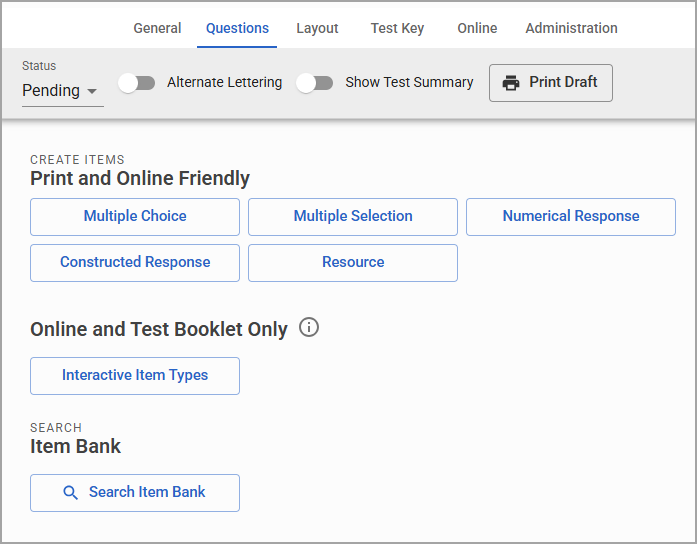
Add items to your assessment from the Questions tab. Items include print- and online-friendly items like constructed response questions, Interactive Item Types like drag-and-drop questions, and pre-written Item Bank questions.
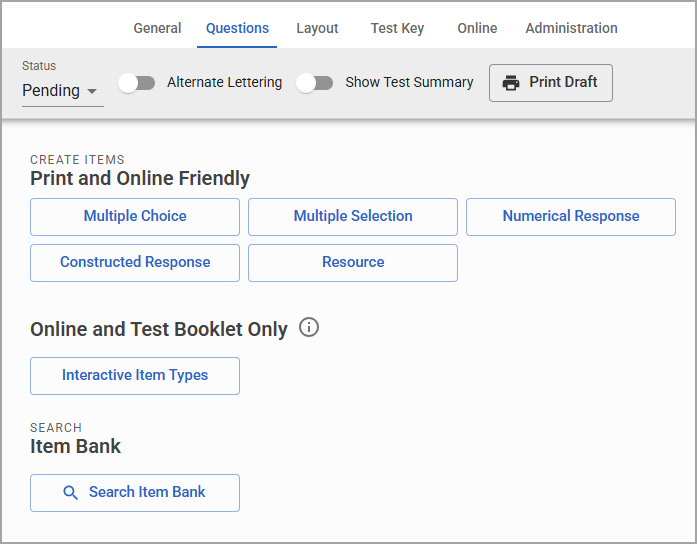
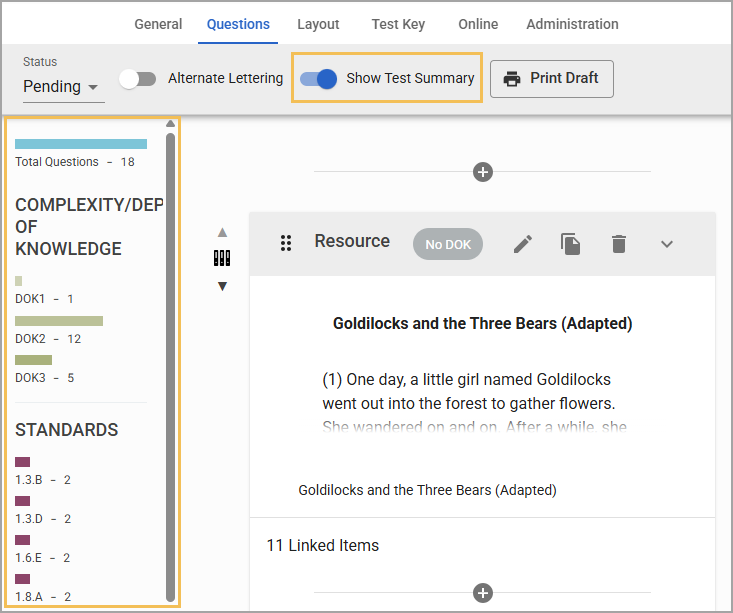
As you add questions, toggle on Show Test Summary to view the assessment’s total number of questions; their level of complexity, or Webb’s Depth of Knowledge (DOK); standards applied; and total number of question types.
Information in the test summary will update automatically as you construct and remove questions.
The Types section contains the total number of questions per the following question types:
Selected Response
Constructed Response
Numerical Response
Interactive Response
Resource
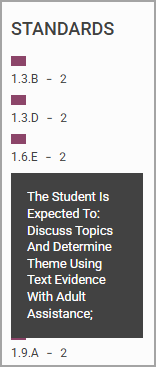
Hovering over a standard displays the standard text.
Layout Tab
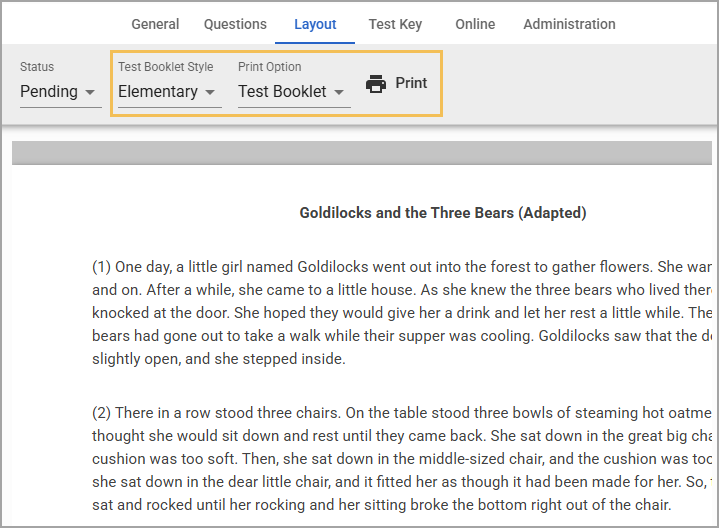
Navigate to the Layout tab to preview the print layout of an assessment and organize the appearance of print-friendly items. Interactive items will prevent users from laying out the test, but you can still print the assessment as a test booklet.
Learn more about editing the Layout view in Aware.
Test Key Tab
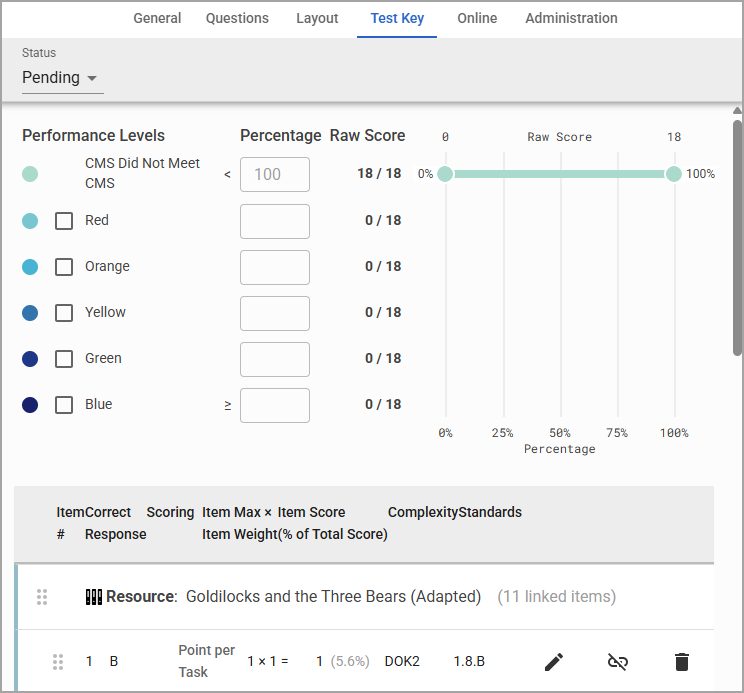
The Test Key tab allows test creators to modify performance levels, item weight, learning standards, and more. Test Keys may contain Selected Response, Constructed Response, Numerical Response, or Interactive Response item types.
Learn how to build a Quick Test Key and edit items from the Test Key tab.
Online Tab
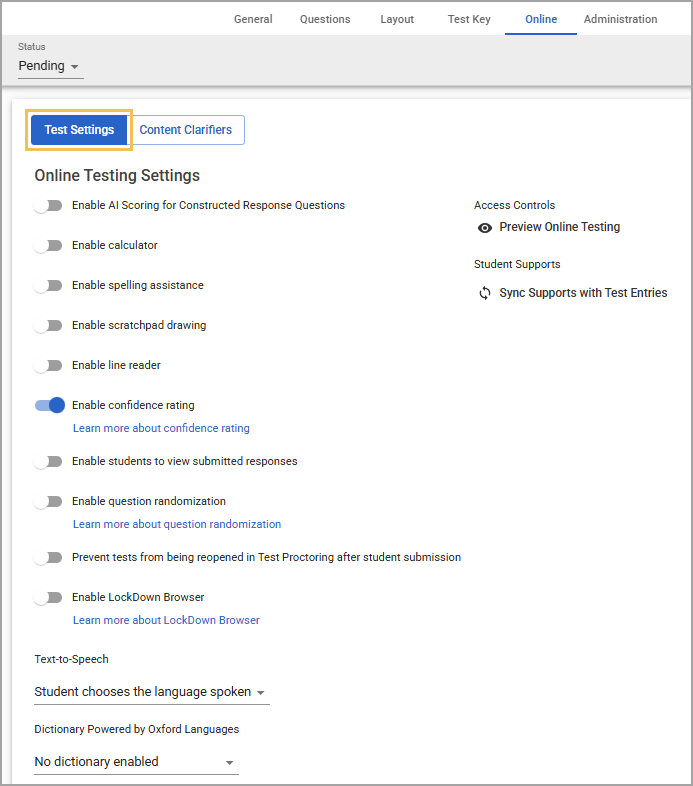
Test authors assign online test settings, manage content clarifiers, and preview online testing on the Online tab. Online testing settings include but are not limited to toggling on LockDown Browser, the Student Score Summary, and student supports like calculators and Text-to-Speech.
Administrators have the additional option to set Online Test Proctoring controls to either teachers or administrators only. Access controls to start and stop online testing appear on the Online tab once you select Administrators Only.
Administration Tab
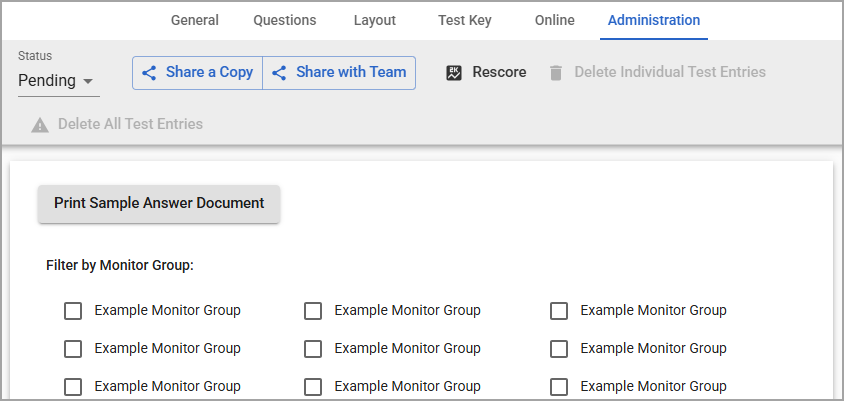
Access the Administration tab to perform the following actions:
Share a copy of the assessment with other users
Share the assessment with a Teacher Team
Rescore the assessment
Delete an individual test entry
Delete all test entries
Print a sample answer document
Filter the assessment to specific Monitor Groups
Administrators can access additional settings split across a Students tab and a Collections tab. Teacher teams and administrators can determine a range of available dates for students to take the assessment.
Learn more about what’s possible for student filtering and data collection in the Administration tab.