When reviewing Axiom information, you might occasionally feel that the predictions or individual scores are not correct. Within this article, we have provided some practical steps to troubleshoot inaccurate data. If none of these steps help resolve your problem, be sure to review the Axiom FAQ or contact Support. When contacting Support, provide as much information as possible, such as the following:
The specific calculation is incorrect. For example, if you believe Domain 3 is incorrect, which data is incorrect?
Try to identify the number of points you’re expecting in a particular calculation.
Provide a list of students who are or are not being included correctly in a calculation, if possible.
Include screenshots of relevant data and portions of the UI wherever possible.
Steps to Take When Troubleshooting Axiom
Here are some steps you can follow to correct inaccurate data.
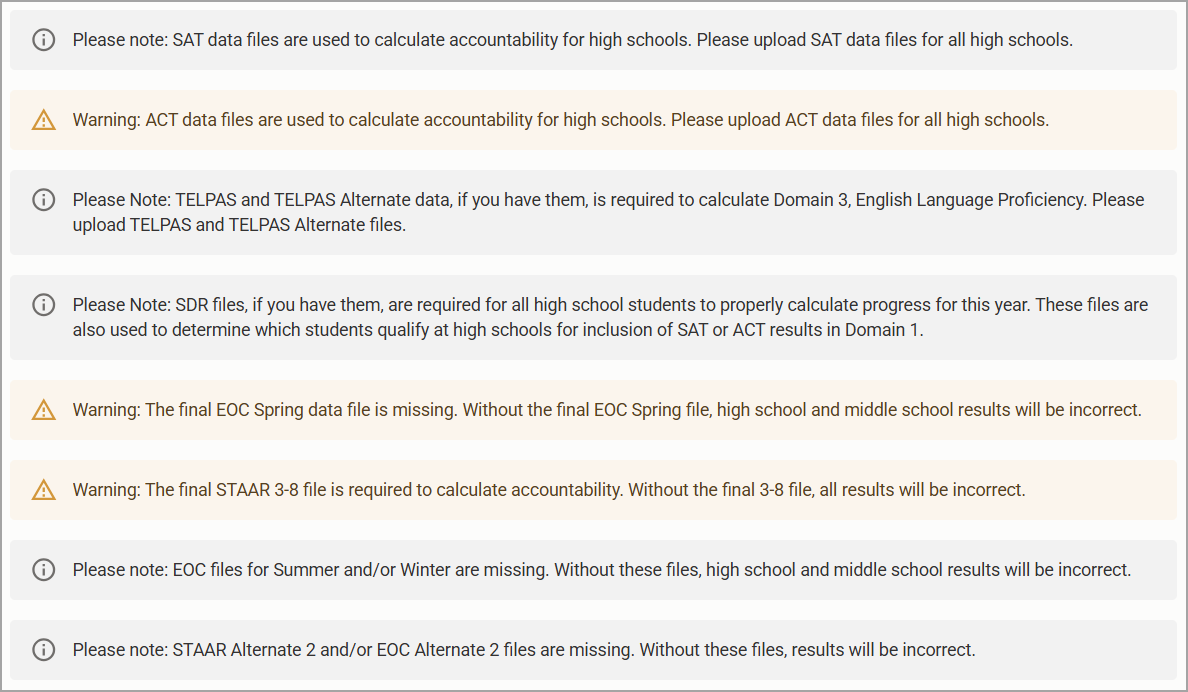
Step 1: Check for warnings or error messages in the UI, and then attempt to resolve the error.
For example, you might see an import error. In that case, attempt to reimport the data specific to that error and recalculate Axiom once complete.
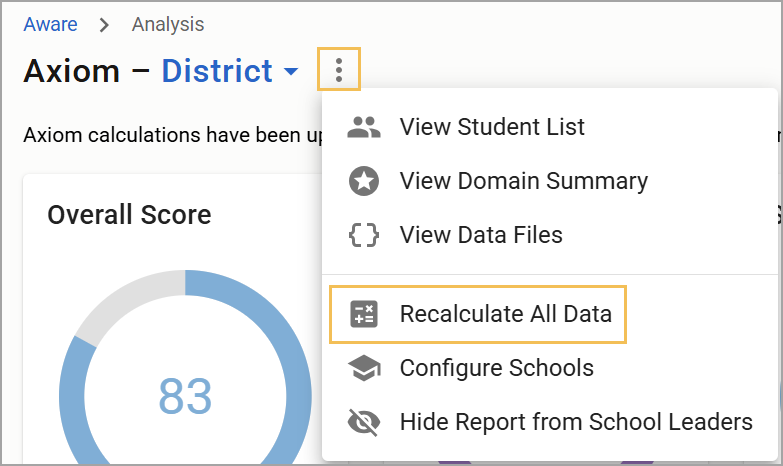
Step 2: Select Recalculate All Data.
Sometimes, a recalculation is all that is needed to fix some errors. Give that a try as a general “have you tried turning it off and on” step.
Step 3: Review your uploaded STAAR, TELPAS, SAT, ACT, and other relevant data, and compare it with the data available in the Student List Table in Axiom.
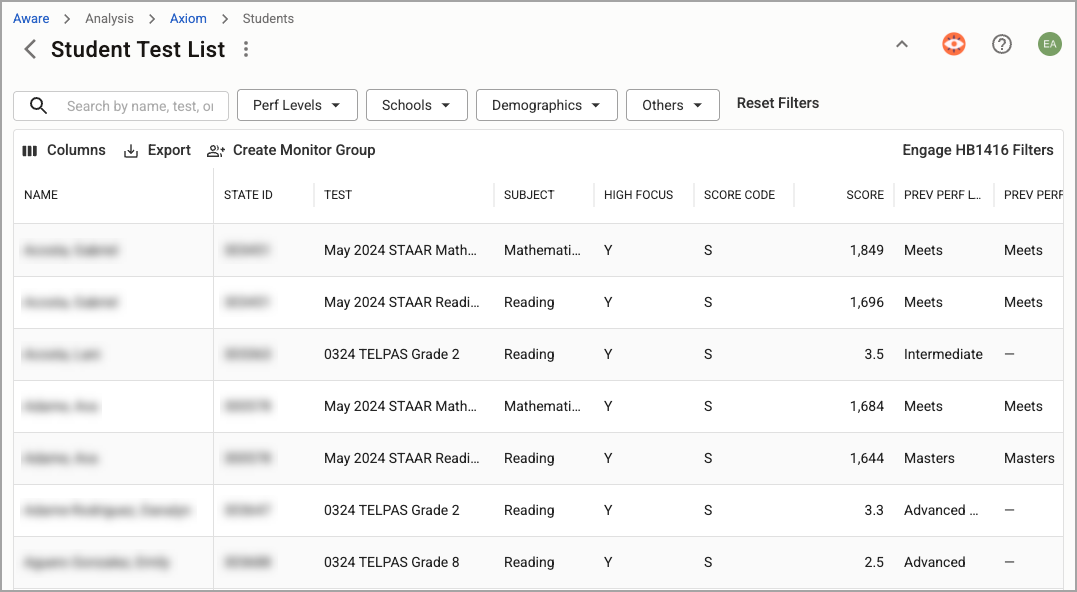
Step 4: Discover whether the data matches between the data files and what’s listed in Axiom’s Student List Table.
If it does not, try recalculating the data, as a data upload might have changed what is available in Aware versus Axiom. In addition, consider schools whose students take the SAT or ACT, since that data must also be included in Aware to ensure accurate calculations. After uploading any updated data, you must select Recalculate All Data to see changes in Axiom.
Step 5: Confirm whether all students are included in the data uploads to Aware.
If they aren’t all included, upload an updated data file to Aware. You might need to upload individual student reconciliation files (SDR) in cases where students who transfer into the district aren’t included in your district data files, and then recalculate all data.
Step 6: See whether all students who are required to have two years’ worth of data for math and reading have what’s required.
Domain 2 calculations and portions of Domain 3 require two years’ worth of data. A universal exception is third grade, since there is no prior-year information for math or reading.
Step 7: Check whether all fields are populated in the data import.
If the fields aren’t all populated, you might need a new data upload to import into Aware.
Step 8: Confirm that the data files in Aware are the “Final” files.
If they are early, preliminary, or some other files instead, be sure to locate and upload the Final files once they are available and recalculate the data.
Note: Axiom does not work with early data files.
Step 9a: Select Configure Schools to verify your school configuration settings.
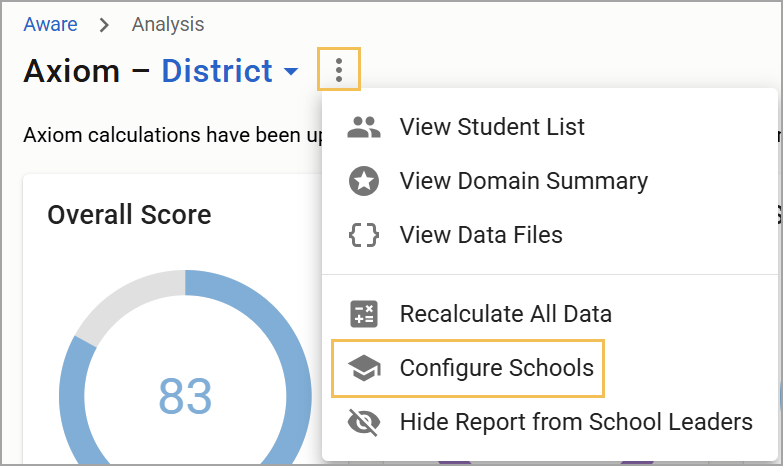
Step 9b: Once on the Configure Schools screen, verify that the school has been assigned the correct school Type. In addition, verify that the correct high-focus groups for each school are selected for the 1st and 2nd Groups.
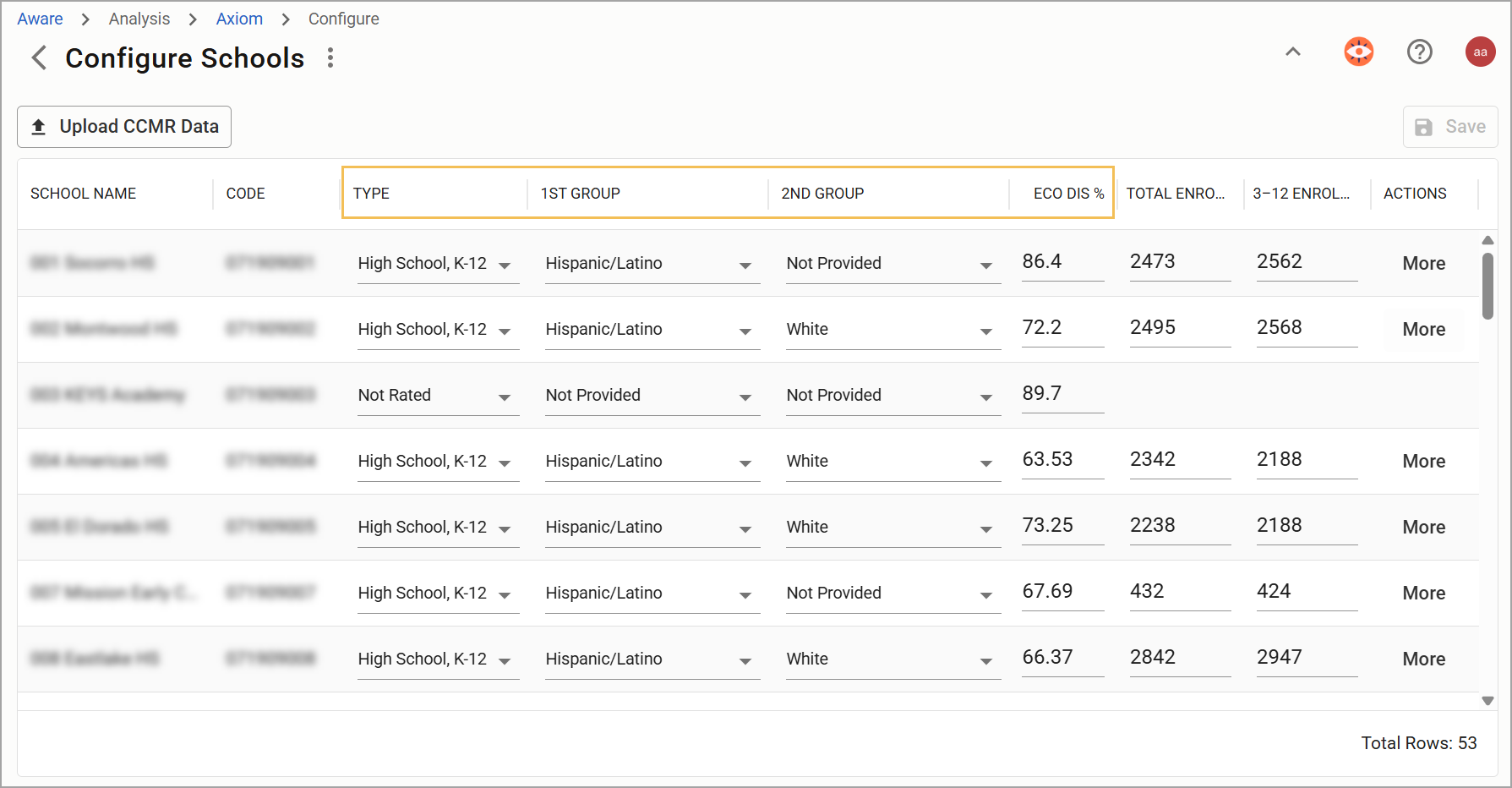
Step 9c: Confirm that you have the correct Economically Disadvantaged percent (Eco Dis %) entered.
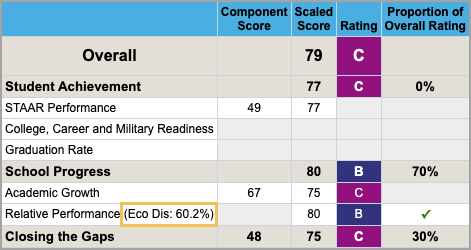
Since Eco Dis percentages drift from year to year, you can cross-check the Eco Dis percentage of individual schools in your district using TEA’s Accountability Reports page to find previous-year accountability information. The resource provides the Eco Dis percentage next to Relative Performance under School Progress. While the provided Eco Dis percentage won’t be your school’s current year’s percentage, it is likely to be close to it unless you’ve had changes to your school that would create major shifts in that number (such as redistricting).
Step 9d: Verify Total Enrollment and 3-12 Enrollment for the current year. These numbers are rarely the same for elementary schools and affect how calculations are made in most of Axiom.
Additionally, snapshot data can impact enrollment. Like Eco Dis percentages, enrollment generally doesn’t fluctuate wildly from year to year, barring a few exceptions. You can double-check your school’s enrollment numbers for the prior year and decide if the numbers you’ve input for the current year make sense. Visit the TEA’s Accountability Ratings System and look for the download for the current year’s Campus 3-12 Enrollment.
Step 9e: Under the Actions column in the Configure Schools table, select More to verify that you’ve uploaded College, Career, and Military Readiness (CCMR) data. CCMR data is not always immediately available when Axiom begins each accountability season. If you do not yet have CCMR data, the calculations might change after the data becomes available.
For high schools, verify that the sections for CCMR, Graduation Rate, and 4 Year Federal Graduation Rate Component are filled in correctly.
.png)
Step 10: Confirm whether you have new schools in your district this year.
If you do, verify in Management that all new schools have recorded their county-district-campus (CDC) numbers, as provided by TEA. In Management, the CDC number is called the State ID Number.