Professional goal setting initiates the evaluation process, which often occurs at the end of the previous school year or the start of the new school year. Learn more about the goal lifecycle and adding evidence to a goal in Strive. You can also view videos about writing SMART goals.
Quick Guide
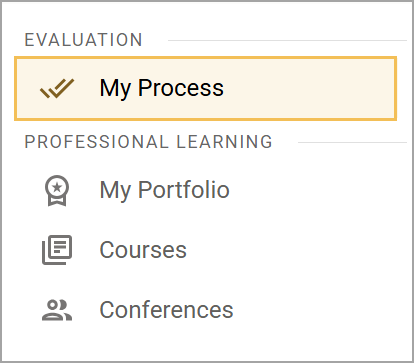
Select My Process () to access your evaluation tasks.
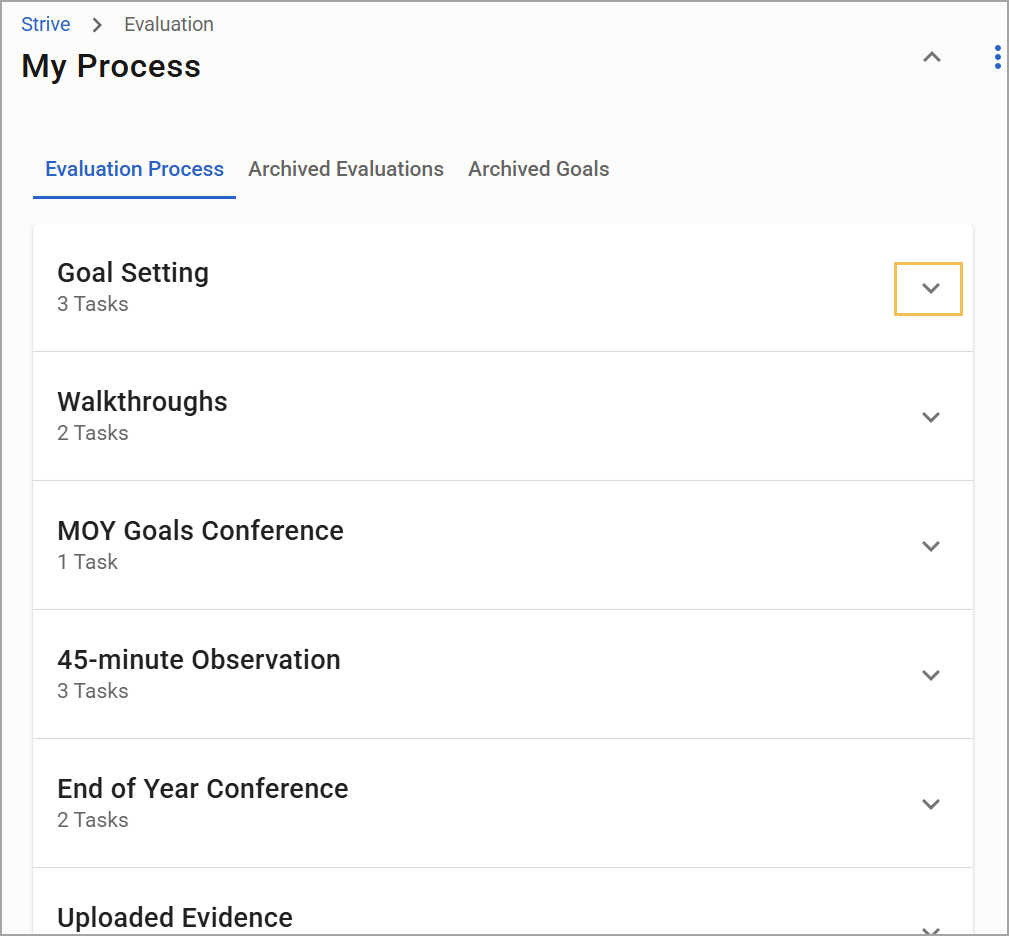
Select the Expand arrow () from the list of tasks under Evaluation Process to open the Goal Setting container.
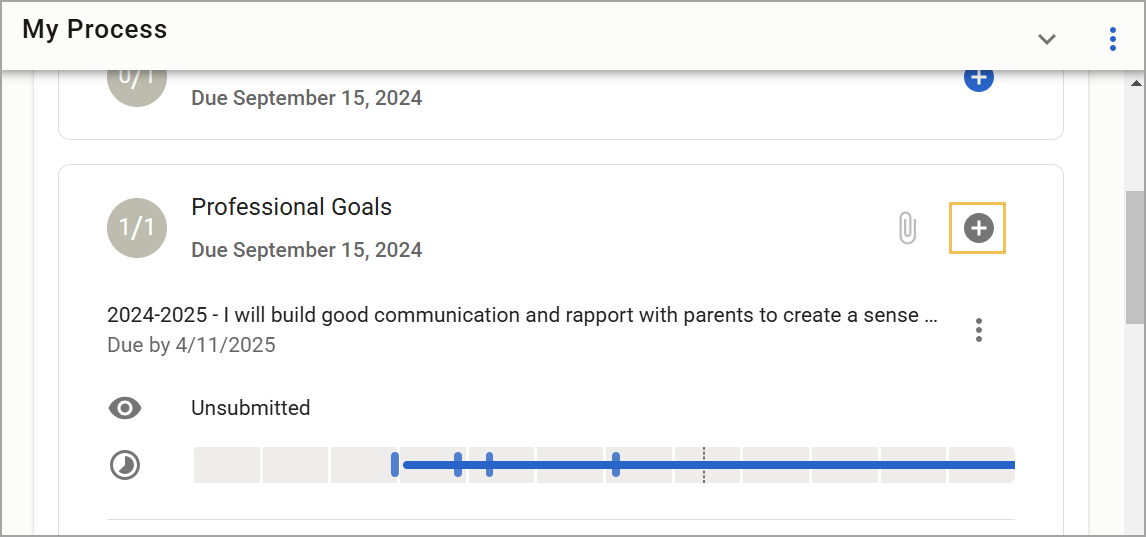
Select the Add button () next to the task to open the form.
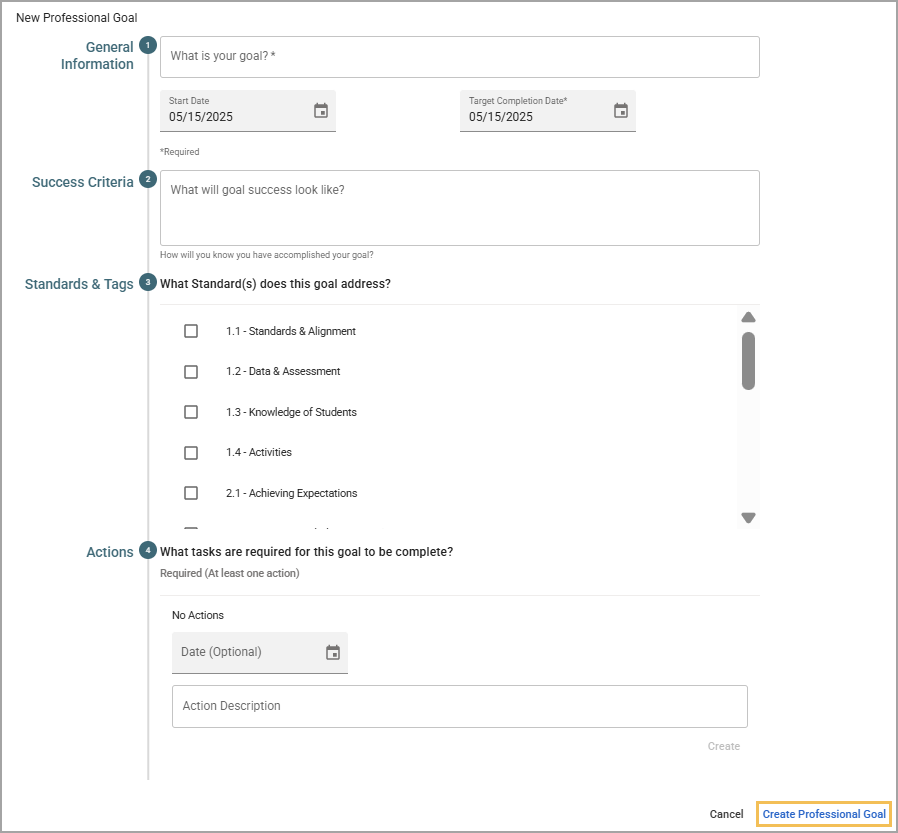
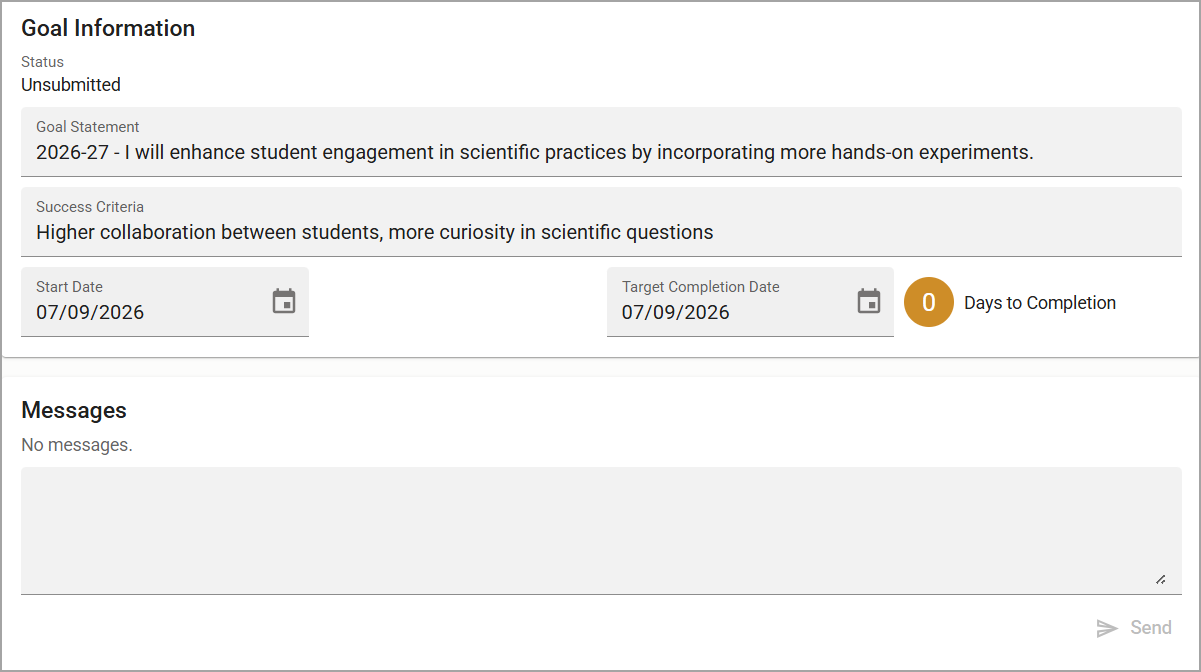
Enter information related to your goal in the pop-up window. Add at least one action item. When finished, select Create Goal.
You can make additional edits and send a Message to clarify your goal with your evaluator before submitting it.
When ready, select Submit for Approval () to send the goal to your evaluator for review.
Illustrated Guide
Step 1: Select My Process () to access your evaluation tasks.
Step 2: Select the Expand arrow () from the list of tasks under Evaluation Process to open the Goal Setting container.
Step 3: Select the Add button () next to the task to open the form.
Step 4: Enter information related to your goal in the pop-up window. Add at least one action item. When finished, select Create Professional Goal.
Tip: When creating Professional Goals, add the year to the beginning of the goal’s name. This makes it easier to locate your Professional Goals in the archive.
Example: 2026-27 - I will enhance student engagement in scientific practices by incorporating more hands-on experiments.
Step 5: You can make additional edits and send a Message to clarify your goal with your evaluator before submitting it.
Step 6: When ready, select Submit for Approval () to send the goal to your evaluator for review.
