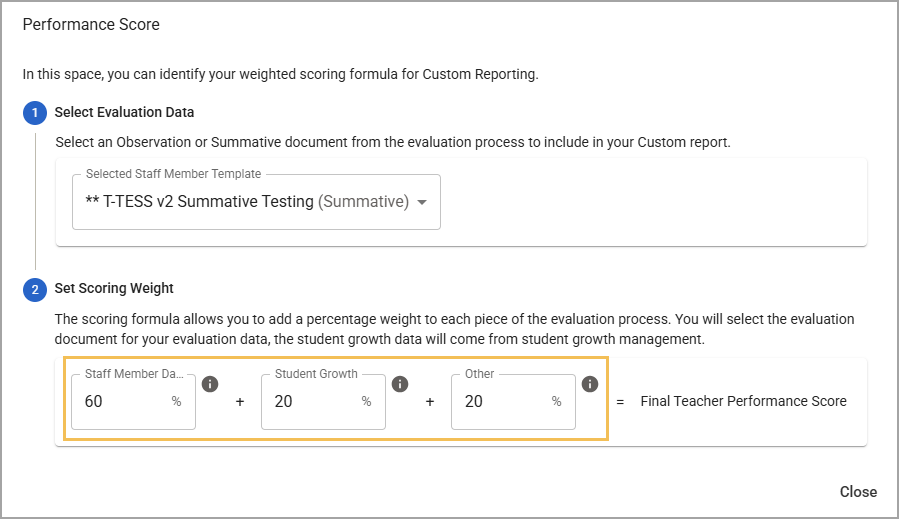
Districts can apply a customized weighted scoring system to an Observation or Summative document and merge additional data by running the Custom TIA Export.
Weighted scoring allows districts to split the default scoring system further using an Other category. For example, you might want a greater scoring weight placed on Staff Member Data, less weight on Student Growth, and some weight placed on Other. Your weighted scoring could look like the following formula:
60% Staff Member Data + 20% Student Growth + 20% Other = Final Teacher Performance Score
The Other category gives districts greater flexibility to measure teacher performance using additional sources outside of Eduphoria, such as external walkthroughs, surveys, validated assessments, and more.
Setting Custom Weighted Scores for the Evaluation Process
Users will first complete a series of steps to customize their weighted scores. These settings will then apply when you run the Custom TIA Export.
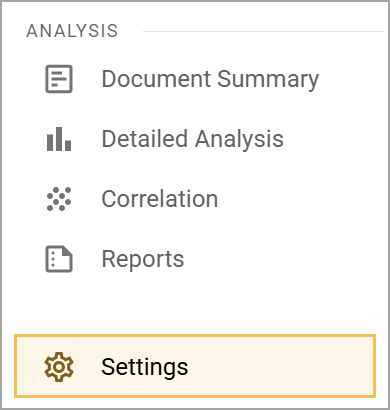
Step 1: Select Settings.
Step 2: Select Process Management.
.png)
Step 3: Select the desired process from the table.
.png)
Step 4: Verify that your process is set up correctly, including its framework, steps, tasks, due dates, and attached forms, if relevant.
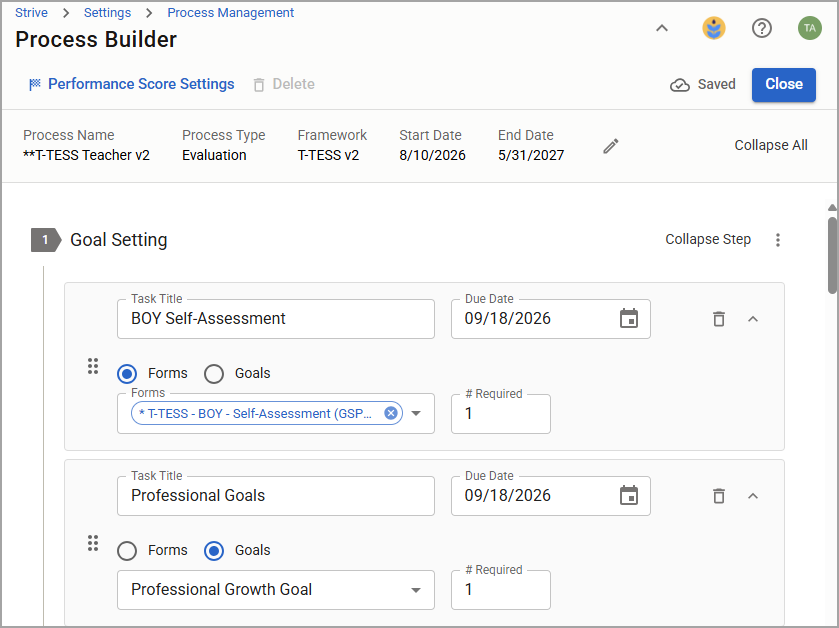
Step 5: Select Performance Score Settings.
.png)
Step 6: Select an Observation or Summative document with evaluation data to include in your report.
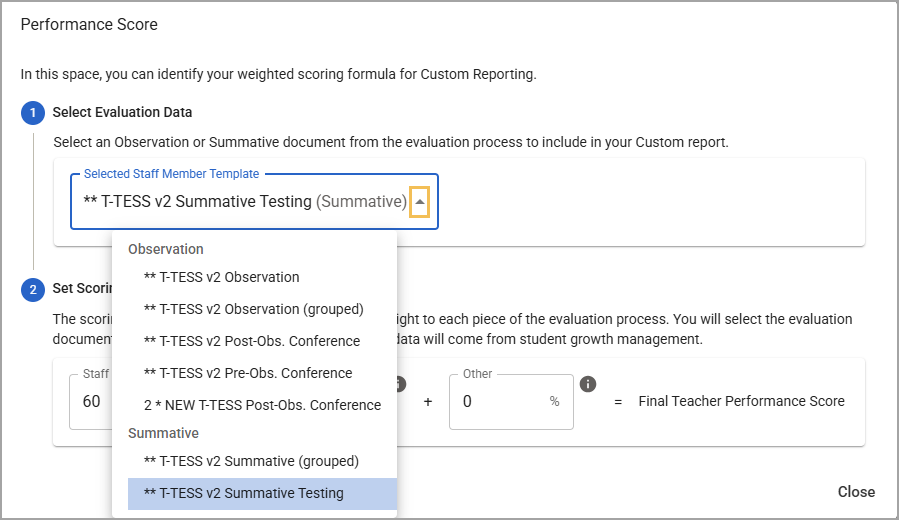
Step 7: Set the scoring weight for each of the following components:
Staff Member Data refers to the Observation or Summative document you selected.
Student Growth refers to the data collected in the Student Growth Management section in Strive.
Other refers to data your district collects outside of Eduphoria.
Your custom scoring must equal 100% for the Final Teacher Performance Score. Once this requirement is met, scoring weights save automatically.
You can merge the Other data into the downloaded spreadsheet you create when running the Custom TIA Export.