Appraisal administrators can create various processes to evaluate a district or school position. For example, if your librarian and your school nurse require the same steps in their evaluation process, you can create a single process named “School Non-Instructional Staff.”
If different forms are used for the school nurse and librarian, you can select different forms within the process. Best practices for process names are created based on the evaluation process, not the position type.
Note: Process is formerly known as Appraisee Type.
Quick Guide
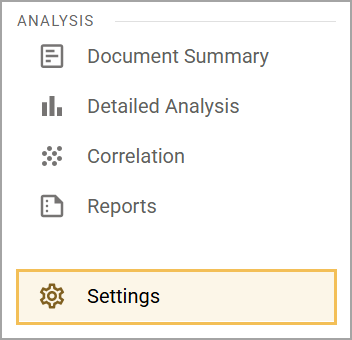
Select Settings () from Strive’s navigation menu.
Select Process Management.
Select Build New Process.
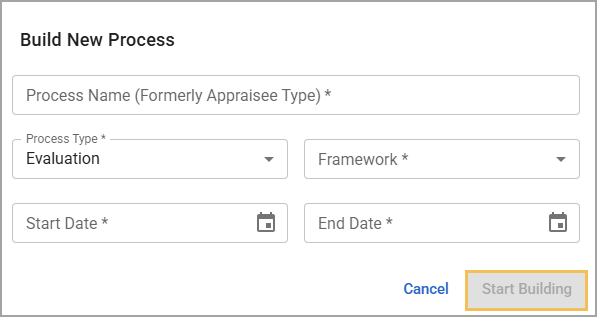
Set the Process Name, Process Type, Framework, Start Date, and End Date. Then, select Start Building.
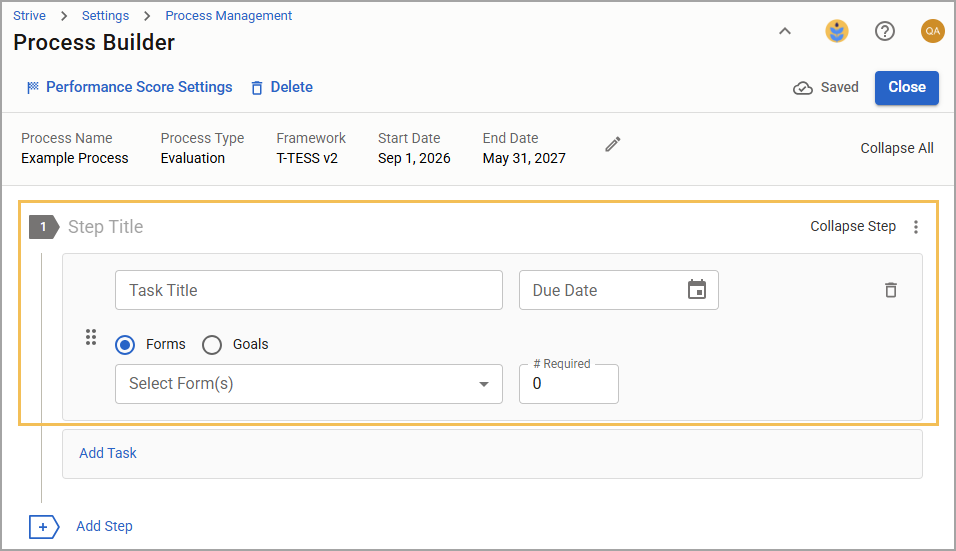
In the process builder, give the first step a title and fill in the information for its first task. You can title the task and set its due date to populate data for Strive’s Overview and Activity Tracker.
Choose between forms and goals as the task, and set the number required to complete, if any.
Select Forms to access a drop-down menu, where you can choose forms from the following types: Reflection, Walkthrough, Observation, Evaluation, Summative, and Intervention.
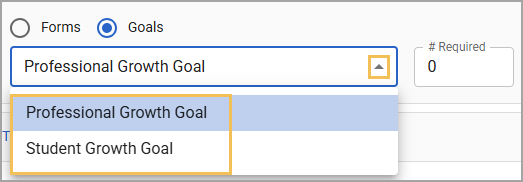
Select Goals to choose between a Professional Growth Goal and a Student Growth Goal.
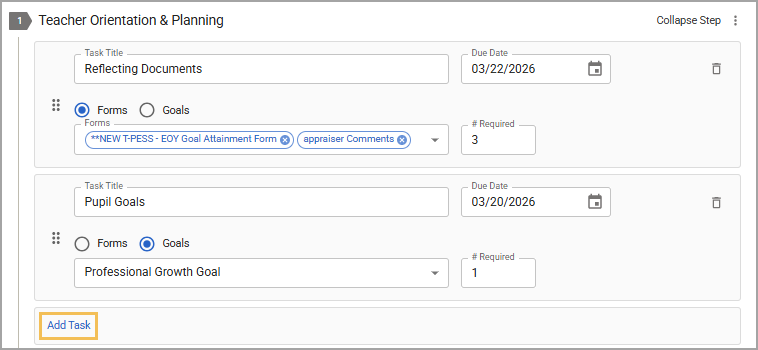
If you want the current step to have more tasks, select Add Task, and fill in the information for the new task.
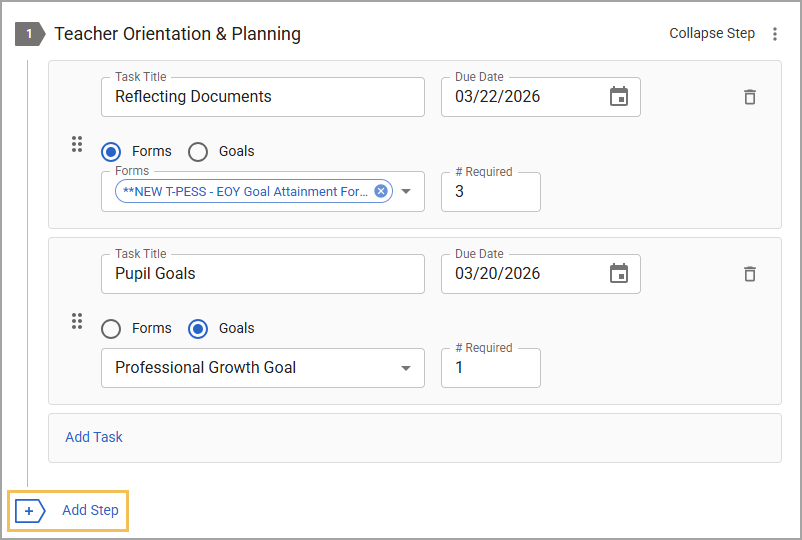
If you want the process to have more steps, select Add Step, title the new step, and add relevant tasks. Drag and drop () the tasks to rearrange them as needed within the step.
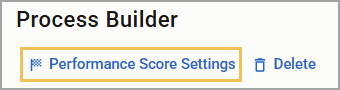
Select Performance Score Settings () if you want to choose an observation or summative document and set your weighted scoring formula for the Custom TIA Export. The process must first be assigned a framework and a valid evaluation form.
Illustrated Guide
Step 1: Select Settings () from Strive’s navigation menu.
Step 2: Select Process Management.
.png)
Step 3: Select Build New Process.
.png)
Step 4: Set the Process Name, Process Type, Framework, Start Date, and End Date. Then, select Start Building.
Tip: Add a framework if you want to use it to connect data across multiple tasks or run Detailed Analysis. If your non-instructional staff members only have one evaluation, you can select No Framework instead.
Step 5: In the process builder, give the first step a title and fill in the information for its first task. You can title the task and set its due date.
Note: Setting due dates for tasks populates data for Strive’s Overview and Activity Tracker. If due dates are not set, evaluators cannot monitor a staff member's progress with these tools.
Step 6: Choose between forms and goals as the task, and set the number required to complete, if any.
Selecting Forms gives you a list of forms to choose from. The drop-down menu includes categories you can expand and collapse from the following form types:
Reflection
Walkthrough
Observation
Evaluation
Summative
Intervention
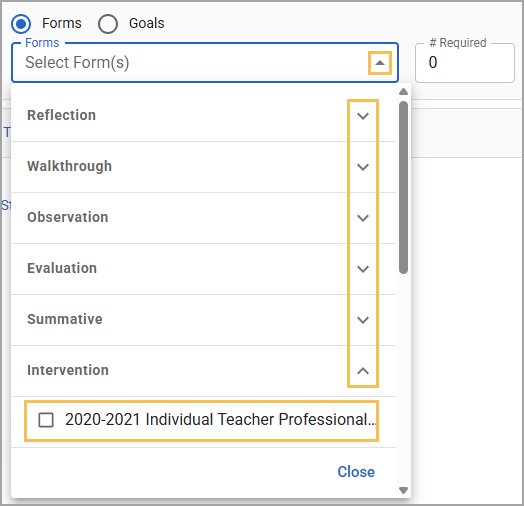
Selecting Goals allows you to choose between a Professional Growth Goal and a Student Growth Goal.
Step 7: If you want the current step to have more tasks, select Add Task, and fill in the information for the new task.
Step 8: If you want the process to have more steps, select Add Step, title the new step, and add relevant tasks. Drag and drop () the tasks to rearrange them as needed within the step.
Tip: After setting up an evaluation process, assign it to the appropriate staff members. For more information about this process, see Selecting Your Staff.
Step 9: Select Performance Score Settings () if you want to choose an observation or summative document and set your weighted scoring formula for the Custom TIA Export. The process must first be assigned a framework and a valid evaluation form.
.png)