Using electronic signatures allows the district to implement a paperless process in Strive evaluations and Formspace. Only a system administrator can set up electronic signatures and should do so only after a district makes the decision.
Caution: Eduphoria strongly advises that the district consult with their legal counsel regarding the appropriateness of using electronic signatures.
Quick Guide
Log in to Eduphoria and select Management.
From the main menu, select the Organization Settings gear ().
From the resulting drop-down menu, choose District Settings.
On the District Settings screen, access the Electronic Signatures tab and read the electronic signature agreement.
Select the checkbox stating you have read and accepted the agreement, then click the Enable Electronic Signatures button to authorize them for your district.
Select Save () to finalize all settings.
Illustrated Guide
Step 1: Log in to Eduphoria and select Management.
.png)
Step 2: From the main menu, select the Organization Settings gear ().

Step 3: From the resulting drop-down menu, choose District Settings.
.png)
Step 4: On the District Settings screen, access the Electronic Signatures tab and read the electronic signature agreement.
Step 5: Select the checkbox stating you have read and accepted the agreement, then click the Enable Electronic Signatures button to authorize them for your district.
Step 6: Select Save () to finalize all settings.
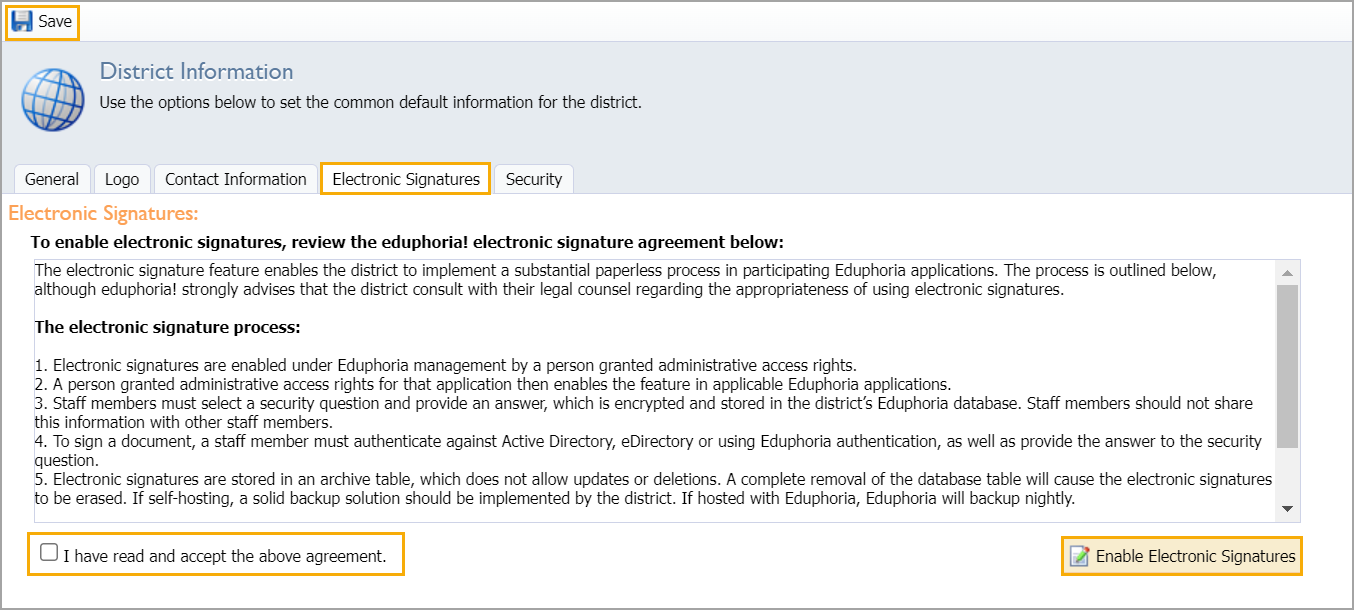
Electronic Signature Agreement
The electronic signature feature enables the district to implement a substantial paperless process in participating SchoolObjects applications. The process is outlined below, although Eduphoria strongly advises that the district consult with their legal counsel regarding the appropriateness of using electronic signatures.
The electronic signature process:
Electronic signatures are enabled under SchoolObjects management by a person granted administrative access rights.
A person granted administrative access rights for that application then enables the feature in applicable SchoolObjects applications.
Staff members must select a security question and provide an answer, which is encrypted and stored in the district’s SchoolObjects database. Staff members should not share this information with other staff members.
To sign a document, a staff member must authenticate against Active Directory, eDirectory or using SchoolObjects authentication, as well as provide the answer to the security question.
Electronic signatures are stored in an archive table, which does not allow updates or deletions. A complete removal of the database table will cause the electronic signatures to be erased. A solid backup solution should be implemented by the district.
The district is responsible and indemnifies and holds Eduphoria! harmless for any and all losses, liability, or damages arising out of, or incurred in connection with, the district’s use of SchoolObjects electronic signatures.