Educators or staff members who are logged into Strive and being evaluated can electronically sign a document to finalize the process. The evaluator or document creator can sign the document only after the educator has signed. Eduphoria recommends that both parties wait to sign until they review the document together at the end-of-year conference and decide no further changes are needed.
Note: Evaluators and educators can still edit their evaluation documents after selecting Let Staff View. If the educator completes their signature, they can make any changes by unsigning the document again. However, if both parties complete their signatures, the document becomes locked. For more editing options, see Clear Your Electronic Signature.
Quick Guide
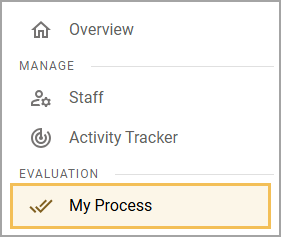
Select My Process () on the navigation panel.
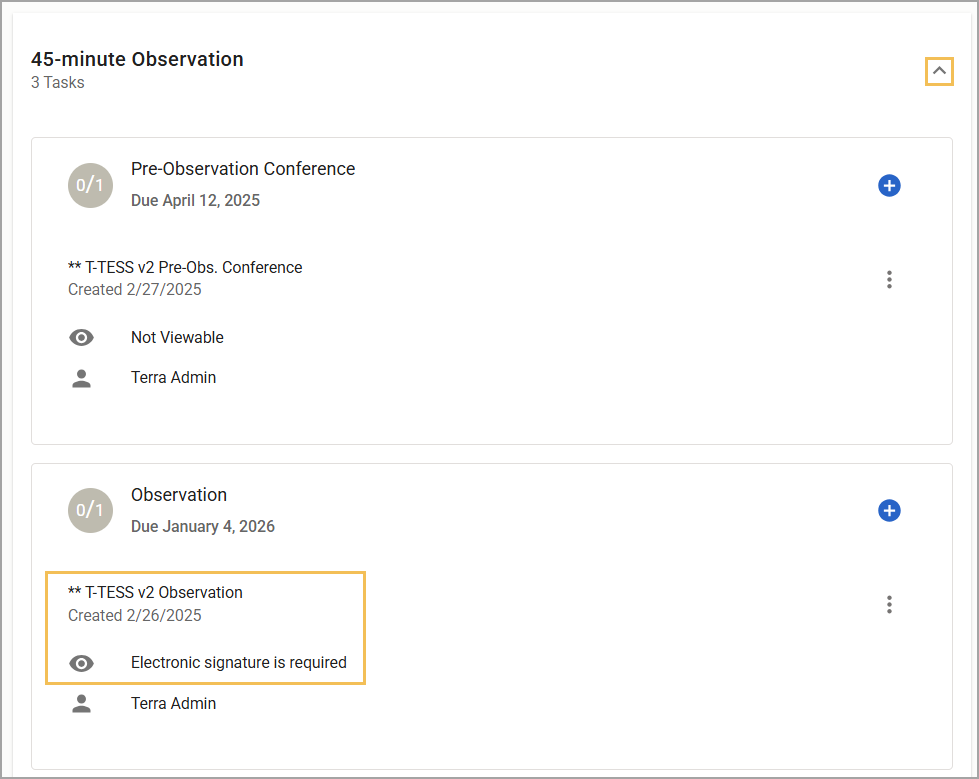
From the list of tasks (Observation, Walkthrough, Evaluation, etc.), select the Expand arrow () related to the type of documentation you want to access.
Select the document that displays Electronic signature is required to view the document’s details.
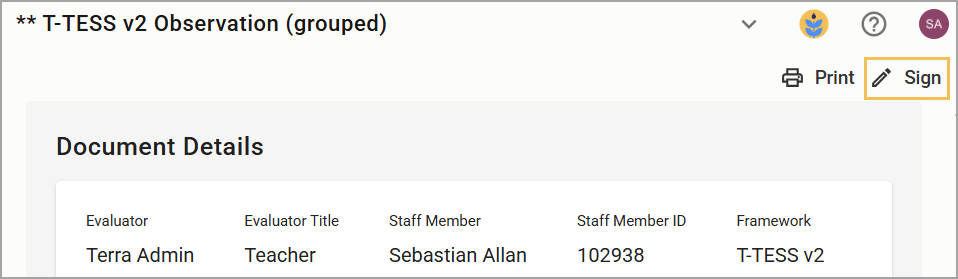
Select the Sign button () to start the electronic signature process.
Type your full name to sign. You can use the drop-down menu to change the signature style. Then, select Apply.
Warning: Your district may provide a checkbox on the signature screen to indicate refusal. Only check this box if you refuse to sign the document.
Illustrated Guide
Step 1: Select My Process () on the navigation panel.
Step 2: From the list of tasks (Observation, Walkthrough, Evaluation, etc.), select the Expand arrow () related to the type of documentation you want to access.
Step 3: Select the document that displays Electronic signature is required to view the document’s details.
Step 4: Select the Sign button () to start the electronic signature process.
Step 5: Type your full name to sign. You can use the drop-down menu to change the signature style. Then, select Apply.
Warning: Your district may provide a checkbox on the signature screen to indicate refusal. Only check this box if you refuse to sign the document.
.png)
The document is now locked from editing. The educator can clear their signature to open the document for editing again. Once the evaluator signs, the document becomes permanently locked and cannot be reopened.