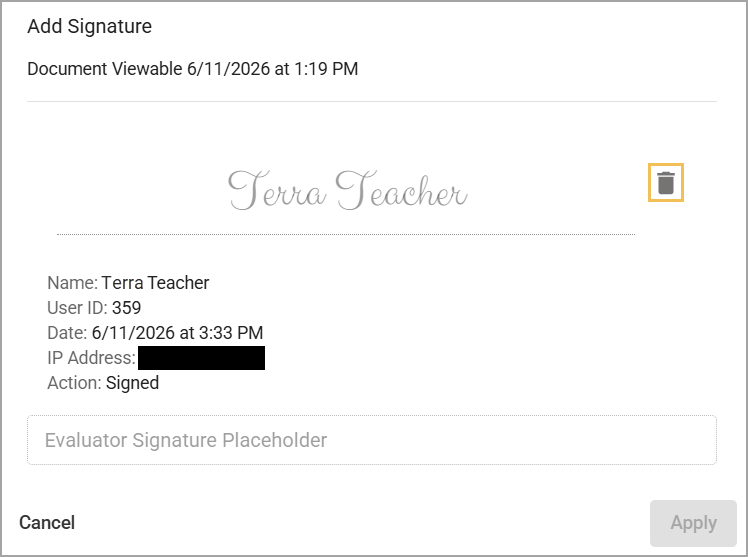
If the educator signs an evaluation document, it is locked and cannot be edited. If an evaluation needs to be reopened for editing and the second person, the evaluator, has not signed, the educator can clear their signature to unlock the document. Only the signer can clear their own signature. An evaluator cannot clear a signature on behalf of an educator and vice versa.
Caution: Because the educator is the first to sign the evaluation, only the educator can clear their signature to reopen the evaluation. Once the evaluator signs the document, the document is locked and cannot be reopened.
Quick Guide
Select My Process () on the navigation panel, then select the Evaluation Process tab.
Select the Expand arrow () from the list of tasks (Observation, Walkthrough, Evaluation, etc.) to open the container related to the type of documentation you want to access. The message Electronic signature is required appears for all documents with unsigned required signatures.
Select a document name to view a document’s contents.
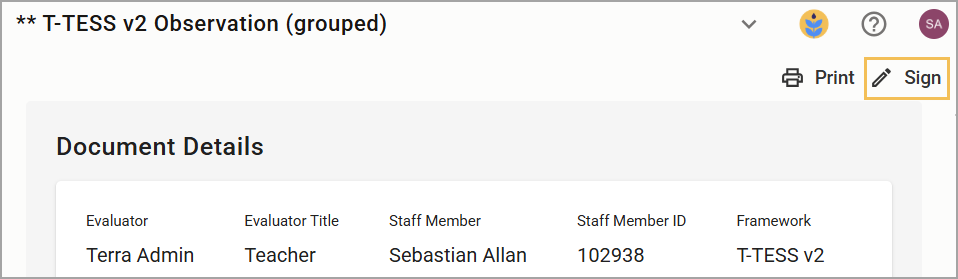
Click the Sign button () to open the signature display.
In the signature display, select the Delete icon () to remove your signature from the document.
Caution: To sign a document again, you must complete the tasks for electronically signing a document. After both parties have signed the document, the document becomes permanently locked and cannot be reopened for editing.
Illustrated Guide
Step 1: Select My Process () on the navigation panel, then select the Evaluation Process tab.
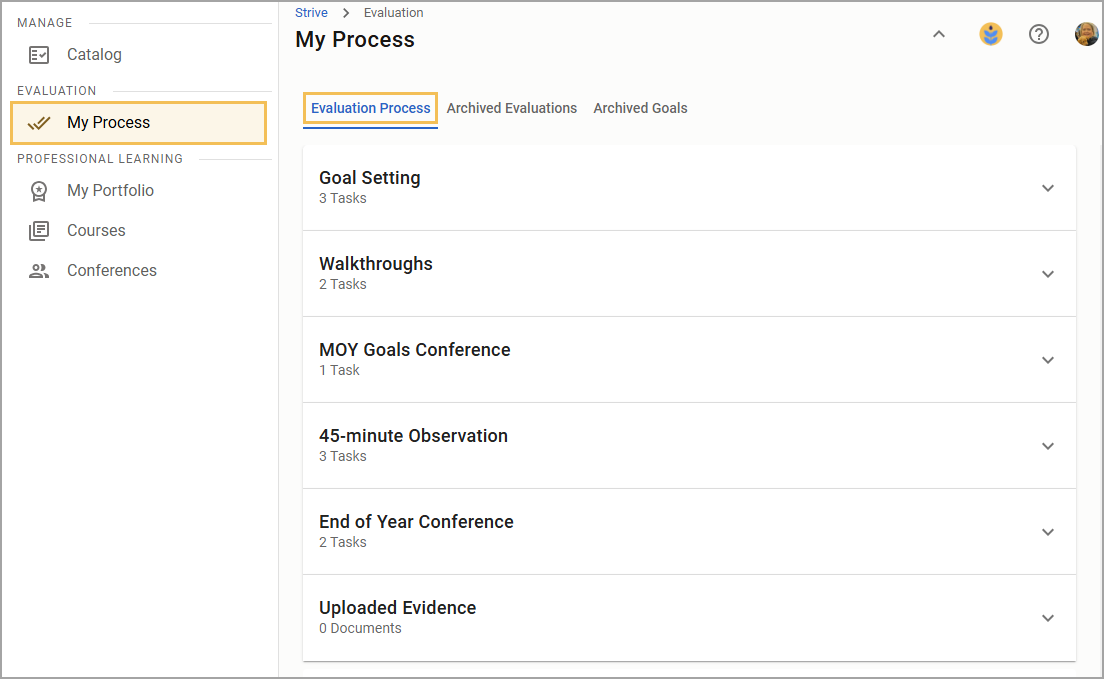
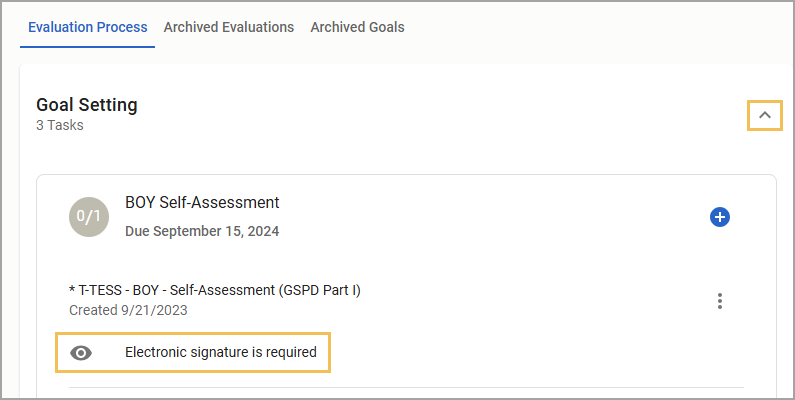
Step 2: Select the Expand arrow () from the list of tasks (Observation, Walkthrough, Evaluation, etc.) to open the container related to the type of documentation you want to access. The message Electronic signature is required appears for all documents with unsigned required signatures.
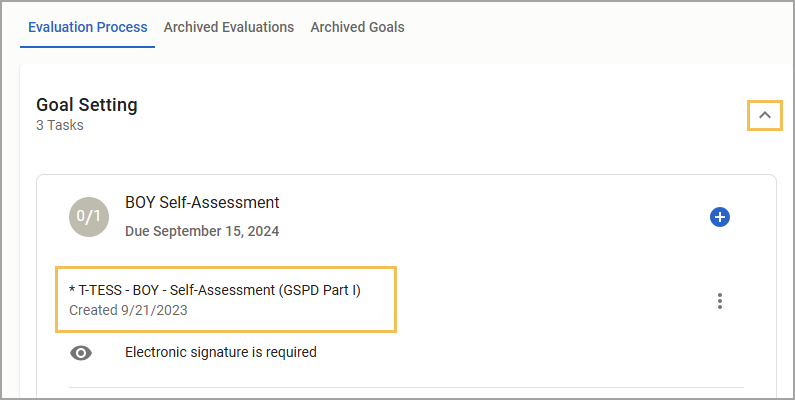
Step 3: Select a document name to view a document’s contents.
Step 4: Click the Sign button () to open the signature display.
Step 5: In the signature display, select the Delete icon () to remove your signature from the document.
Caution: To sign a document again, you must complete the tasks for electronically signing a document. After both parties have signed the document, the document becomes permanently locked and cannot be reopened for editing.