Form creators can structure their forms using a variety of items to develop their content. Items can be informational, allowing the creator to impart specific details to the form recipients, or response-based, requiring some form of interaction from evaluators or their staff.
.png)
Informational Items
Informational items include Section, for grouping informational and response items together; Text, for instructions and other details; and Goals, such as professional or student growth goals.
Section
Add a Section item to visually group multiple items into a single section. You can drag and drop items into a section and rearrange them. Moving the section to another place in the form moves all of the items together. You can title the section, and once you add items to it, you can add the content you need to each item.
.png)
Blank Section informational item
.png)
Section informational item example
Text
Add a Text item when you want to place a title, instructions, or other details into your form. Use the Text style to make your text a header or a regular paragraph. Formatting options include bolding, italicizing, and underlining the text or adding a hyperlink.
.png)
Blank Text informational item
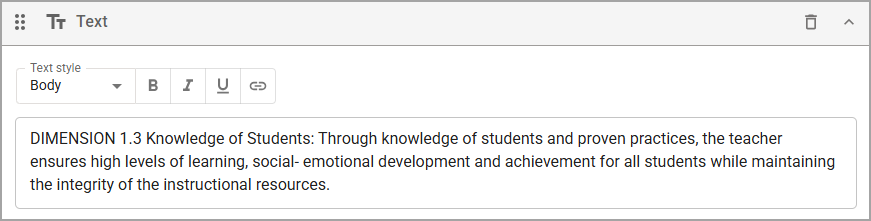
Text informational item example
Goals
Add a Goal item when you want to display a professional goal or a student growth goal on the form. Choosing one allows the document creator to select the target staff member’s specific goal from a drop-down field. You can also leave optional instructions for the form’s recipients.
.png)
Blank Goal informational item
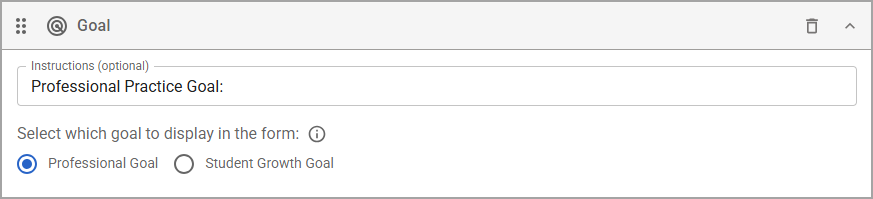
Goal informational item example
Response Items
Response items include Text Response with long and short text options, Matrix Response with columns and rows, Selected Response with single or multiple response options, and Dropdown Selected Response with options to select from a drop-down menu.
Text Response
Add a Text Response item when you want to display a short response box of 250 characters or a long response box of 5,000 characters. Checking the box for Assign to second party makes the corresponding staff member responsible for filling in the Text Response item, not the document creator. You can write out what prompt they are responding to and assign framework tags.
Note: Framework tags are invisible to evaluators and staff members. Framework tags are only visible to appraisal administrators who set them up to help with reporting, analysis, and the Summative Panel.
.png)
Blank Text Response item
.png)
Text Response item example
Matrix Response
Add a Matrix Response item when you want the form to have rows and columns for the document creator to select from, such as when selecting framework scores. You can add a title and instructions to the matrix if desired, along with multiple rows and up to six columns.
Under Columns, checking the box for Include a ‘No Response’ column (will not score row if selected) grants you more control over whether a response needs to be scored or not.
Note: When you select Score the document with advanced calculations under Advanced Options (), the system adds a Value section to each column where you can enter a whole number. Eduphoria recommends using values from 1 to 5 in ascending order.
Under Rows, you can check the box for Include a text box with each row (for user to input observed evidence), allowing a space on the document for users to record evidence as they conduct their evaluation.
Once you’ve added the framework tags and designated the contents of each row and column, select the Copy icon () to copy the entire Matrix Response item, creating a new item you can edit. Copying a completed Matrix Response item can help you save time on forms that require multiple frameworks.
.png)
Blank Matrix Response item
.png)
Matrix Response item example
Selected Response
Add a Selected Response item when you want the document creator to make a single or multiple selections based on the provided prompt. Select Add Option to add more selections, and select a framework tag for each option as needed.
Checking the box for Include text input allows the document creator to add notes or an explanation for their selection. For instance, you might want to include an Other option for the document creator to choose and then provide their own answer.
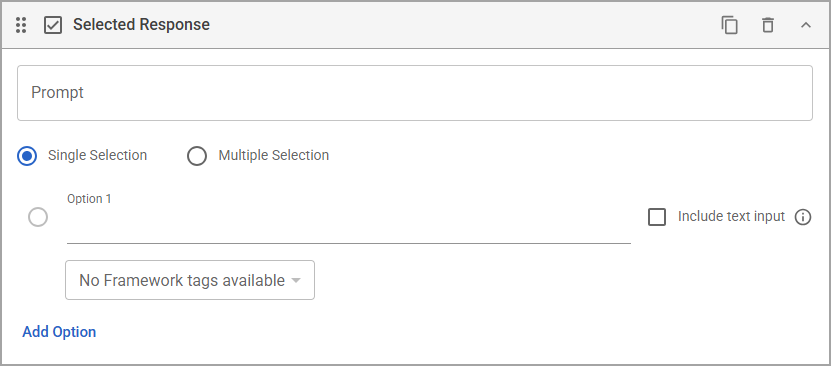
Blank Selected Response item
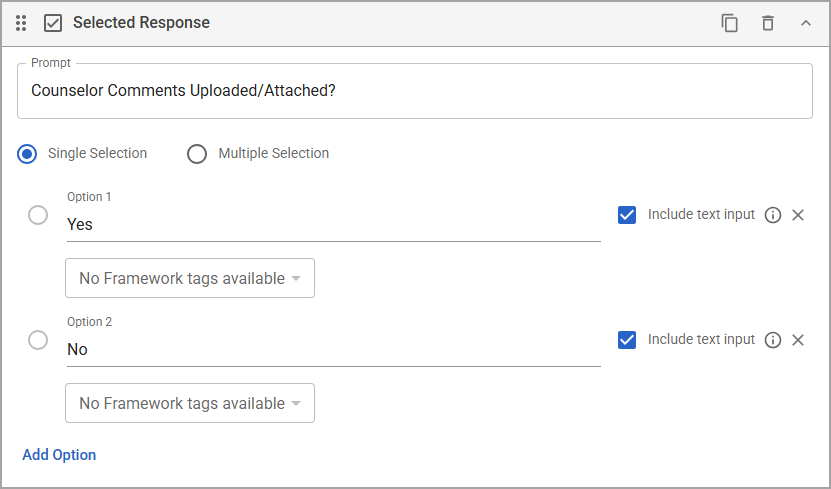
Selected Response item example
Dropdown Selected Response
Add a Dropdown Selected Response item when you want the document creator to select an option from a drop-down menu in response to the provided prompt. Select Add Option to provide as many responses as you need for a user to choose from, such as their school name in a list. Select a framework tag for each option as needed.
Note: Options are listed in the order you provide and do not alphabetize themselves within the form.
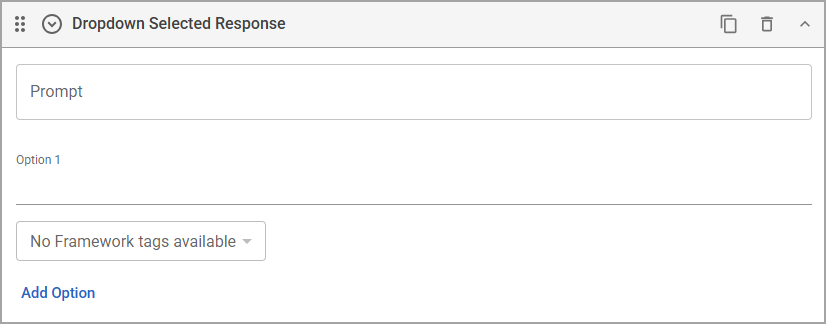
Blank Dropdown Selected Response item
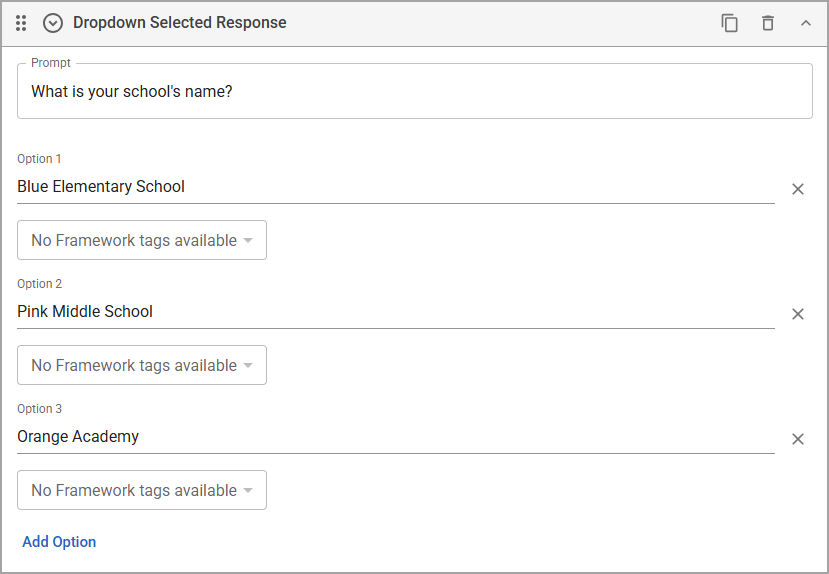
Dropdown Selected Response item example