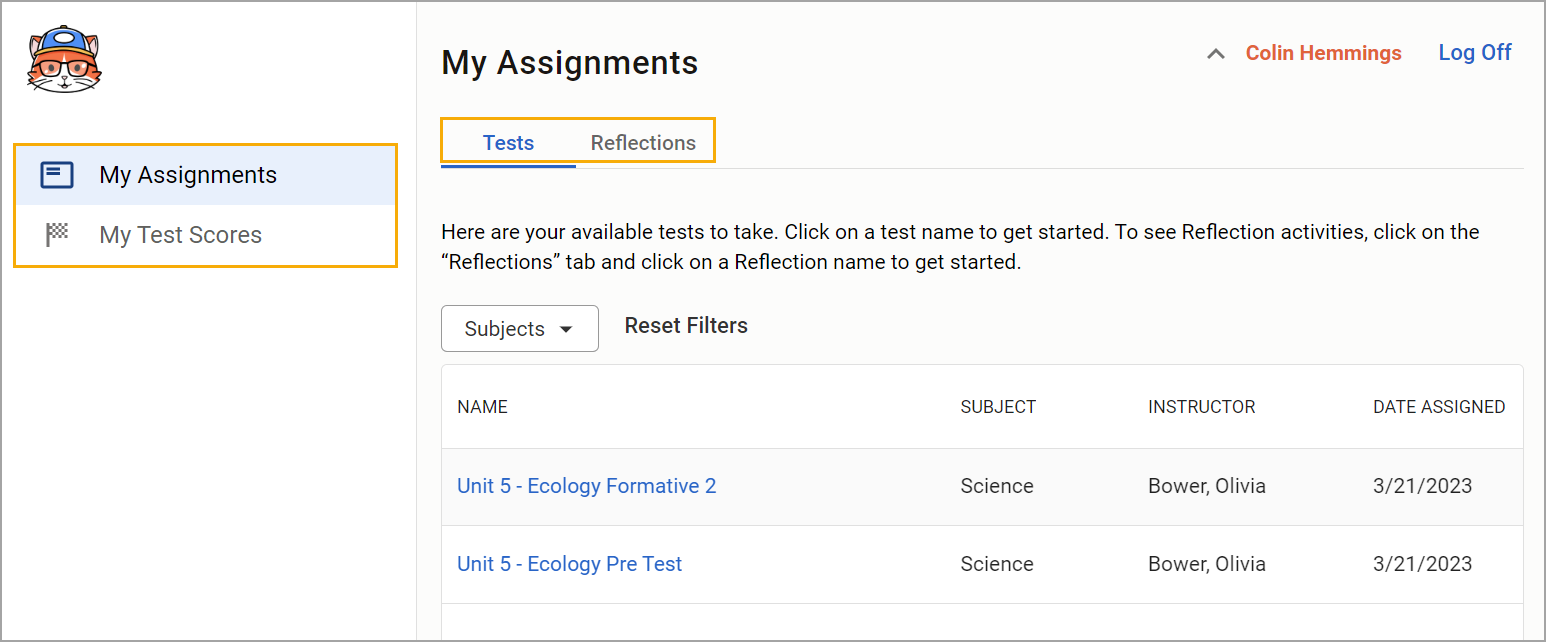
Users with the Impersonate Users right can impersonate students to troubleshoot online testing issues. For information about impersonating users other than students, visit Impersonating Users Across All Eduphoria Applications .
Locating a Student’s Local ID Number
Before impersonating a student in the system, you must know the student’s Local ID number.
Step 1: Access Aware.
.png)
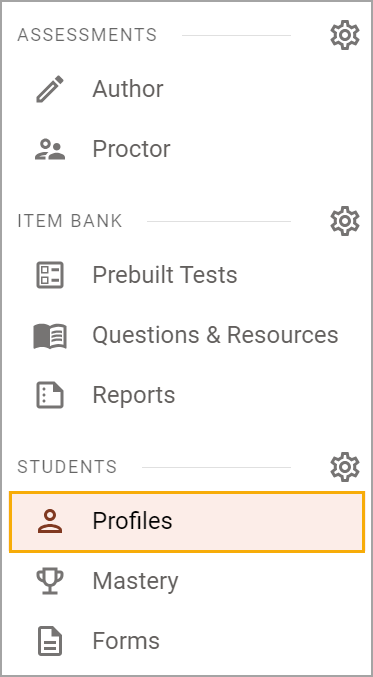
Step 2: From the main menu, select Profiles.
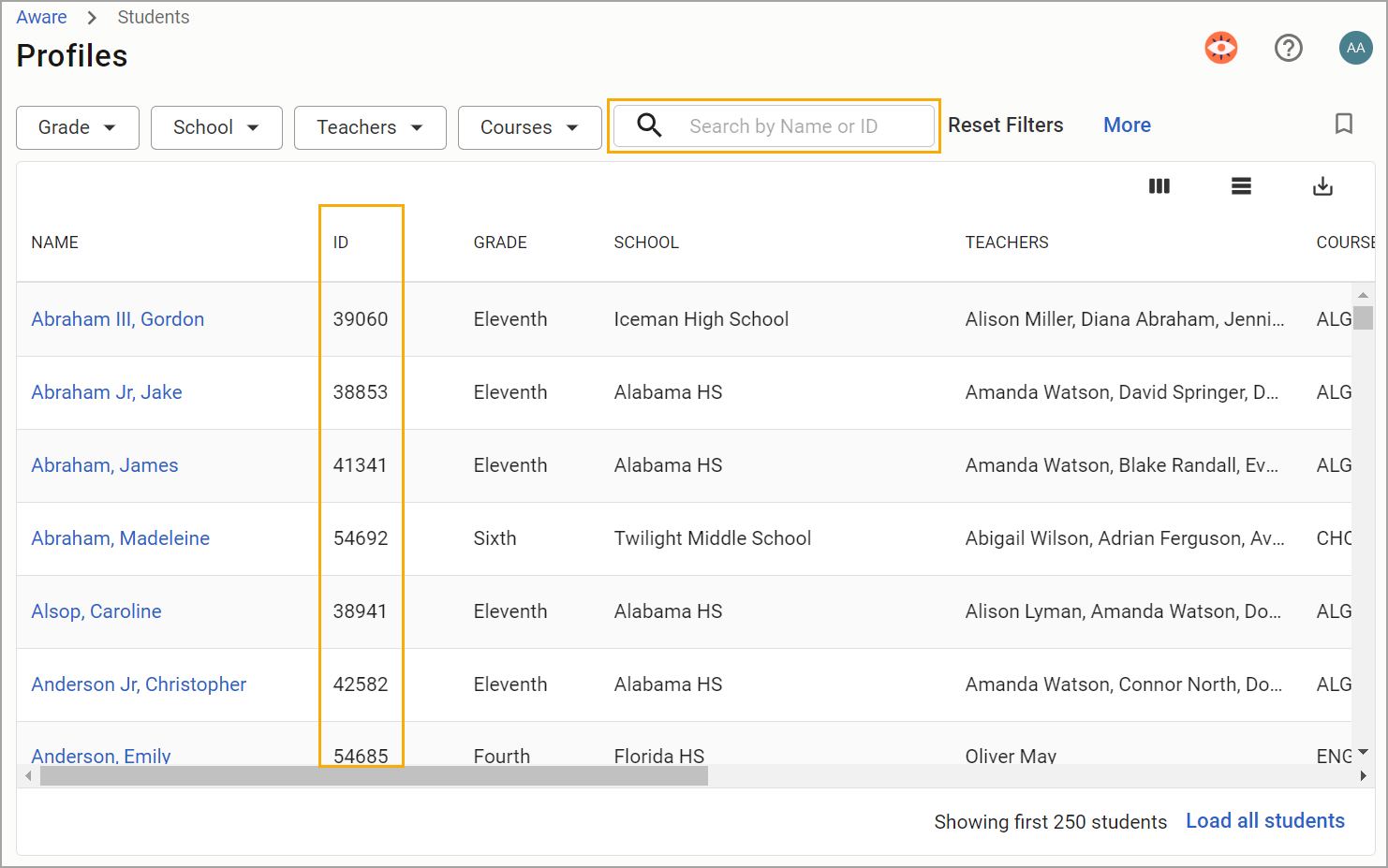
Step 2: Search for a student by name or locate the student by filtering the table’s results. The student’s Local ID number will appear in the ID column.
Impersonating a Student
With the student’s Local ID number copied or memorized, users can now impersonate the student.
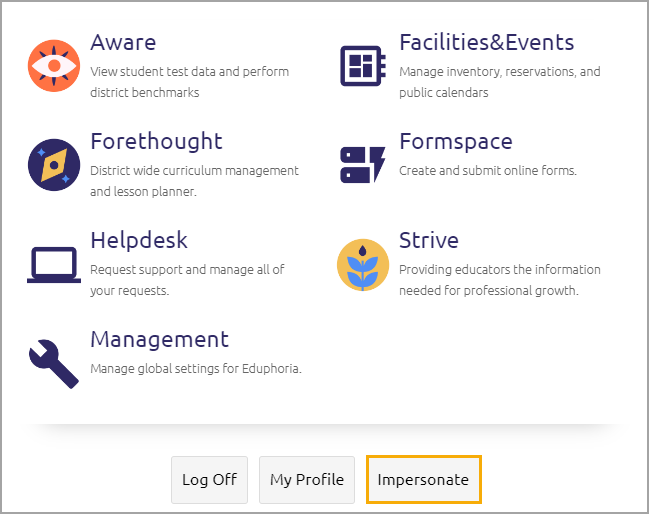
Step 1: Navigate to the Applications Home page be selecting the Switch Applications icon.
.png)
Step 2: Select Impersonate.
Note: If you do not see the Impersonate button on the Applications home page, check that the following statements are true:
You have the Impersonate Users right.
You are not currently impersonating another user. You must log out of any impersonations before impersonating another user.
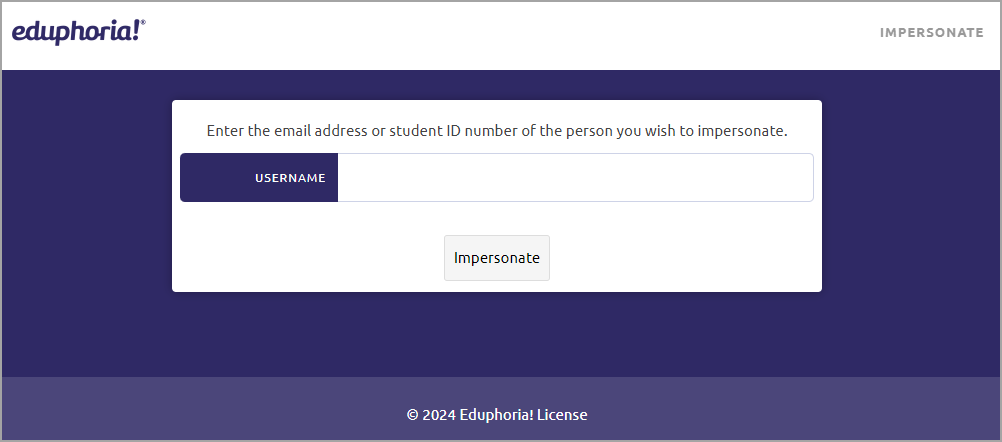
Step 3: Type the student’s ID number in the text field, then select Impersonate.
Step 4: Review all relevant information on the student’s testing portal. You may wish to view their assigned tests, Reflections, or test scores. You may also need to open a test to verify a student’s status on taking or completing a test if they did not submit their answers, exit the test, and log off.