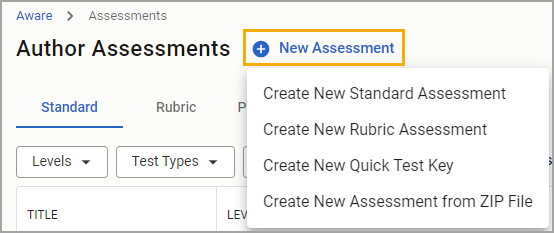
Campus and District test authors and teachers can choose one of the four options for creating a new test or key:
To create an assessment from an external ExamView file, review Creating a New Assessment From an Imported File.
The roles and rights of the user will determine the access and editing level of the created assessment. Selecting an option will then move to the respective test creation page.
Create a New Standard Assessment
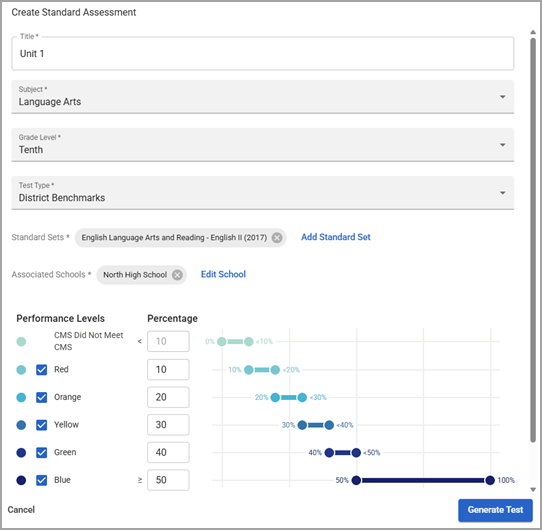
Selecting Create New Standard Assessment will open the test creation window. Complete the required fields:
Enter a Title.
Use the drop-down menus to select a Subject, Grade Level, and Test Type.
Select Add Standard Set. The Subjects and Grade Levels drop-down menus automatically populate to filter the list. You can also search for a specific standard set by typing in the Search bar (). Select the checkbox for each standard set you want to apply, then click Select Standard Sets.
Select Add School. The Grade drop-down menu automatically populates to filter the list. Select the appropriate school and then click Close.
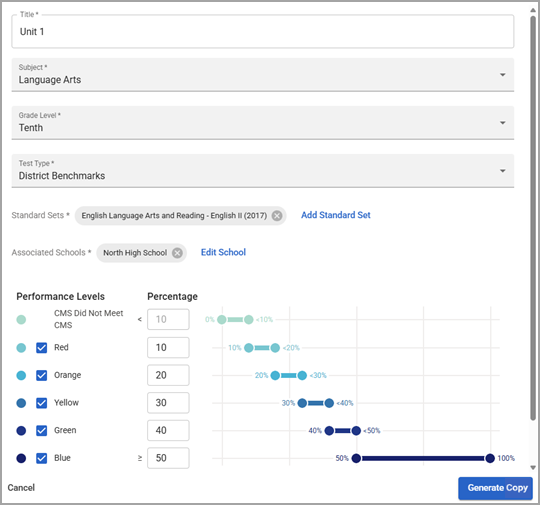
(Optional) Adjust Performance Levels and Percentages as needed.
Select Generate Test when finished.
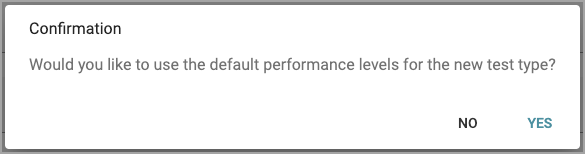
Caution: Once you have authored an assessment, changing the test type will generate a pop-up asking you to confirm if you want to use the new test type’s default performance levels. You can deny the change to retain any existing performance level cut points. Raw score, percent score, and other associated data such as student information aren’t affected when changing the test type of an assessment.
Create New Rubric Assessment
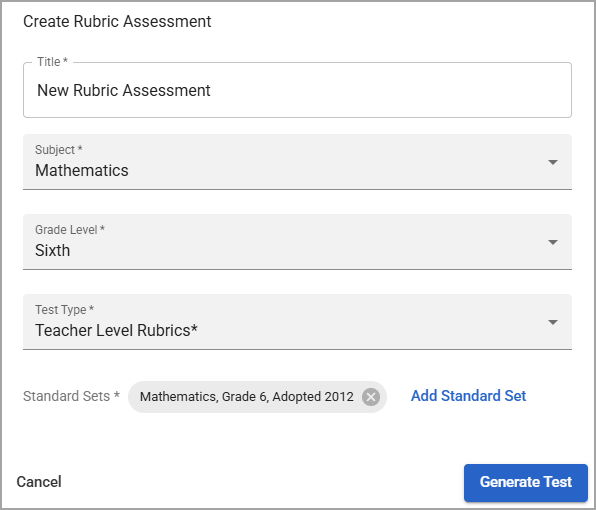
You can also create a new rubric assessment. Complete the required fields:
Enter a Title.
Use the drop-down menus to select a Subject, Grade Level, and Test Type.
Select Add Standard Set. The Subjects and Grade Levels drop-down menus automatically populate to filter the list. You can also search for a specific standard set by typing in the Search bar (). Select the checkbox for each standard set you want to apply, then click Select Standard Sets.
Select Generate Test when finished.
Create New Quick Test Key
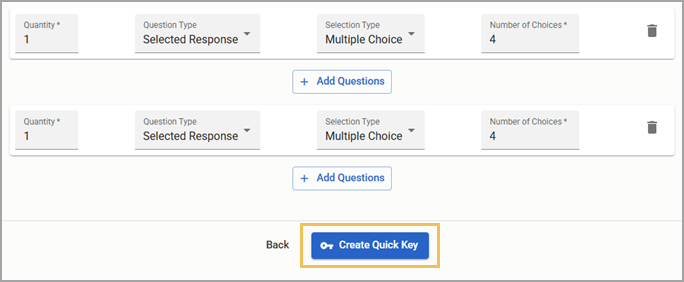
You can create a new quick test key by entering the general information for an assessment, then adding question types and rules.
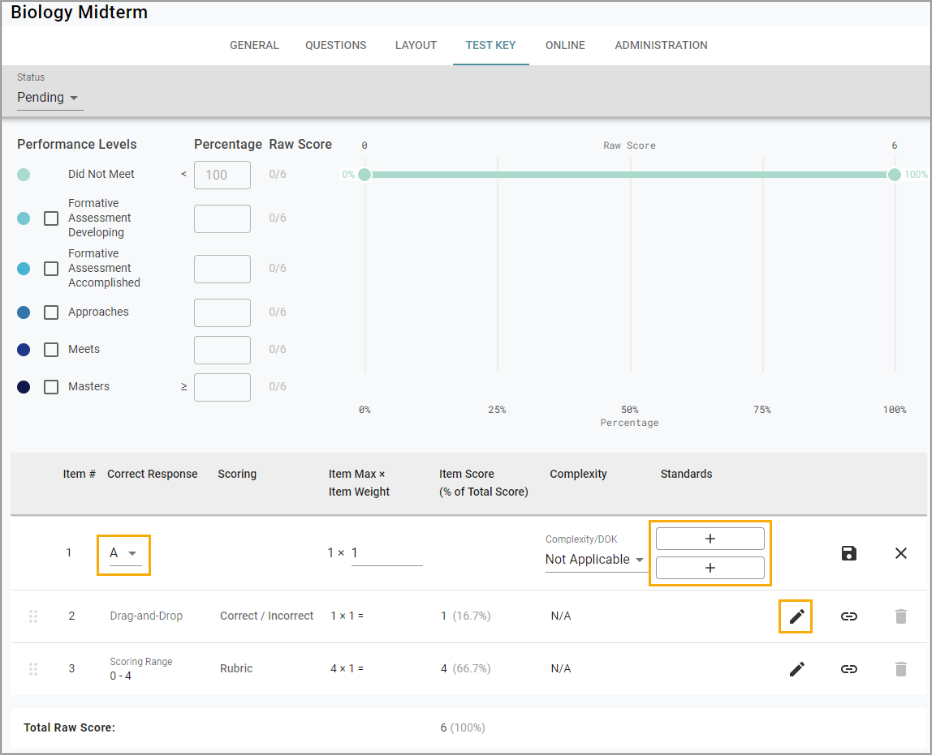
The Test Key view will open. In the Test Key view, correct responses, learning standards, and item weight can be assigned to the questions.
Copy Test Under Actions
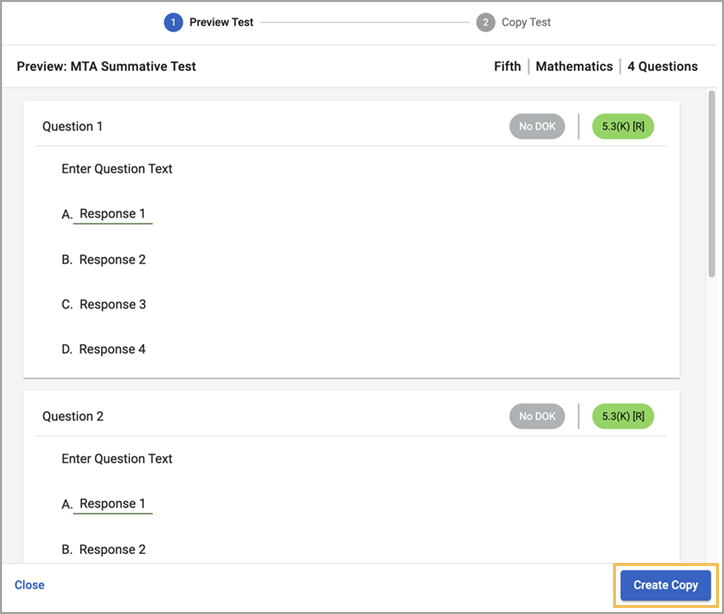
Select Copy Test under Actions in the Author table to copy a new assessment from any pending or active test. Filter Statuses by Archived to locate any archived test you want to copy.
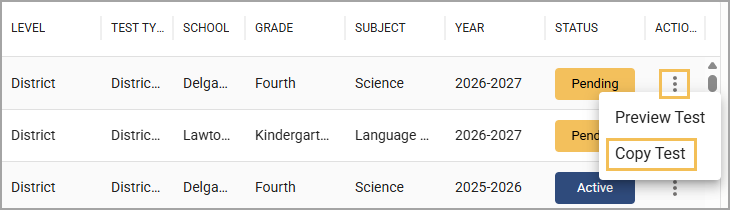
You can also look at the test first by selecting Preview Test. Previewing the test first helps you verify which assessment you want to copy. Select Create Copy inside the test preview to confirm your selection.
After selecting an assessment to copy, you can update the general information to reflect the new version of the assessment. Any changes apply to the copied version only.