Eduphoria users can export a TestHound file and import it into Aware to manage student support statuses. Districts that use Secure File Transfer Protocol (SFTP) can likewise import TestHound files and review the status of SFTP imports from the Student Supports Mass Import history.
Importing the TestHound file updates student supports for assessments in Pending status where applicable. Active assessments won’t be affected.
Note: A TestHound import applies to STAAR-tested subjects and corresponding grade levels only.
Exporting From TestHound
Quick Guide
Navigate to the Data Integration menu item in TestHound, then download the accommodation file.
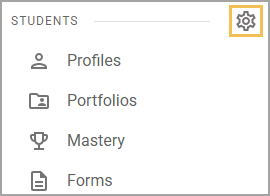
Navigate to the Students Settings gear () in Aware.
Select Upload Student Supports.
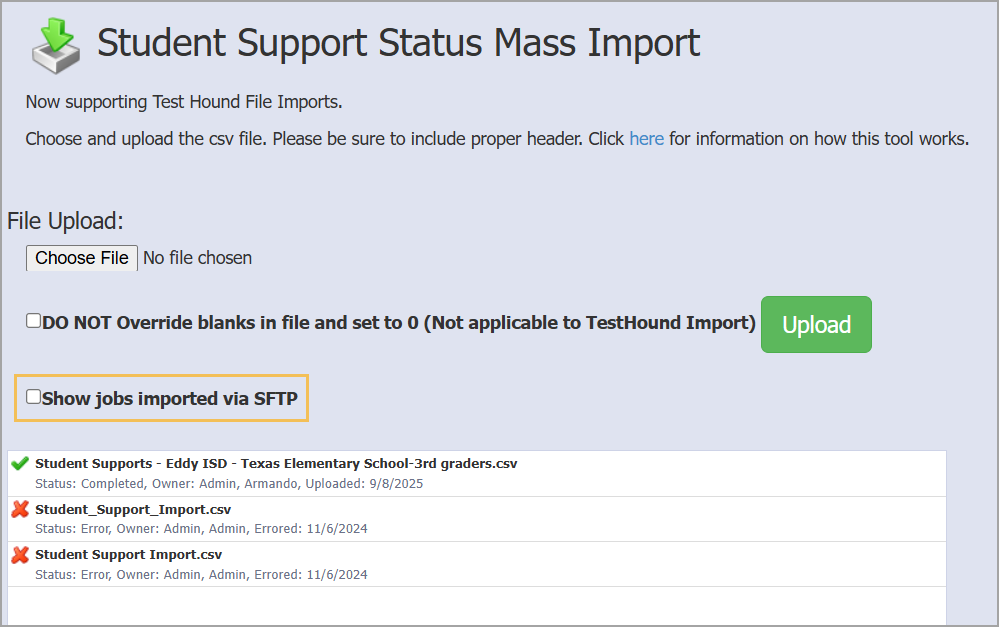
Select Choose File, then upload the exported TestHound file.
Illustrated Guide
Step 1: Navigate to the Data Integration menu item in TestHound, then download the accommodation file.

Caution: When downloading the TestHound file, avoid opening it before importing it into Aware. Opening the file will cause the leading zeros to be dropped, which will impede the data from importing correctly.
Step 2: Navigate to the Students Settings gear () in Aware after downloading the file.
Step 3: Select Upload Student Supports.
.png)
Step 4: Select Choose File, then upload the exported TestHound file. Importing this file automatically overrides existing files for the tested subject areas, replacing only the TestHound data with the updated file information.
Note: The option below that says DO NOT Override blanks in a file and set to 0 only applies for manually-created data files, not files from TestHound. There is no need to check this box for a TestHound import.
.png)
Importing Student Supports With SFTP
You can import student supports with SFTP by uploading a CSV of either a TestHound file or a file in a custom format, which you can download below:
Be sure to maintain the file headers so the file imports successfully and adds the requested student supports to the correct students. You can see the file’s import history by checking the box for Show jobs imported via SFTP in Aware > Students Settings () > Upload Student Supports. Visit Access Keys to learn how to connect your SFTP client to run student supports imports.
Additional Information
The following supports are included in the TestHound import:
Text-to-Speech
Content Clarifiers
Spelling Assistance
Spanish Interface
Calculator
Speech-to-Text
Caution: The Spanish Interface student support only adapts the Aware interface into Spanish, not test questions and answers. Teachers must still provide a Spanish-translated test.
The TestHound import allows Student Supports to be added to Math, Science, Social Studies, Writing, ELA, and Reading.
Based on the logic used to recognize STAAR-tested subjects, the system matches subjects to each grade level. The importer uses this association to decide which support statuses should be replaced.
The importer only overwrites supports for supported subjects of the student's current grade level. For example, Grade 5 includes supports for Reading, Math, and Science. Grade 6 only includes supports for Reading and Math. This means that, if a student had supports for Science in Grade 5, when they move to Grade 6 and a new TestHound import occurs, they retain their Science supports that they gained in Grade 5.
The table below shows which subjects the import updates by grade level.
Grade Level | Subjects updated by the TestHound import: |
|---|---|
3 |
|
4 |
|
5 |
|
6 |
|
7 |
|
8 |
|
9 - 12 |
|
.png)
Note: If your district had supports established for ELA, they will remain consistent and apply identically to Reading and Writing. This follows the previous functionality of student supports.
Aligning Assessments by Subject Area
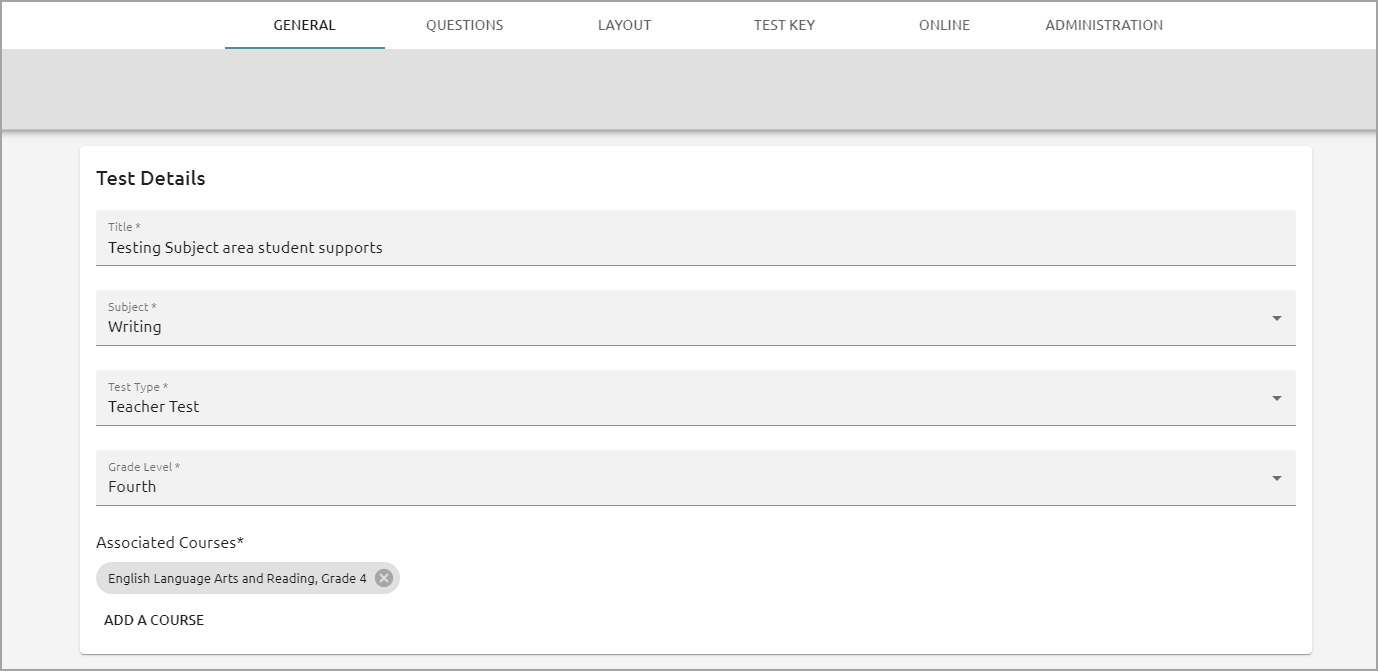
Moving forward, it is crucial to align the subject area of the assessment based on the student supports that are needed. For example, the assessment below has Writing as the subject area. Therefore, this assessment will pick up student supports for Writing only. Reading and ELA will function the same way.
If the test subject is ELA, set ELA supports.
If the test subject is Reading, set Reading supports.
If the test subject is Writing, set Writing supports.
Rights Required to Manage Student Supports
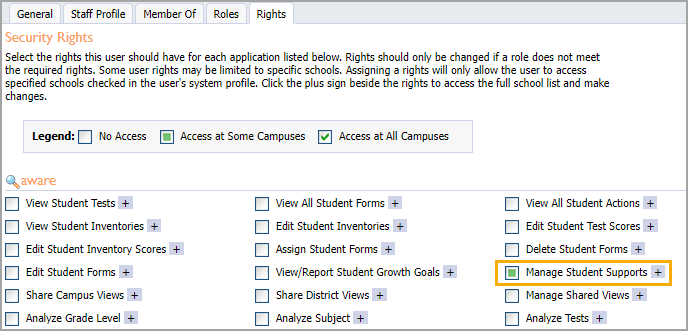
When completing an ARD meeting, ensure someone on the committee has the right to Manage Student Supports. When an administrator enables student supports from the student's profile, all future content area assessments have the supports enabled. Learn more about assigning rights to users. Once the administrator is granted this right, they can assign supports to students.
For larger school districts, the staff member who can upload student support statuses has the option to create an initial import for non-tested subject areas and grade levels.
Reimporting Student Supports
Any time a change is made after an initial import is completed, including updating information after ARD meetings or at the start of a school year, students’ tested subject areas are updated to reflect the import. Non-tested subjects will not be overridden.
See Managing Supports for Non-Tested Subjects for information about setting supports. Only the tested subjects will be overridden on a new import.