Users with the Assign Delegates right determine which item banks each delegate may manage by assigning standard sets. Do this after creating a new delegate or if you need to change which item banks are managed by an existing delegate.
Delegate rights allow members to have any or all of the following rights for a specific standard set: publish learning standards, create standard clarifications, approve activities, or edit item bank questions.
Quick Guide
Select the Item Bank Settings gear icon ().
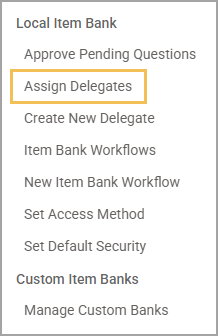
From the settings options, select Assign Delegates.
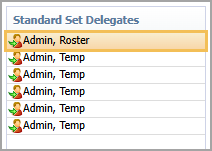
Select the name of the delegate you want to manage.
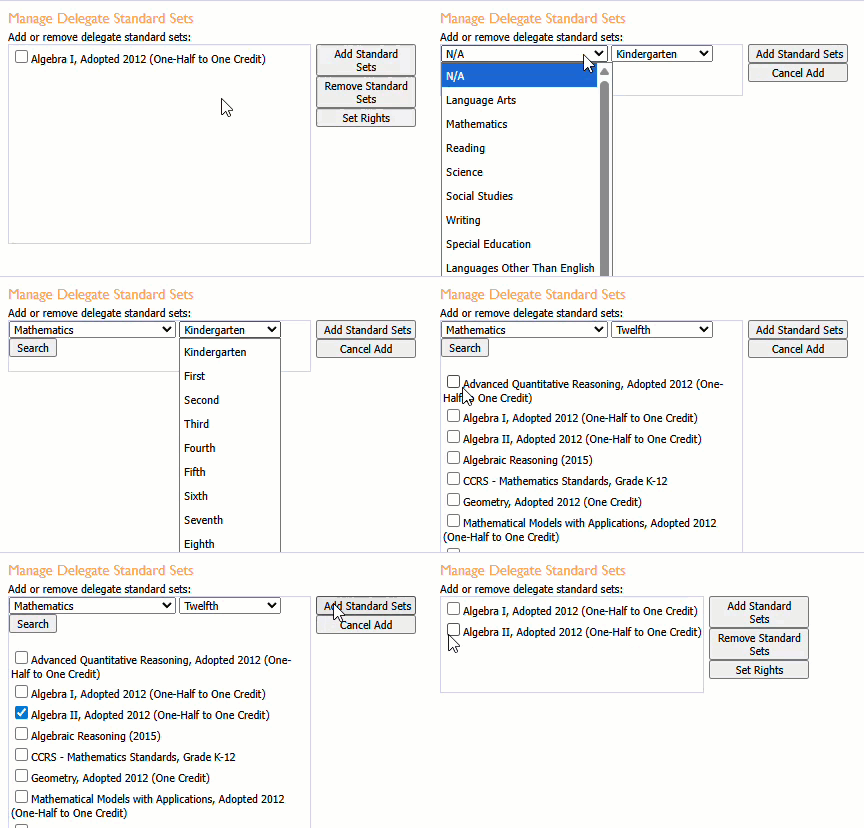
To add standard sets, select Add Standard Sets. Choose the Subject and Grade Level and then click Search to generate a list of standard sets. Select the checkbox for each desired standard set(s) desired and then select Add Standard Sets.
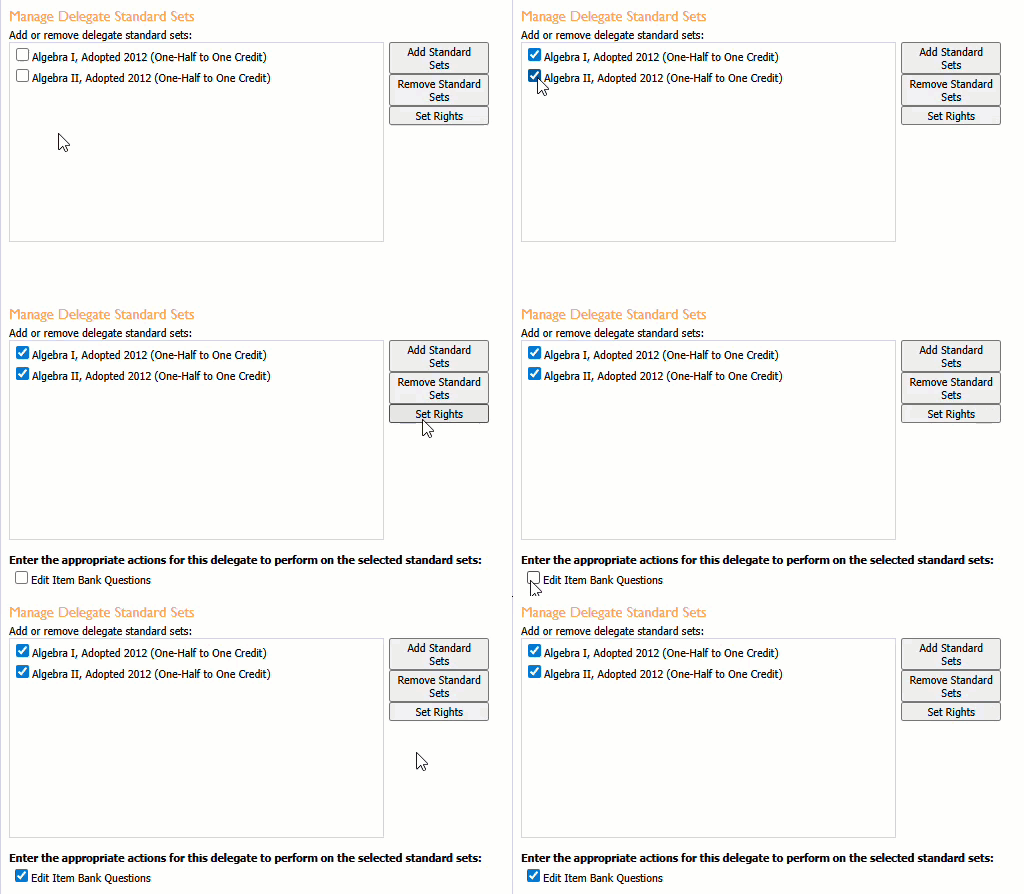
To set rights, select the standard set(s), then select the action(s) you want to delegate. Click the Set Rights button to apply the actions.
Illustrated Guide
Step 1: From the main menu, select the Item Bank Settings gear icon ().
.png)
Step 2: From the resulting drop-down menu, choose Assign Delegates.
Step 3: Select the name of the delegate you want to manage.
Step 4: To add new standard sets to the delegate, select Add Standard Sets. Select a Subject and Grade Level using the drop-down menus and then click Search to generate a list of standard sets. Select the checkbox for each desired standard set(s) desired and then select Add Standard Sets.
Step 5: To set rights, select the standard set(s), then select the action(s) you want to delegate. Click the Set Rights button to apply the actions.