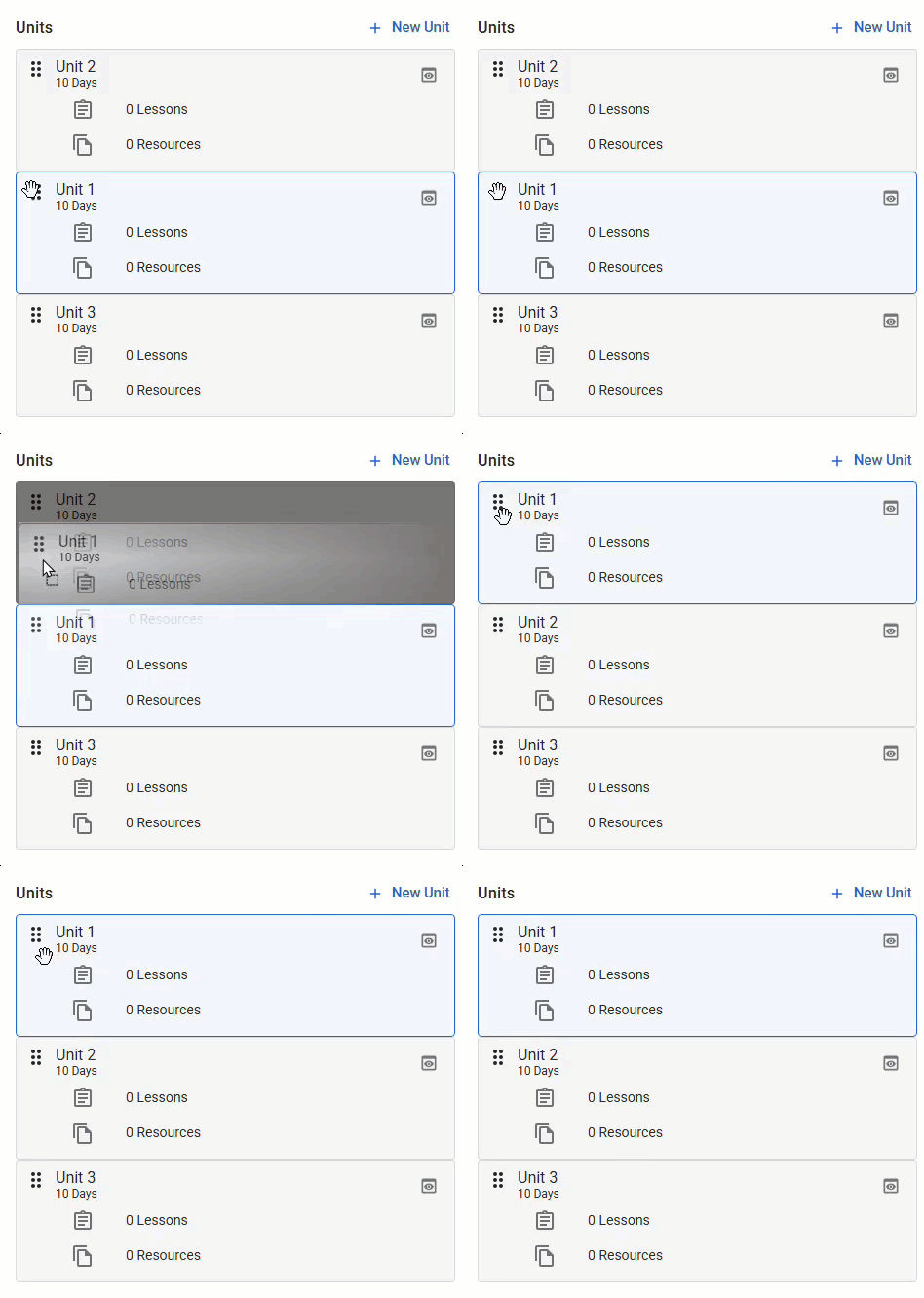
The order in which units are listed in a course affects how those units appear in teacher planners. For example, if each unit has a duration of 10 instructional days, then Unit 1 covers days 1-10, Unit 2 covers days 11-20, and so on. If you created Unit 2 first, then by default Unit 2 will appear on days 1-10. To correct this, you can change the sort order of these units from the course hub.
Quick Guide
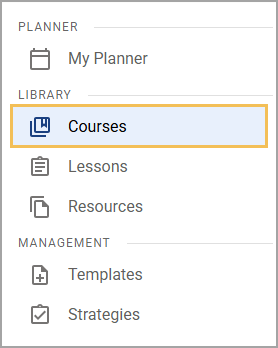
Select Courses.
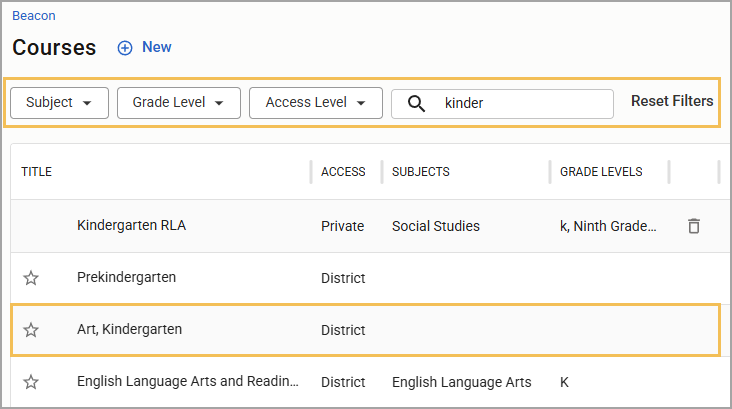
From the Courses list, select the course you want to edit.
In the Units section, select the Move icon () beside the unit you want to move and drag it to a new place in the list.
Illustrated Guide
Step 1: Select Courses from the main menu.
Step 2: From the Courses list, select the course you want to edi. Use the search and filter options to narrow down your search.
Step 3: In the Units section, select the Move icon () beside the unit you want to move and drag it to a new place in the list.