Plans are the daily schedules that you create for each prep. You can link standards, lessons, resources, instructional strategies, and assessments to your plans to meet the needs of each class.
If you want to remove all content blocks from a plan and start again with a blank plan, you can delete the plan from your planner.
Warning: Deleting a plan is a permanent action. There is no way to recover content blocks once the plan is deleted.
Note: You cannot edit planners from past years. Once the end date of an instructional calendar has passed, the calendar is locked, and you can no longer make changes to preps, plans, or units for that year. If you want to reuse an older plan, you can copy plans from a past year to an active planner then make adjustments to the plan as needed.
Quick Guide
Select My Planners from the main menu.
Open the prep for the plan you want to delete.
Select the More icon () at the bottom-right of the plan.
Select Delete Plan.
Select OK to confirm.
Illustrated Guide
Step 1: Select My Planners from the main menu.
.png)
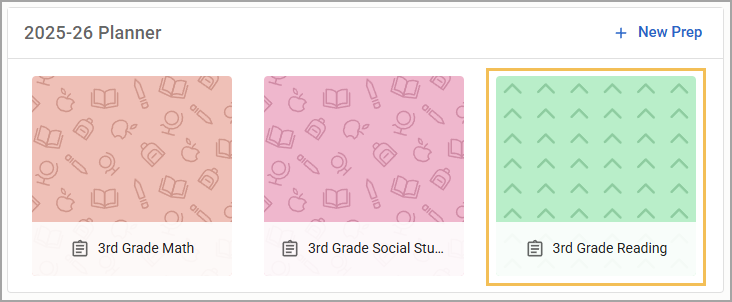
Step 2: Open the prep for the plan you want to delete.
Step 3: Select the More icon () at the bottom-right of the plan.
.png)
Step 4: Select Delete Plan.
.png)
Step 5: A confirmation message appears. Select OK to confirm.
.png)