Forethought allows you to delegate the task of editing the scope and sequence to teachers or assistants by assigning specific courses to them.
Quick Guides
Creating a Delegate
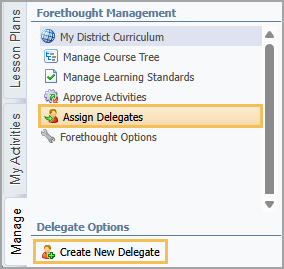
On the Manage tab, select Assign Delegates and then click the Create a New Delegate button that appears in the Delegate Options section.
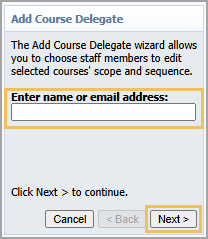
Type the name or email address of a staff member in the search field and click Next.
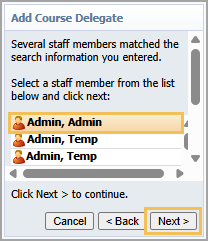
Select a staff member and select Next.
Select Finish.
Assigning Courses to a Delegate
On the Manage tab, select Assign Delegates and then select the delegate you want to manage.
To add new courses to the delegate, select Add Courses. Expand the folders to locate the course you want to add. Select the checkbox for each desired course and then select Add Courses to save your changes.
To set rights, select the course(s), then select Set Rights. Select the checkbox for each right you want to assign. Then, select Set Rights to save your changes.
Removing Courses from a Delegate
On the Manage tab, select Assign Delegates and then select the delegate you want to manage.
Select the course(s) you want to unassign and then click the Remove Courses button.
Removing a Delegate
On the Manage tab, select Assign Delegates and then select the delegate you want to manage.
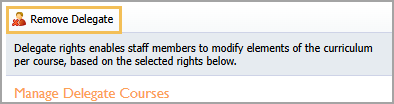
Click the Remove Delegate button.
Illustrated Guides
Creating a Delegate
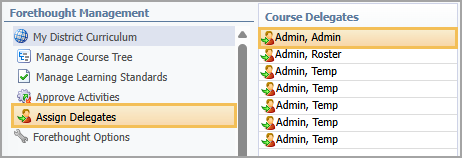
Step 1: On the Manage tab, select Assign Delegates and then click the Create a New Delegate button that appears in the Delegate Options section.
Step 2: On the Add Course Delegate wizard, type a complete or partial name or email address of a staff member in the Enter name or email address: search field and then click Next.
Step 3: Select a staff member and select Next.
Step 4: Select Finish.
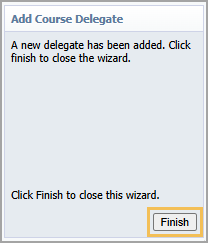
Creating a delegate does not automatically give them the ability to edit courses. You must assign courses and permissions individually. Continue to Assigning Courses to a Delegate to complete this step.
Assigning Courses to a Delegate
Step 1: On the Manage tab, select Assign Delegates and then select the delegate you want to manage.
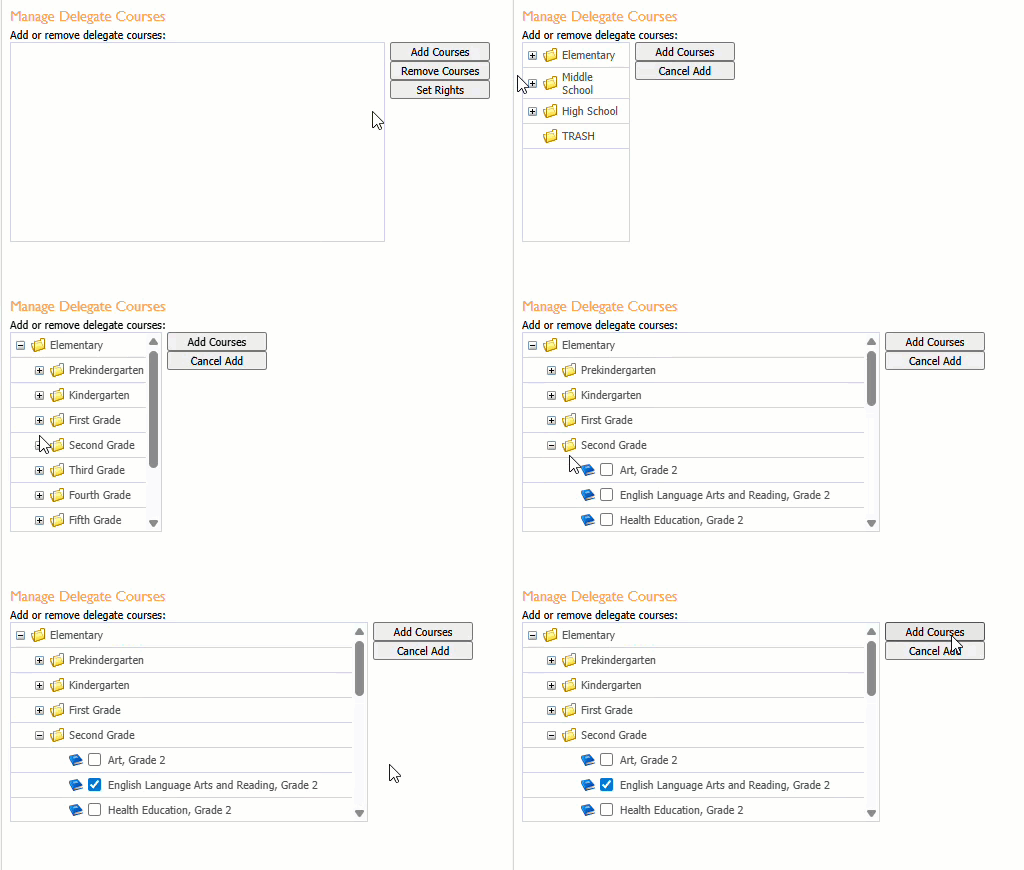
Step 2: To add new courses to the delegate, select Add Courses. Expand the folders to locate the course you want to add. Select the checkbox for each desired course and then select Add Courses to save your changes.
Step 3: To set rights, select the course(s), then select Set Rights. Select the checkbox for each right you want to assign. Then, select Set Rights to save your changes.
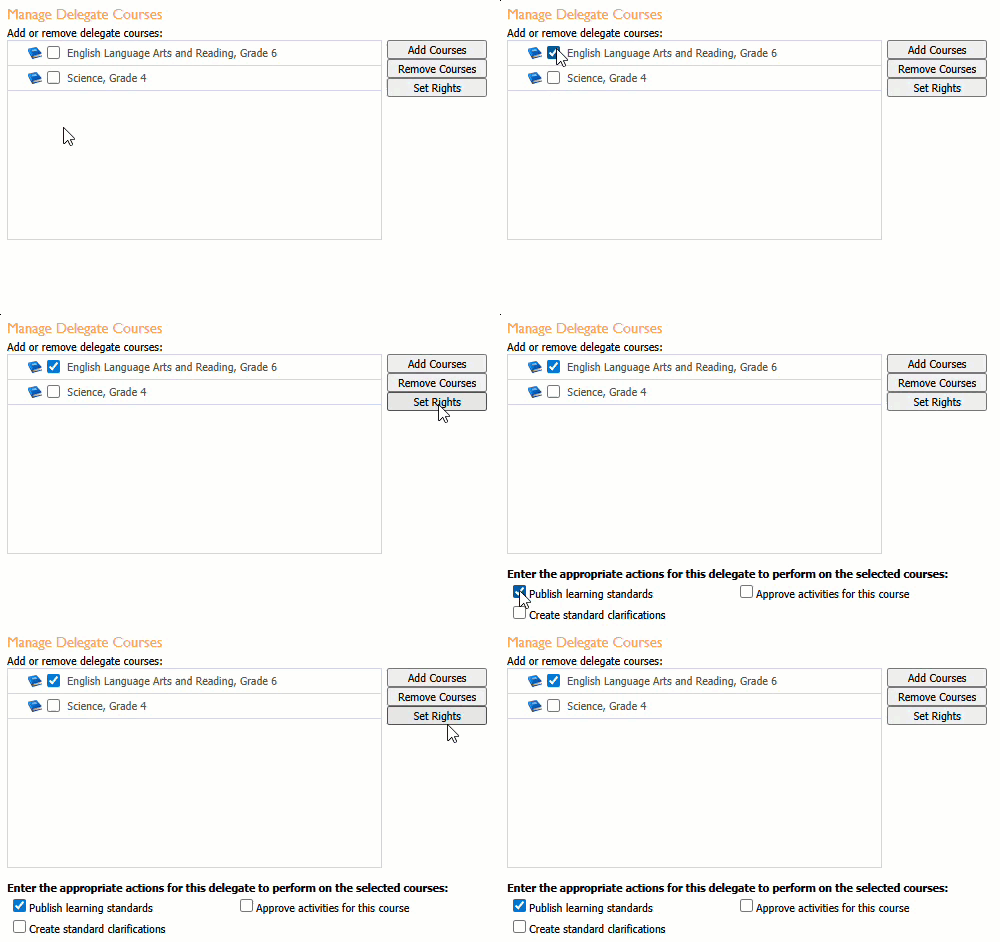
By default, delegates can manage the learning standards for the courses they are assigned. Even with no extra permissions, delegates can create and edit groups and standards. However, they cannot publish by default.
Publish learning standards — Allows delegates to publish learning standards for the selected courses.
Create standard clarifications — Adds clarifying statements to learning standards.
Approve activities for this course — Gives delegates the ability to approve activities submitted by teachers for the selected courses.

Removing Courses from a Delegate
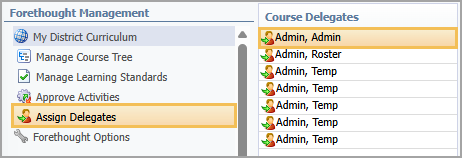
Step 1: On the Manage tab, select Assign Delegates and then select the delegate you want to manage.
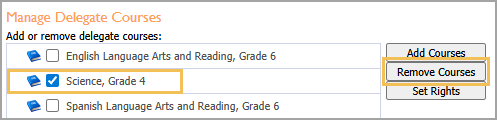
Step 2: Select one or more courses to unassign and then click the Remove Courses button.
Removing a Delegate
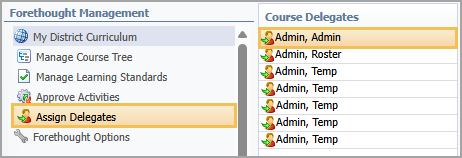
Step 1: On the Manage tab, select Assign Delegates and then select the delegate you want to manage.
Step 2: Click Remove Delegate.