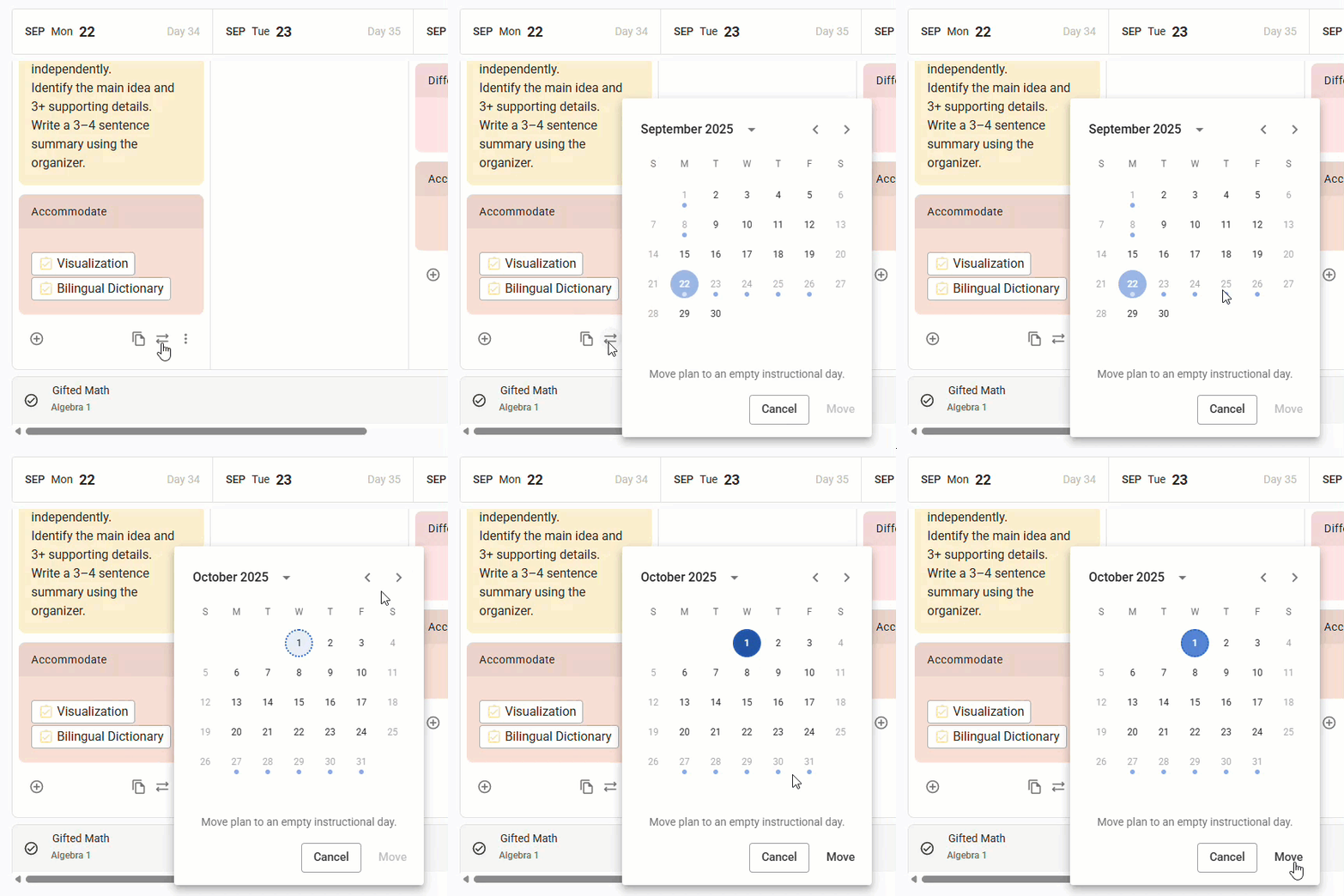
Sometimes plans change. For instance, you spent time filling out all the details of your plan only to realize that you created it on the wrong date or you need to shift your schedule due to unforeseen circumstances, like illness or severe weather. Fortunately, Beacon allows you to move plans to different dates when needed.
Caution: Moving a plan removes the existing plan from the scheduled date and moves it to the selected date. If you do not want to remove the plan from the currently scheduled date, you can copy the plan instead. Copying a plan keeps the plan for the scheduled date and copies it to the new date so that it exists in both places.
Note: You cannot edit planners from past years. Once the end date of an instructional calendar has passed, the calendar is locked, and you can no longer make changes to preps, plans, or units for that year. If you want to reuse an older plan, you can copy plans from a past year to an active planner then make adjustments to the plan as needed.
Quick Guide
Select My Planners from the main menu.
Open the prep for the plan you want to move.
Select the Move plan icon () that appears below the content blocks in your plan.
Choose an empty instructional day from the calendar menu and then select Move.
Illustrated Guide
Step 1: Select My Planners from the main menu.
.png)
Step 2: Open the prep for the plan you want to move.
.png)
Step 3: Locate the plan you want to move and select the Move plan icon () that appears below the content blocks in your plan.
.png)
Step 4: Choose an empty instructional day from the calendar menu and then select Move to confirm your choice. The plan now appears in the planner on the new instructional day.