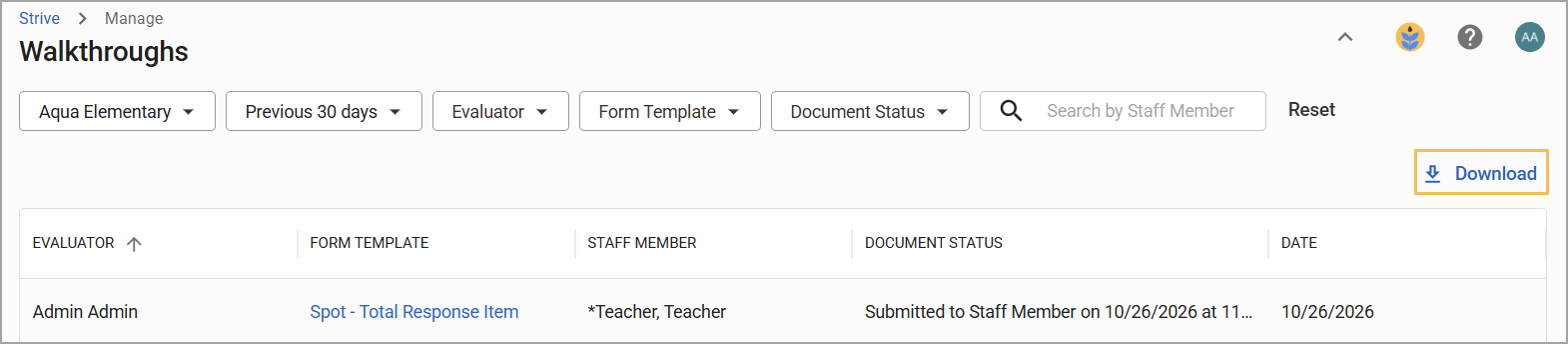
The Walkthroughs table shows administrators how many walkthroughs have been completed over a given period and offers easy data export. Walkthrough creators or users with the Appraise Staff, View Appraisals, or View Walkthroughs rights can view, filter, and download walkthrough table data.
Quick Guide
Select Walkthroughs () from the main menu.
Use the filters or the search bar to locate the walkthrough(s) you want to view.
Select the walkthrough you want to view to open the evaluation information for that walkthrough.
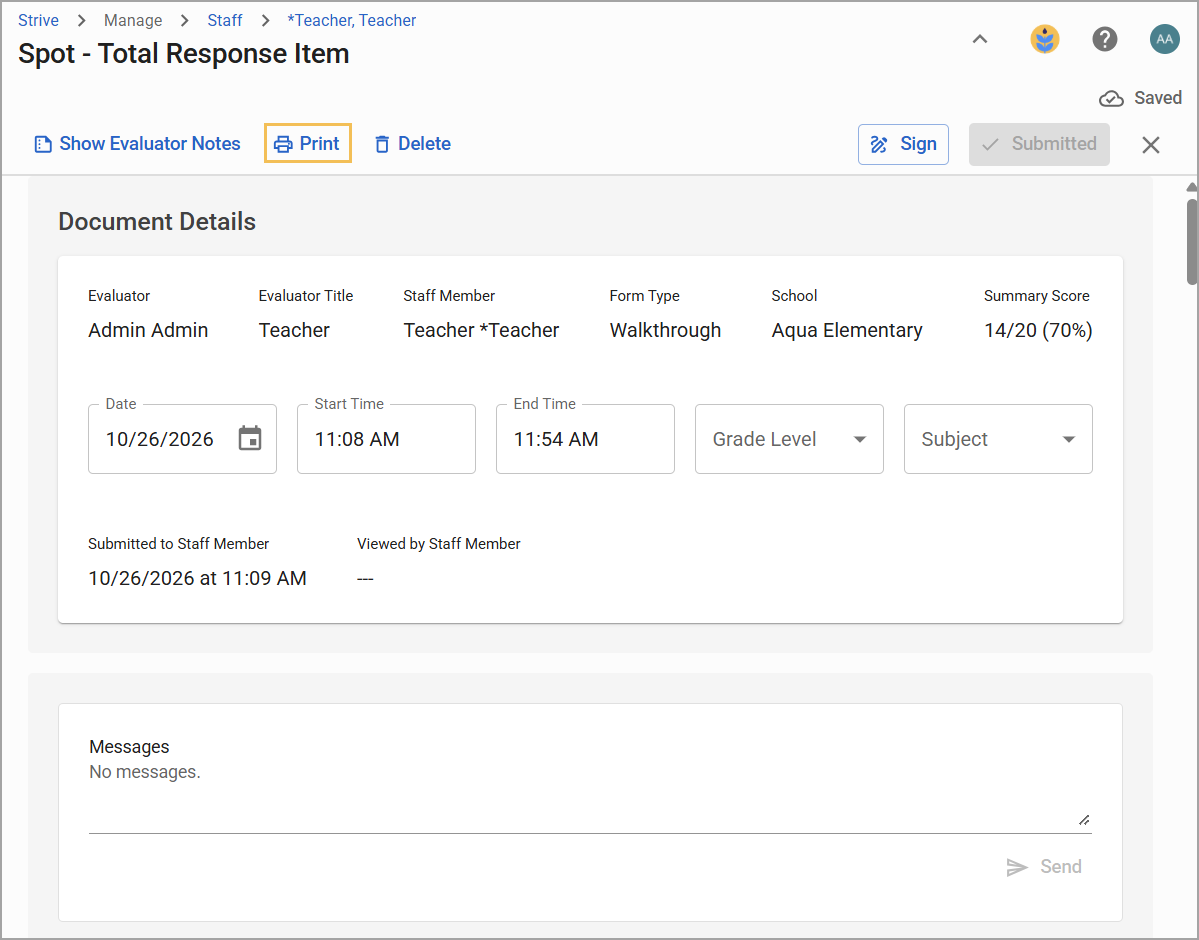
Scroll to see the walkthrough details. Click the Print button () to print the entire walkthrough.
Select Download () to download a CSV report of the walkthroughs based on your currently selected filters and search parameters.
Illustrated Guide
Step 1: Select Walkthroughs () from the main menu.
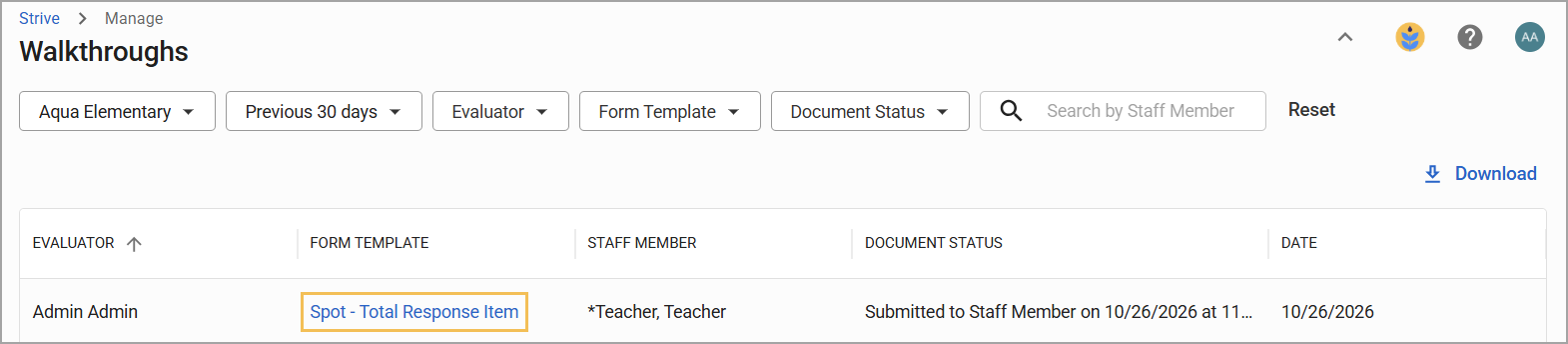
Step 2: Use the filters or the search bar to narrow down the list to the walkthrough you want to view.
The table offers the following filter options:
School
Lists schools available to the user based on their assigned rights
Allows the selection of only one school at a time.
Will not be visible if a user only has access to one school.
Date
Defaults to Previous 30 days.
Can also select Previous 7 days, Previous 14 days, or Since start of school year.
Evaluator
Lists the person who created the walkthrough document
Form Template
Lists the title of the form template used to create the walkthrough document.
Document Status
Shows the current status of the walkthrough document as Created, Submitted to Staff Member, or Viewed by Staff Member.
Search by Staff Member
Narrows down results based on the name of the staff member.
.png)
Step 3: Select the walkthrough you want to view to open the evaluation information for that walkthrough.
Step 4: Scroll to see the walkthrough details. Click the Print button () to print the entire walkthrough.
Step 5: Select Download () to download a CSV report of the walkthroughs based on your currently selected filters and search parameters. Use different combinations of filters to sort data as needed.