If you cannot edit, delete, or add a question on a test, it is most likely because answer documents for this test have already been generated or the test is not in Pending status.
First, ensure that the test is Pending and not Active or Archived. If the test isn’t Pending, you will not be able to add a question. The status of the assessment can be found under the Questions tab in Test Authoring.
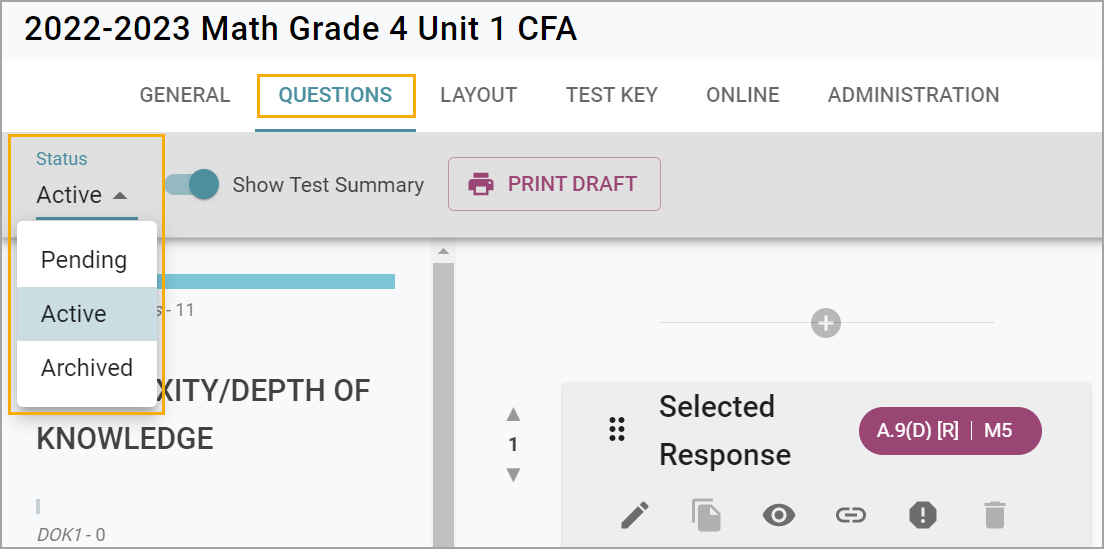
Next, you need to ensure that no entries have been generated for this test. Entries are generated when answer sheet PDFs are created or if online testing has started.
You can view any previously generated entries by selecting the Administration tab and then clicking Delete Answer Sheets.
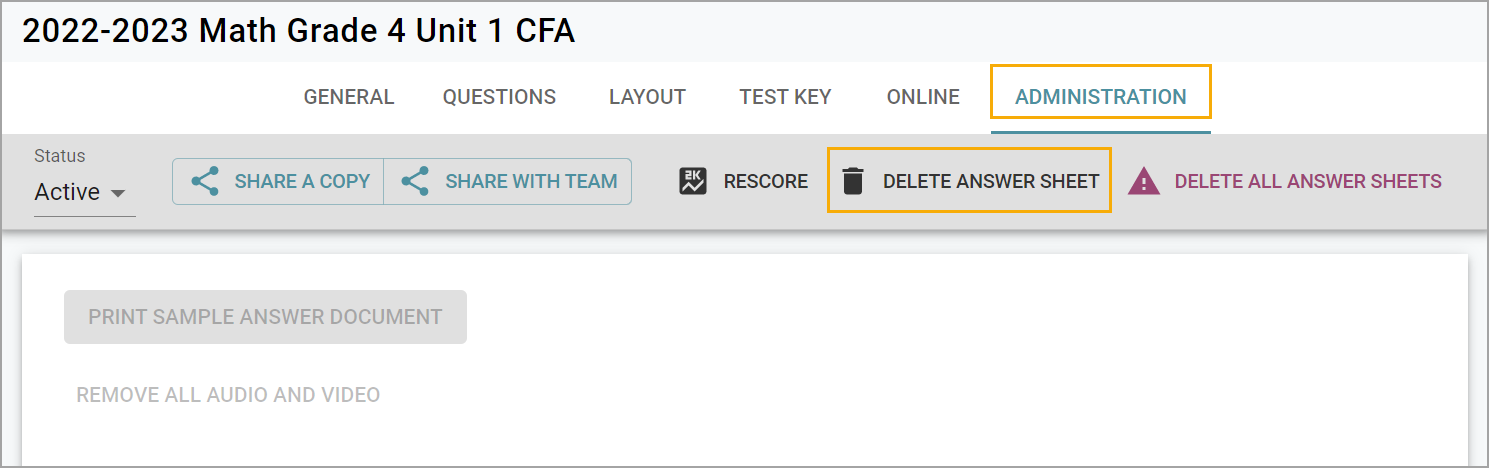
All students who have had an entry generated for this test will show up on this list.
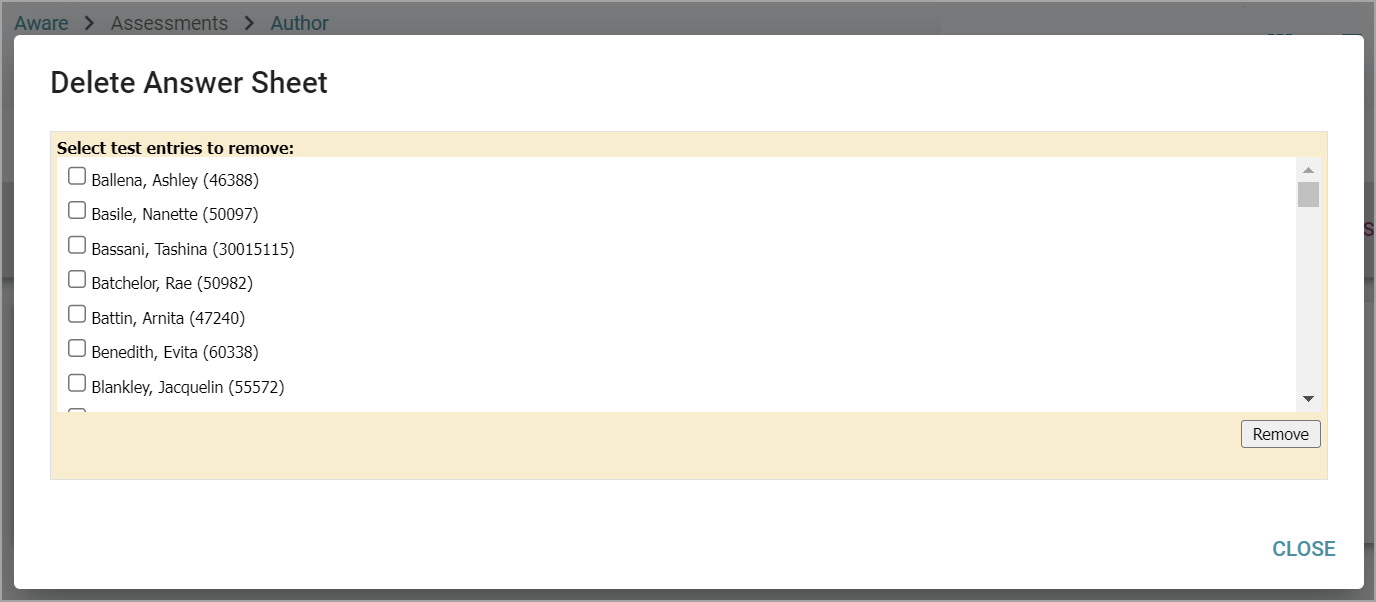
If there are any students on this list, you will not be able to make certain edits, add, or delete questions on this test.
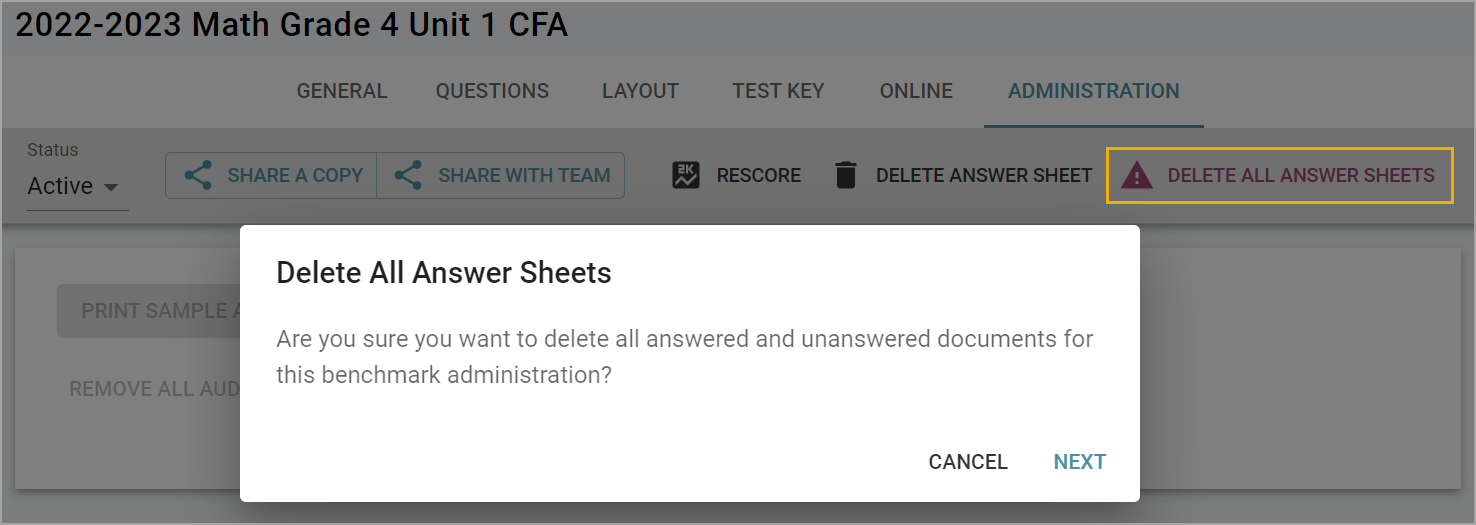
If you have to edit, delete, or add a question to this test, you can delete the answer sheets by clicking on each student on this list and clicking Remove or you can click Delete All Answer Sheets.
Warning: By selecting and confirming the Delete All Answer Sheets action, you understand that all data from scanned answer documents or online testing will be permanently removed. In addition, existing answer documents will no longer scan once these entries are cleared.
By clearing the entries, the bar codes at the bottom of the answer documents no longer have an entry to link within the database. If answer documents have been printed but not used, they would need to be thrown away and new documents printed if the entries are cleared.
If the test has data, it will be removed along with the entry. This is permanent so you probably would not want to Delete All Answer Sheets for a test that has data.
Tip: Instead of deleting a question that was invalid and is possibly counting against the student incorrectly, you can weight the question to zero and then click Rescore.
To weight the question to zero, go to the Questions tab and click on the Pencil icon of the question to edit it. Set the Item Weight to zero and click Update.
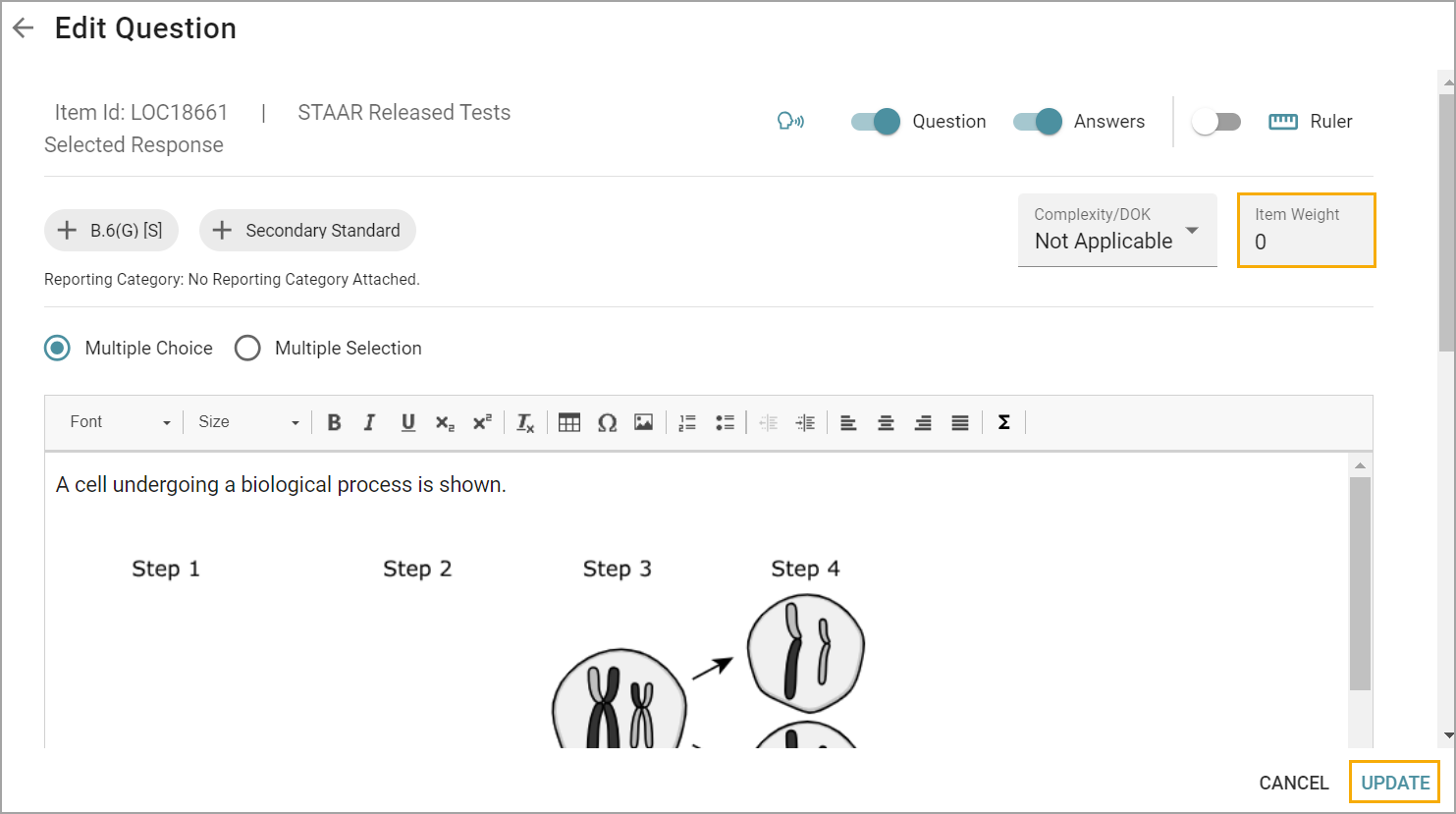
After you have changed the question weight, go to the Administration tab and click Rescore. The question will no longer count on the test’s raw score. It will show in the data as it still exists but will not hurt the student’s score for the test.